Setting business hours and a work schedule
Updated at 2026-07-26
Business hours and work schedules control when your team is available. The two work together:
- Work schedule — A reusable template created at account level that defines your regular weekly hours.
- Business hours — Applied to a specific website widget inbox. It uses a work schedule template and can also respect days off.
Create a work schedule template
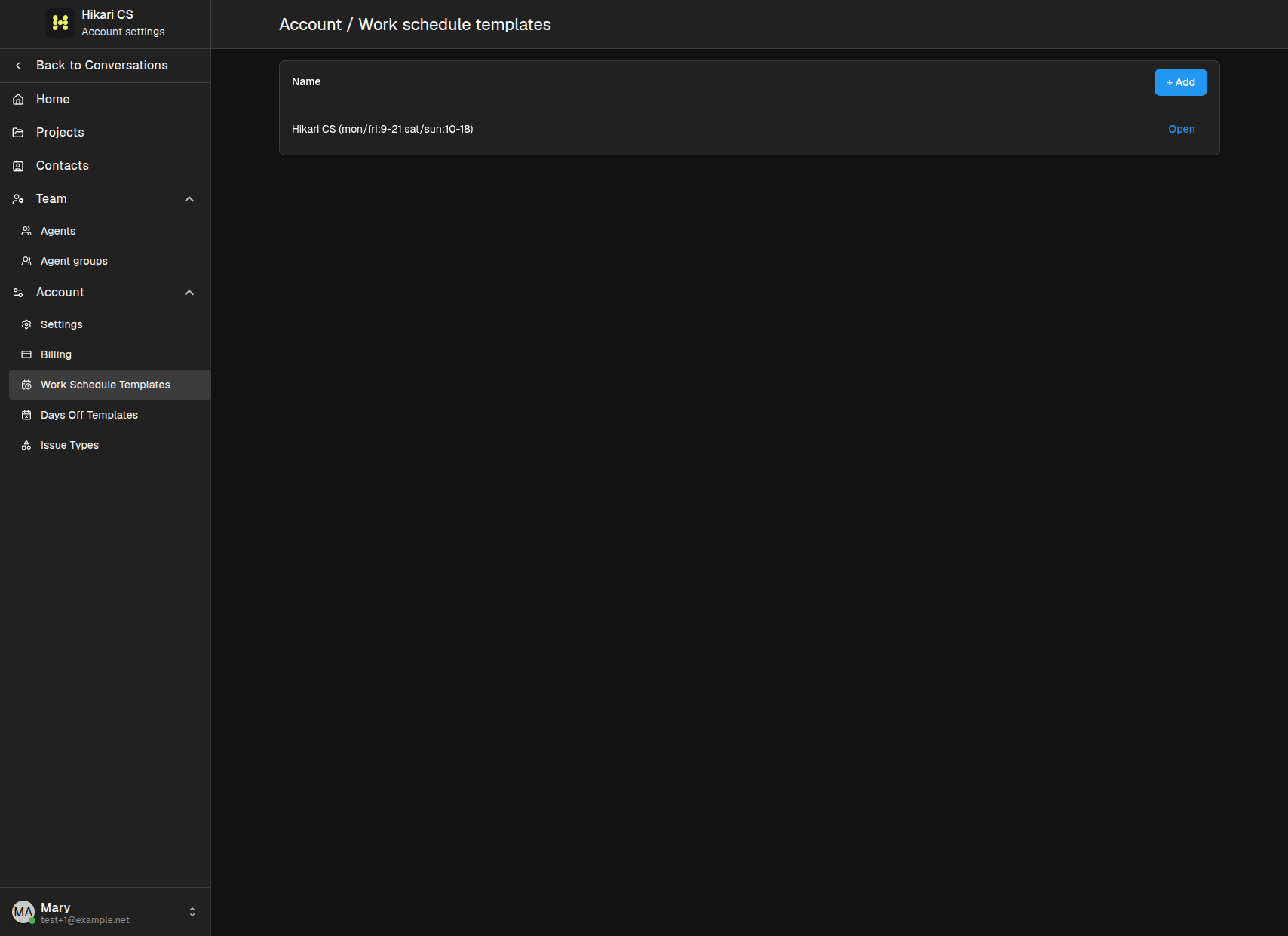
- Go to Settings > Account > Work Schedule Templates.
- Click + Add.
- Name the template and set the hours for each day of the week.
- Save the template.
Apply business hours to a web widget inbox
- Go to Settings > Projects and select your project.
- Click Inboxes, then edit the Website widget inbox.
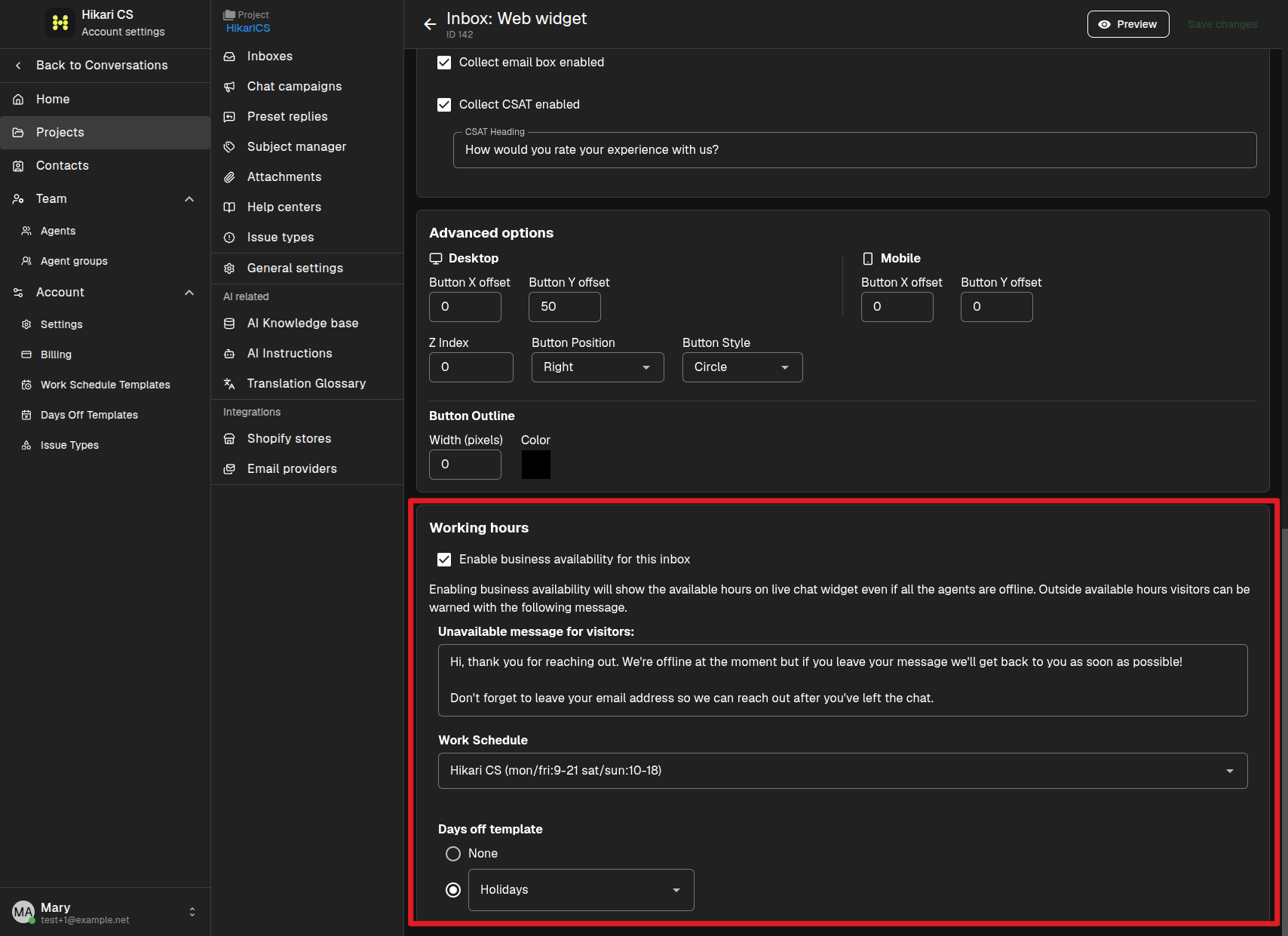
- Scroll to the Working hours card.
- Enable business availability for this inbox.
- Select the work schedule template you created.
- Add an unavailable message for visitors who write outside business hours.
How it works for visitors
When business availability is enabled, visitors see your available hours on the live chat widget. Outside those hours they can still leave a message, and they see the unavailable message you configured.
Business hours work together with days off templates. See Manage days off templates to learn how to set those up.