How to create preset replies
Updated at 2026-07-26
Preset replies are saved message templates that let your team answer common questions quickly and consistently. Once created, they can be inserted into any conversation with a simple shortcut. To learn how to use them while chatting, see Use preset replies.
Open the Preset replies page
- Go to Settings and select your project.
- Click Preset replies in the project menu.
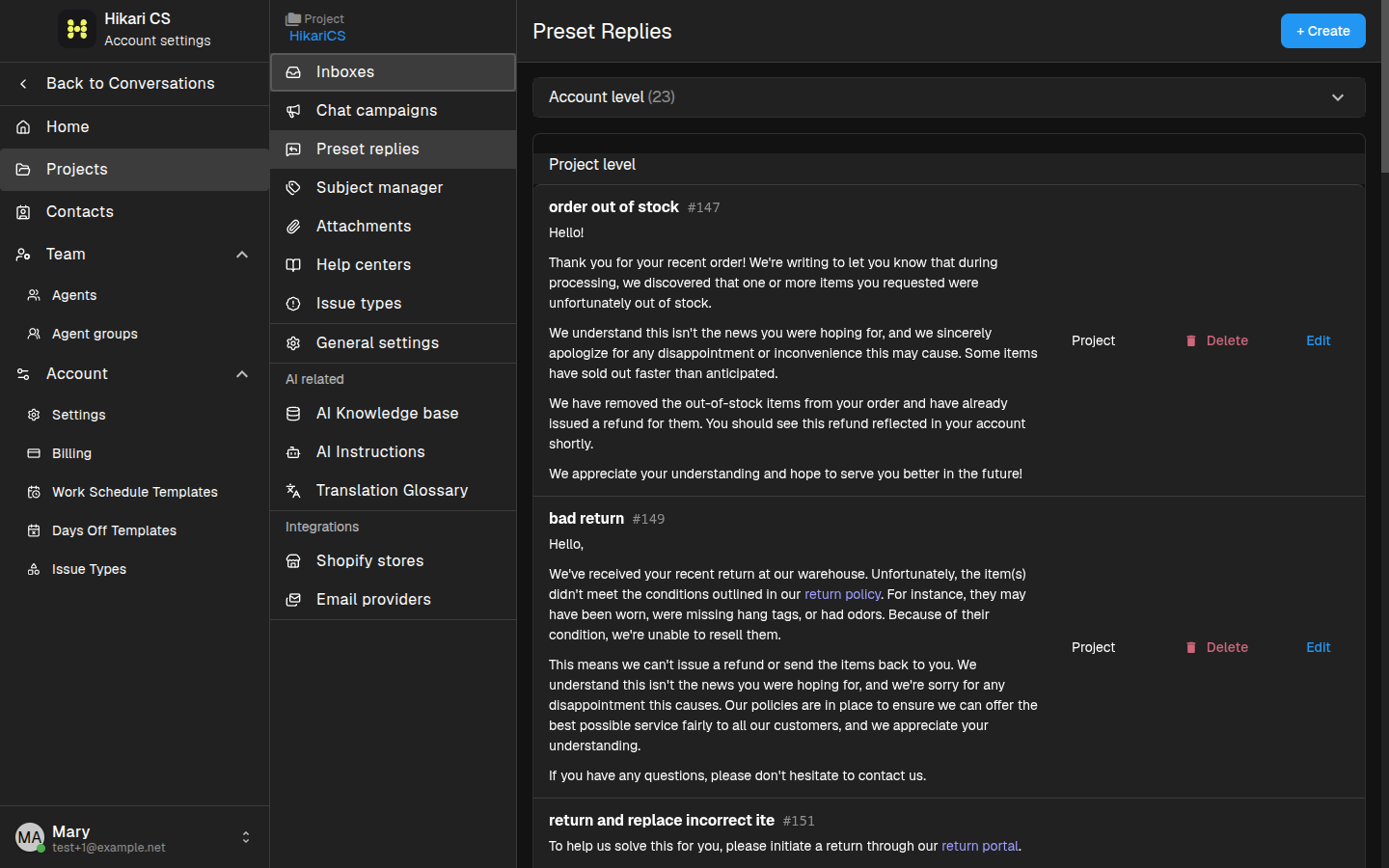
The page is split into two levels:
- Account level — Shared across every project in your account.
- Project level — Available only in the project where they are created. These show a Project badge.
Create a preset reply
- Click + Create in the top-right corner.
- Enter a name for the reply. This is what agents will see in the list.
- Write the message in the text area.
- Choose whether to save it at Account level or Project level.
- Click Create.
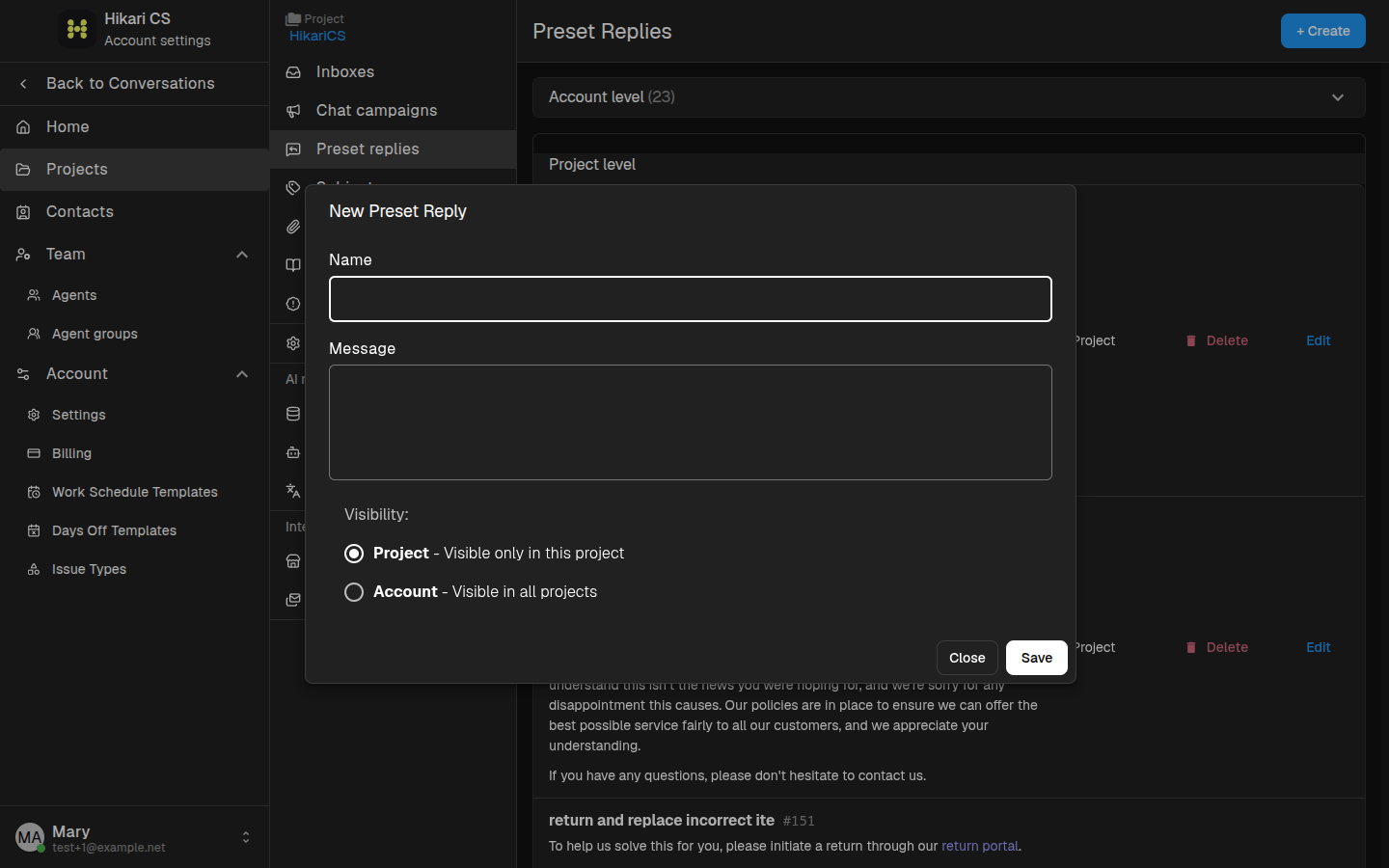
Edit or delete a preset reply
From the Preset replies page:
- Click Edit next to a reply to change its name or text.
- Click Delete to remove a reply you no longer need.
Keep preset replies concise and use a clear naming convention so agents can find the right one quickly.