Handle suggested replies by AI Copilot
Updated at 2026-07-26
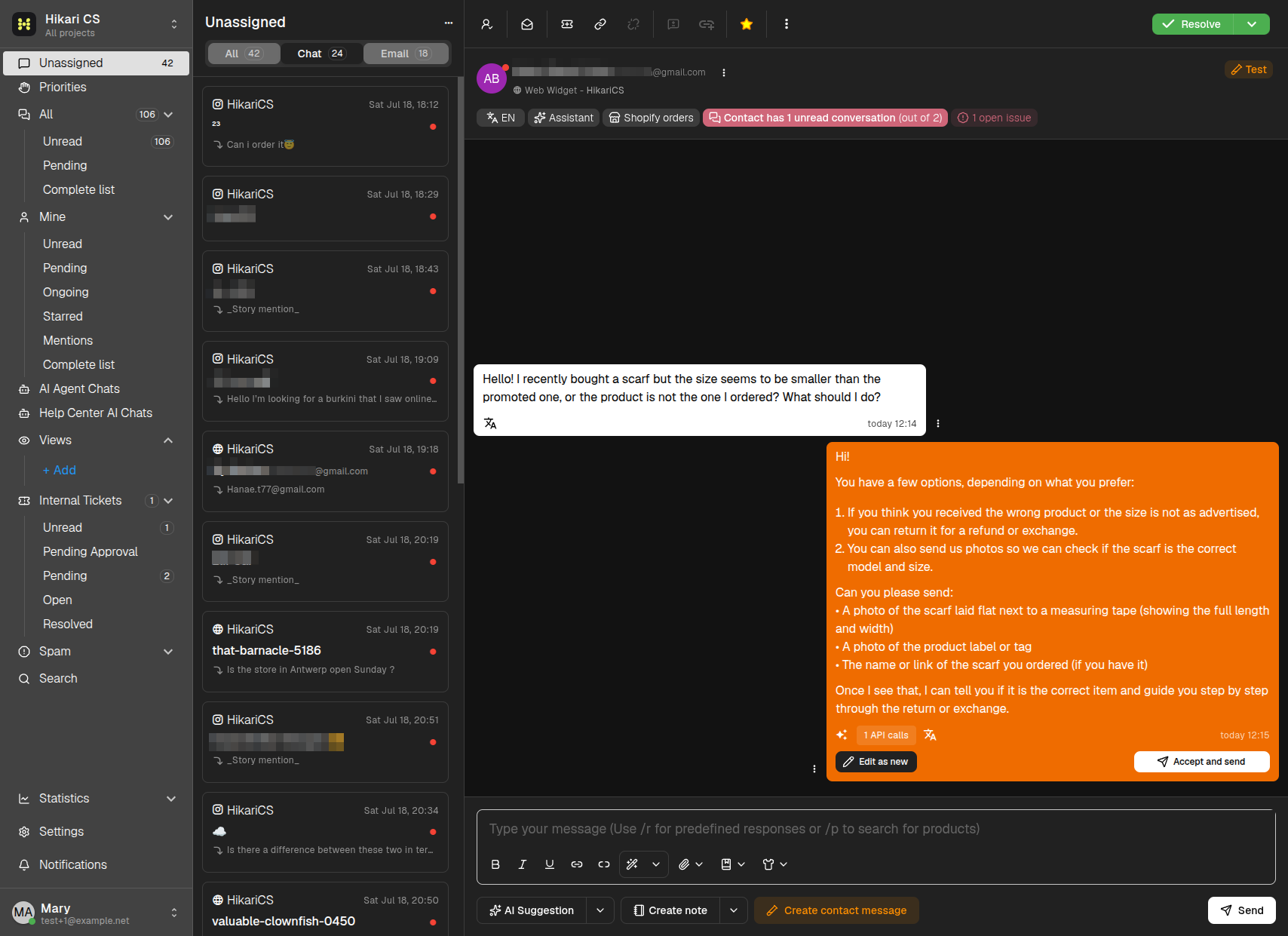
When AI Copilot is enabled for your project, it drafts a reply for incoming messages. A suggestion that has not been sent yet appears in the conversation with an orange background.
What you can do with a suggestion
Two buttons sit at the bottom of the orange bubble:
- Accept and send — Sends the suggestion to the customer exactly as written.
- Edit as new — Copies the suggestion into the composer so you can change it before sending.
You can also ignore the suggestion and simply type your own reply in the composer.
Accepting a suggestion on an unassigned conversation automatically assigns the conversation to you.
Recreate a suggestion
If the suggestion is not what you need, or it has expired, click the AI Suggestion button in the composer to generate a fresh one. The chevron next to it also lets you generate a conversation summary.
Where the suggestions come from
AI Copilot writes suggestions using the AI knowledge base and the AI Instructions configured in your Project General Settings, so the better your knowledge base, the better the suggested replies.