Auto resolve inactive conversations
Updated at 2026-07-26
Auto-resolve closes conversations automatically when there has been no activity for a set number of days. This keeps your inbox clean and helps your team focus on active issues.
Configure auto-resolve
- Go to Settings > Projects and select your project.
- Open General settings.
- Find the Auto-resolve conversations section.
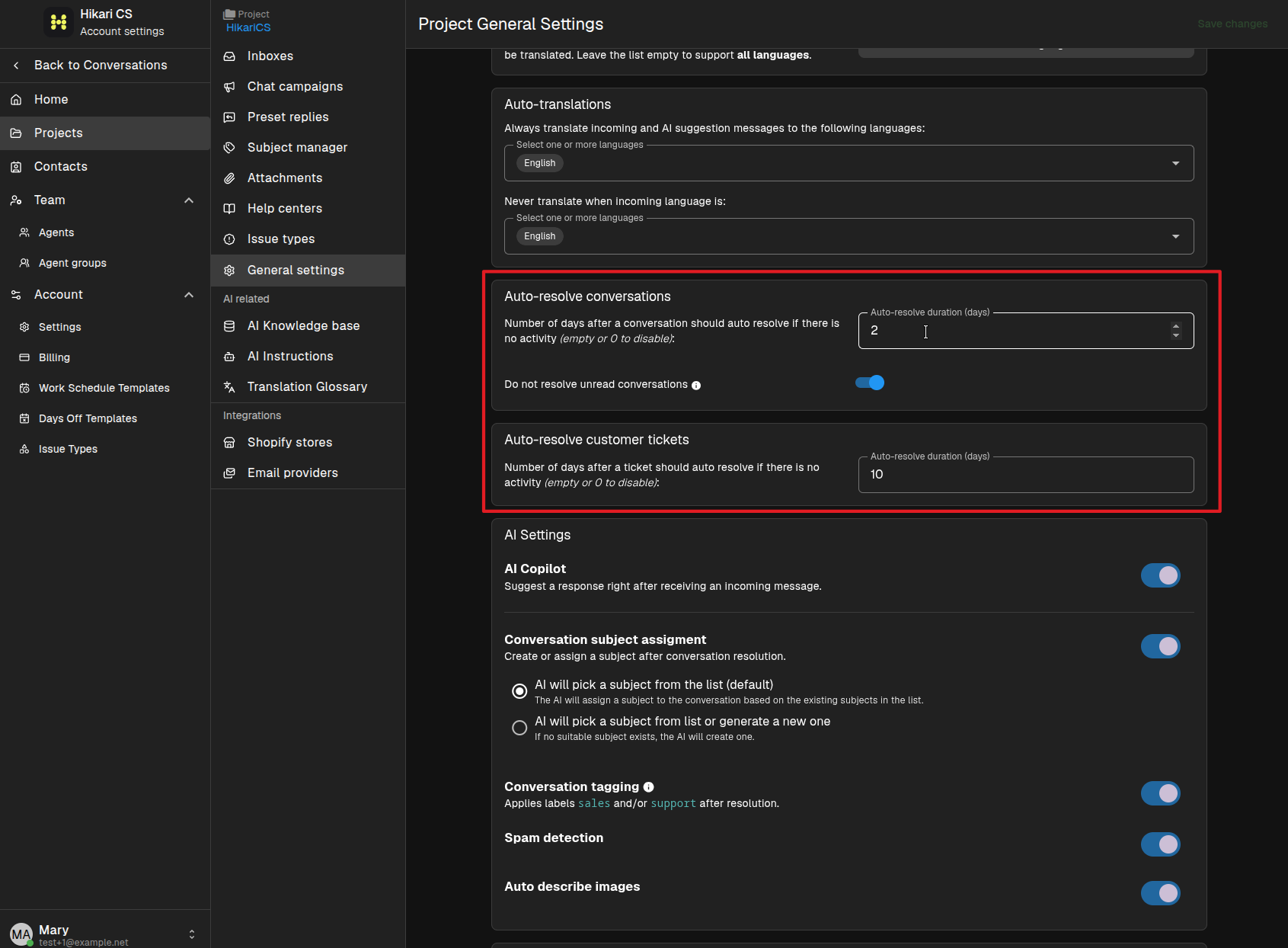
Settings explained
- Auto-resolve conversations — Number of days of inactivity before a regular conversation is resolved. Leave empty or set to
0to disable. - Do not resolve unread conversations — When checked, conversations that still have unread messages will not be auto-resolved.
- Auto-resolve customer tickets — Number of days of inactivity before a customer ticket is resolved. Leave empty or set to
0to disable.
Auto-resolution only applies to inactive conversations. If the customer replies, the conversation becomes active again and the timer resets.