Reply to incoming messages
Updated at 2026-07-26
All customer messages arrive in the conversations dashboard. Click any conversation in the list to open it, and use the composer at the bottom of the main panel to write your answer.
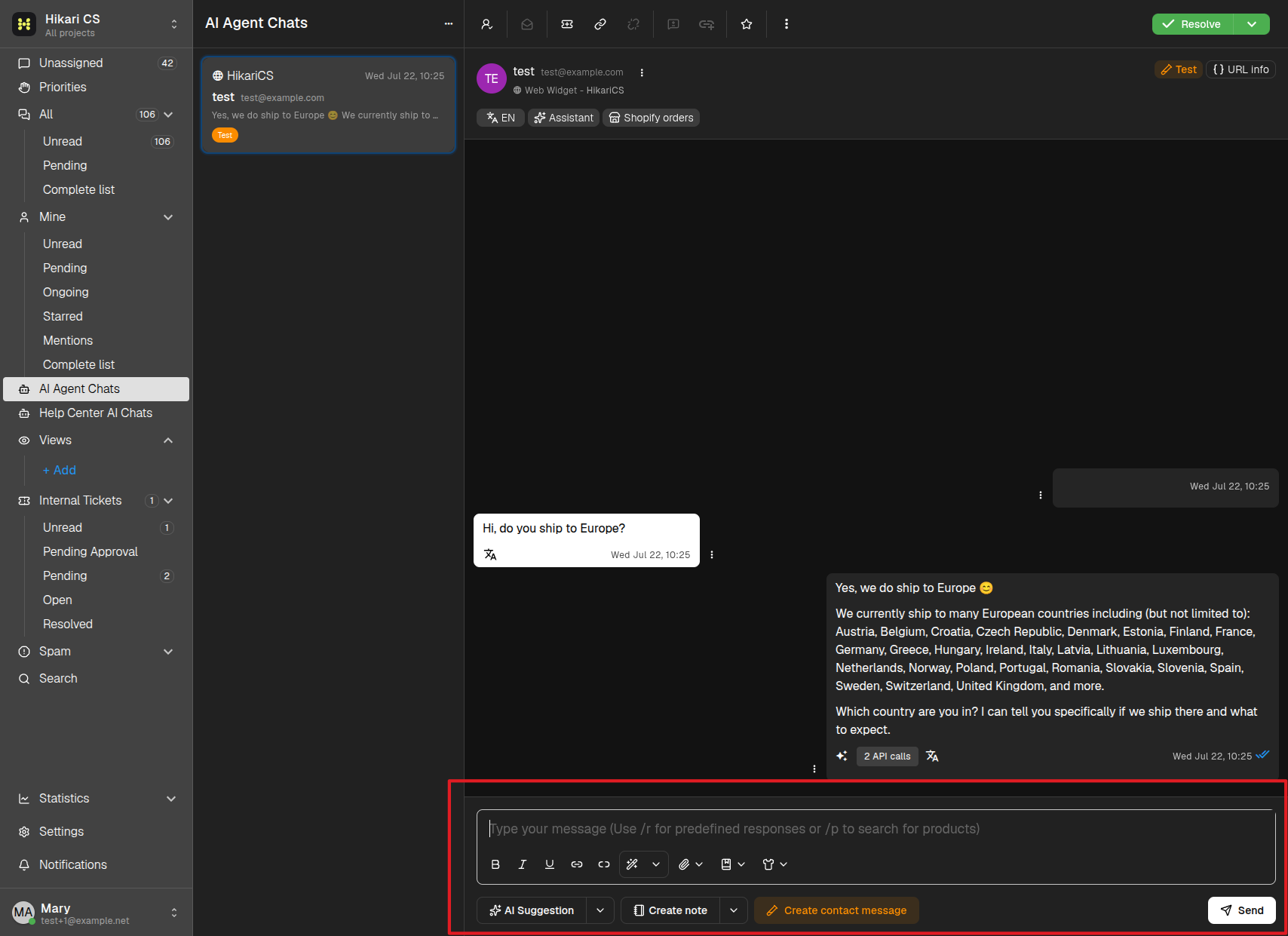
Write and send a reply
- Click inside the text field at the bottom of the conversation.
- Type your message. The placeholder reminds you of two shortcuts:
/rfor preset replies and/pto search for products. - Click Send, or press Ctrl + Enter to send the message.
The character counter on the right side of the composer shows how many characters you have used.
Format your message
The toolbar below the text field lets you style your reply:
- Bold, Italic, and Underline buttons.
- Add/Edit link and Remove link to work with hyperlinks.
- Grammar Fix (wand icon) to polish your text with AI — see Polish your message with AI Auto-Fix.
- Insert preset reply (bookmark icon) and Search products (shirt icon) shortcuts.
Attach files
Click the paperclip icon to open the attachments menu:
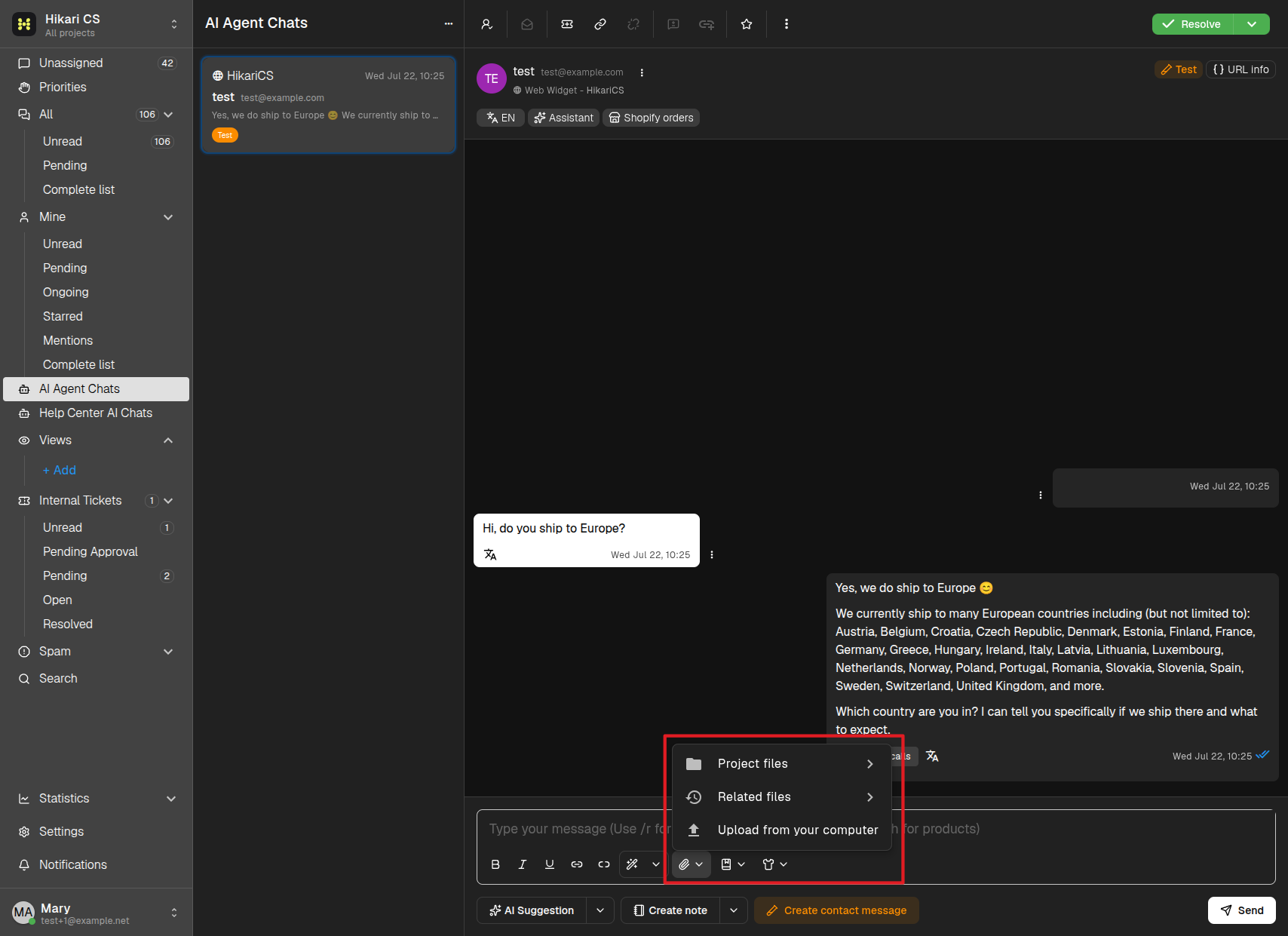
- Project files — Reusable files uploaded in your project settings.
- Related files — Files that were already used in this or related conversations.
- Upload from your computer — Choose a new file from your device.
More composer actions
Next to the text field you will find more buttons:
- AI Suggestion — Ask AI Copilot to draft a reply for you. Its chevron menu also lets you generate a conversation summary.
- Create note — Add an internal note instead of a public reply. Its chevron menu lets you create a private note.
- Create contact message — Only visible on test conversations. Lets admins simulate a message coming from the contact.
Replying to an unassigned conversation automatically assigns it to you.