Revenue reports
Updated at 2026-07-26
Use Revenue reports to review revenue and customer purchase activity for a project.
Open the Revenue report
In the main left menu, open Statistics, then select Revenue. The page is titled Revenue Statistics.
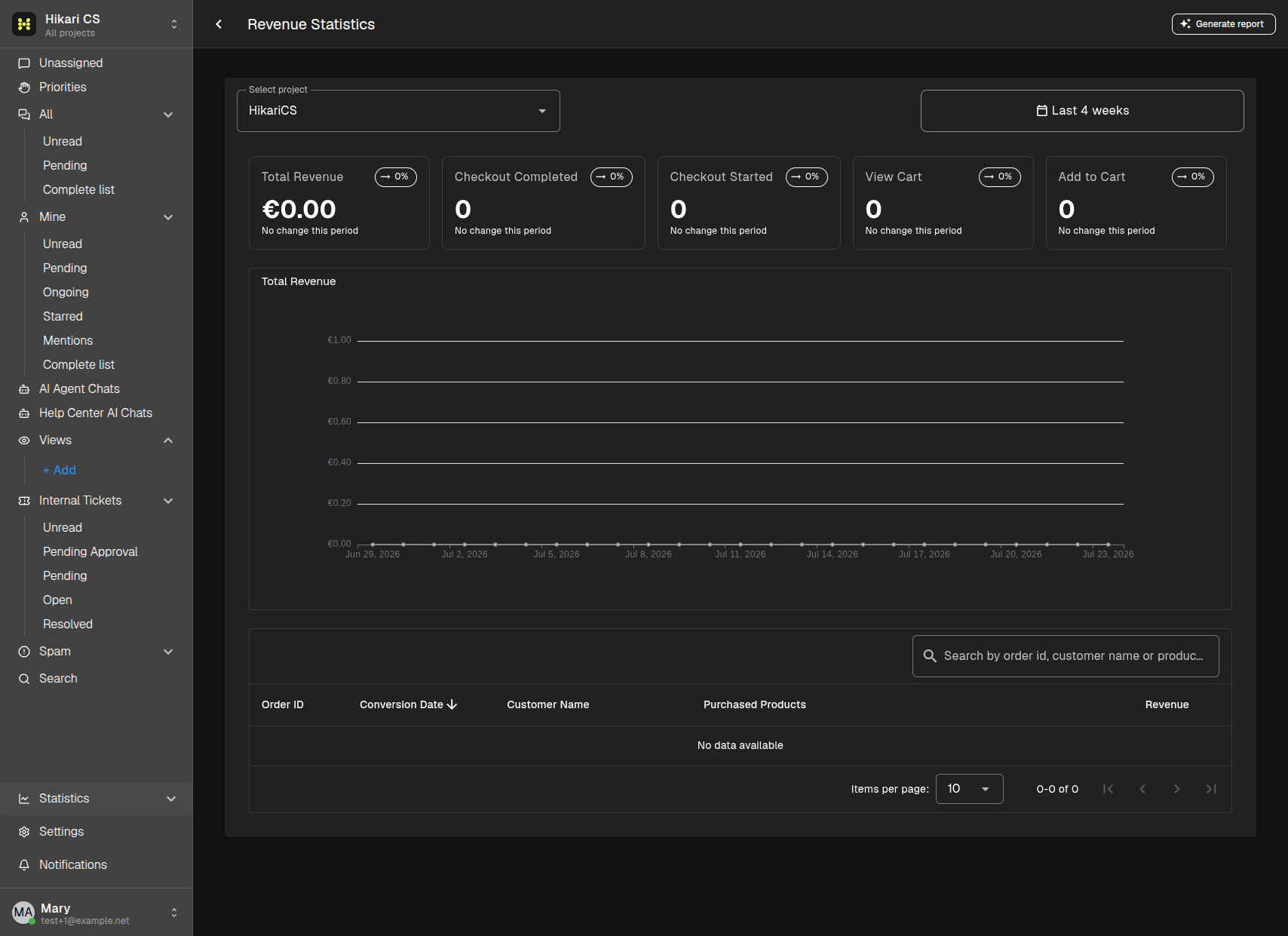
Review purchase activity
Choose a project and date range. Each card compares the selected period with the immediately preceding period of the same length.
The report includes:
- Total Revenue - recorded revenue for completed checkouts.
- Checkout Completed - completed checkout events.
- Checkout Started - started checkout events.
- View Cart - cart-view events.
- Add to Cart - add-to-cart events.
The chart shows total revenue over time. The orders table lists the order ID, conversion date, customer, purchased products, and revenue. Search the table by order ID, customer name, or product name, or sort a column to focus on a particular result.
If no orders appear, check that the selected project and date range include recorded purchase activity.
Generate an AI report
Click Generate report in the top-right corner to create an AI Pro revenue-insights report for the project and date range you selected. The page indicates when generation is in progress.
When View report is available, open the report drawer to read the analysis and recommendations. Click Download Report to save the Markdown file, then close the drawer with X before generating another report.
Summary
- Select Statistics > Revenue.
- Review revenue, checkout, cart, and order activity for a chosen period.
- Search or sort the orders table for detail.
- Generate an AI report for a written revenue summary.