Live chat campaign reports
Updated at 2026-07-26
Use Campaigns reports to measure the results of your live chat campaigns, including engagement, conversions, and attributed revenue.
Open the Campaigns report
In the main left menu, open Statistics, then select Campaigns.
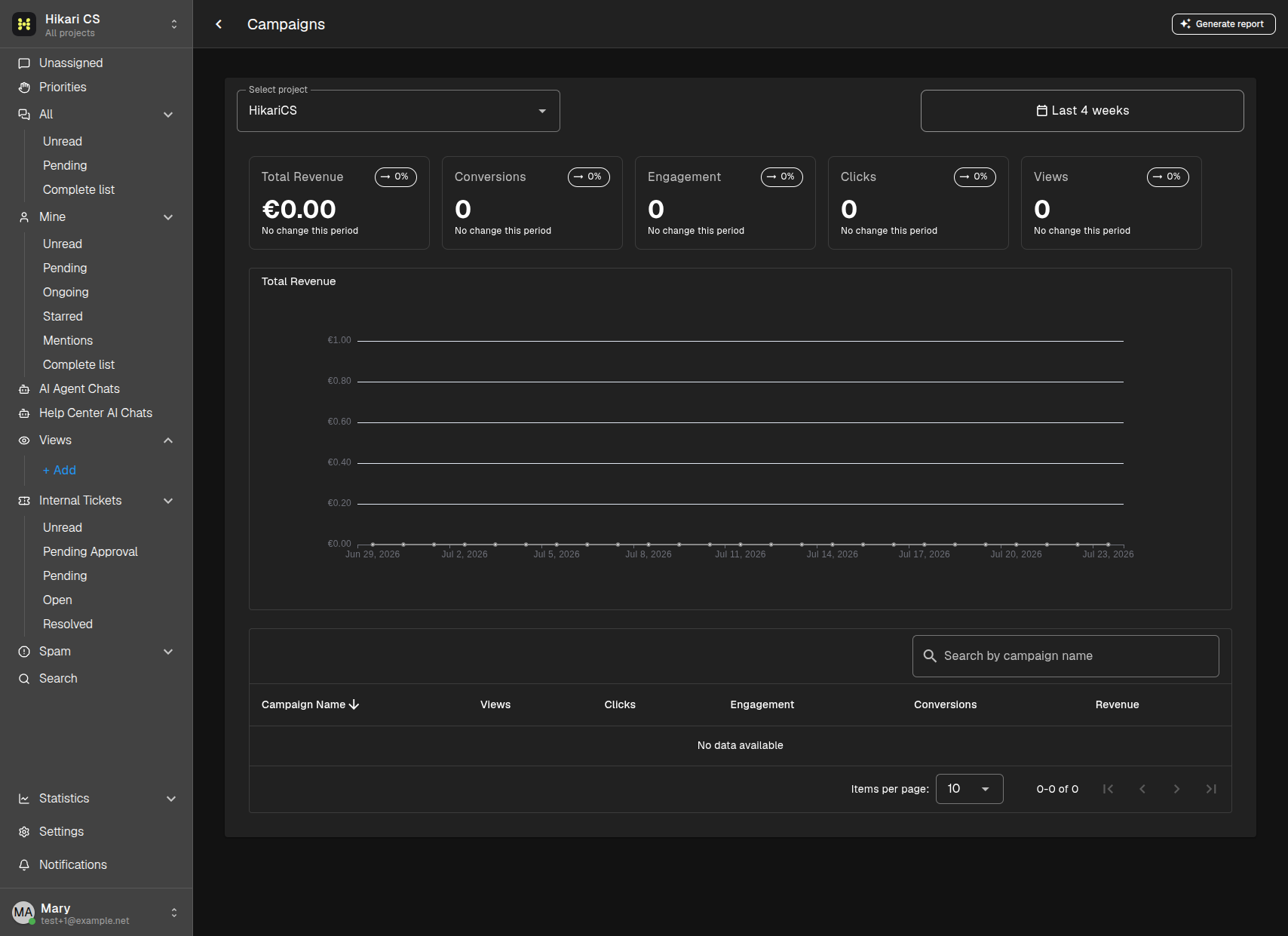
Review campaign results
Select a project and date range. The cards compare the selected period with the preceding period of the same length.
The report shows:
- Total Revenue - revenue attributed to campaign conversions.
- Conversions - conversions resulting from a campaign click or engagement.
- Engagement - campaign engagement events.
- Clicks - campaign clicks.
- Views - campaign views.
The revenue chart shows changes over time. Use the table to search by campaign name, sort the columns, and compare results across campaigns.
If the table shows No data available, check that the selected project has live chat campaigns and that the date range includes their activity.
Generate an AI report
Click Generate report in the top-right corner to create an AI Pro campaign-insights report for the current project and date range. Wait while the report is prepared, then click View report when it becomes available.
Read the report in the drawer and use Download Report to save its Markdown file. Close the drawer with X before generating another report.
Summary
- Select Statistics > Campaigns.
- Filter by project and date range.
- Compare campaign views, clicks, engagement, conversions, and revenue.
- Generate an AI report for a written campaign-performance summary.