How to use AI Copilot
Updated at 2026-07-26
AI Copilot helps your team reply faster by suggesting responses inside conversations. It works across all inboxes and uses the same AI knowledge base and AI Instructions as the AI Agent standalone bot.
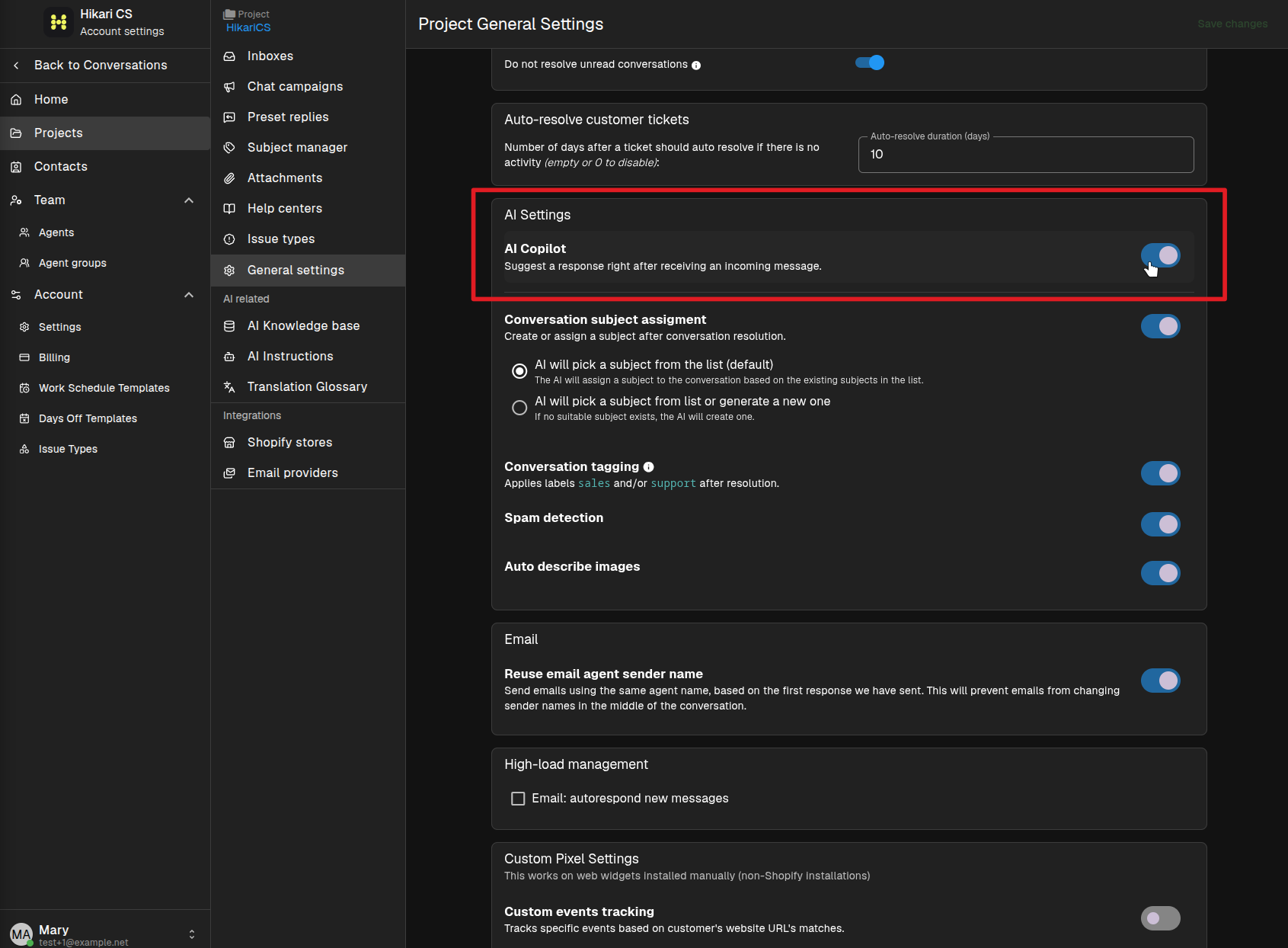
Enable AI Copilot
Open the project general settings and turn on AI Copilot in the AI Settings section.
Configure AI Instructions
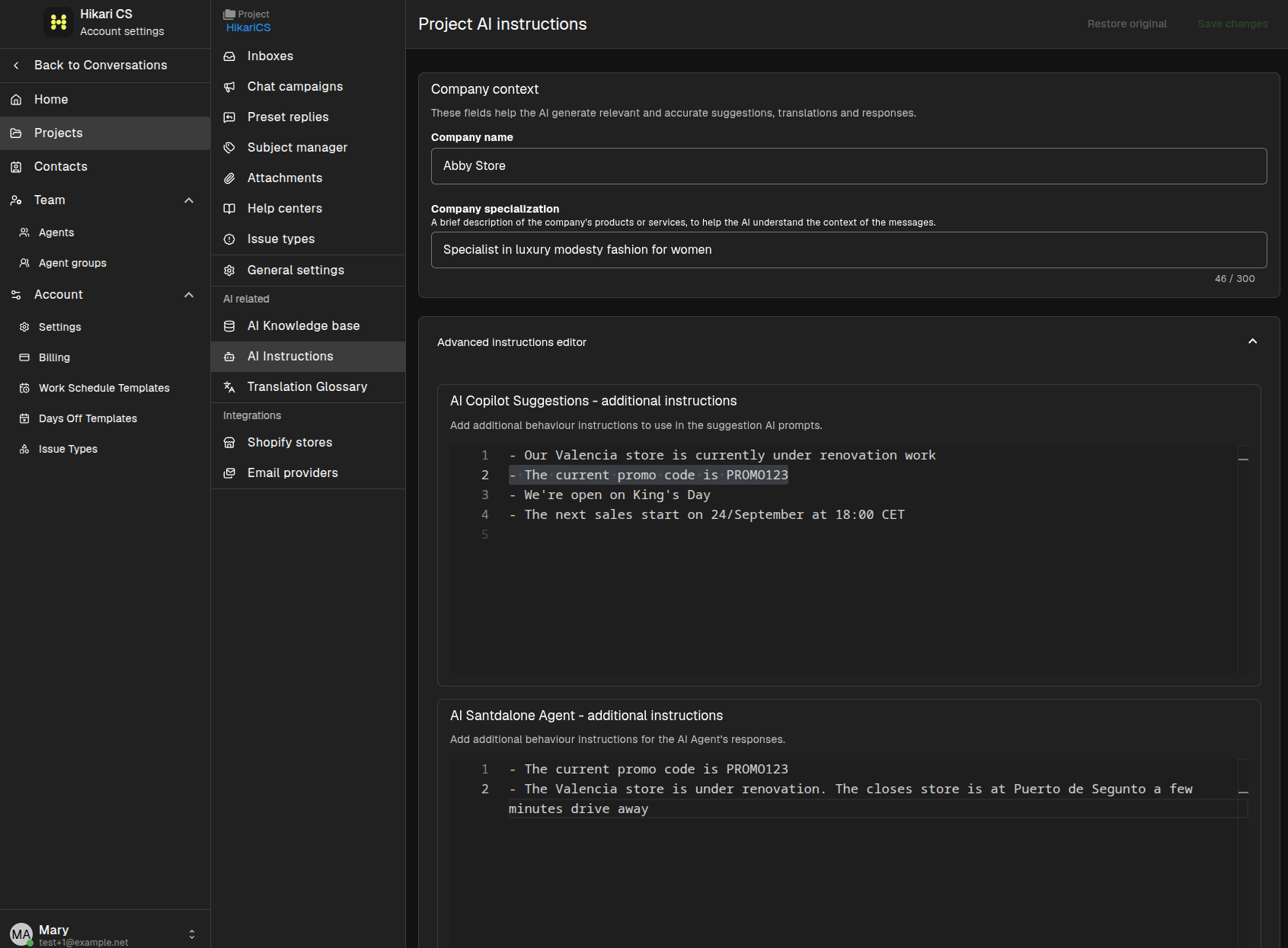
AI Copilot follows the project's AI Instructions. Go to your project and click on the AI instructions menu.
Make sure "Company Name" and "Company Specialization" are filled out and match your business. You can also add extra instructions by clicking on the "Advanced instructions editor" to fine-tune the AI Copilot and the AI Standalone Agent to improve their replies to visitors.
Build the AI knowledge base
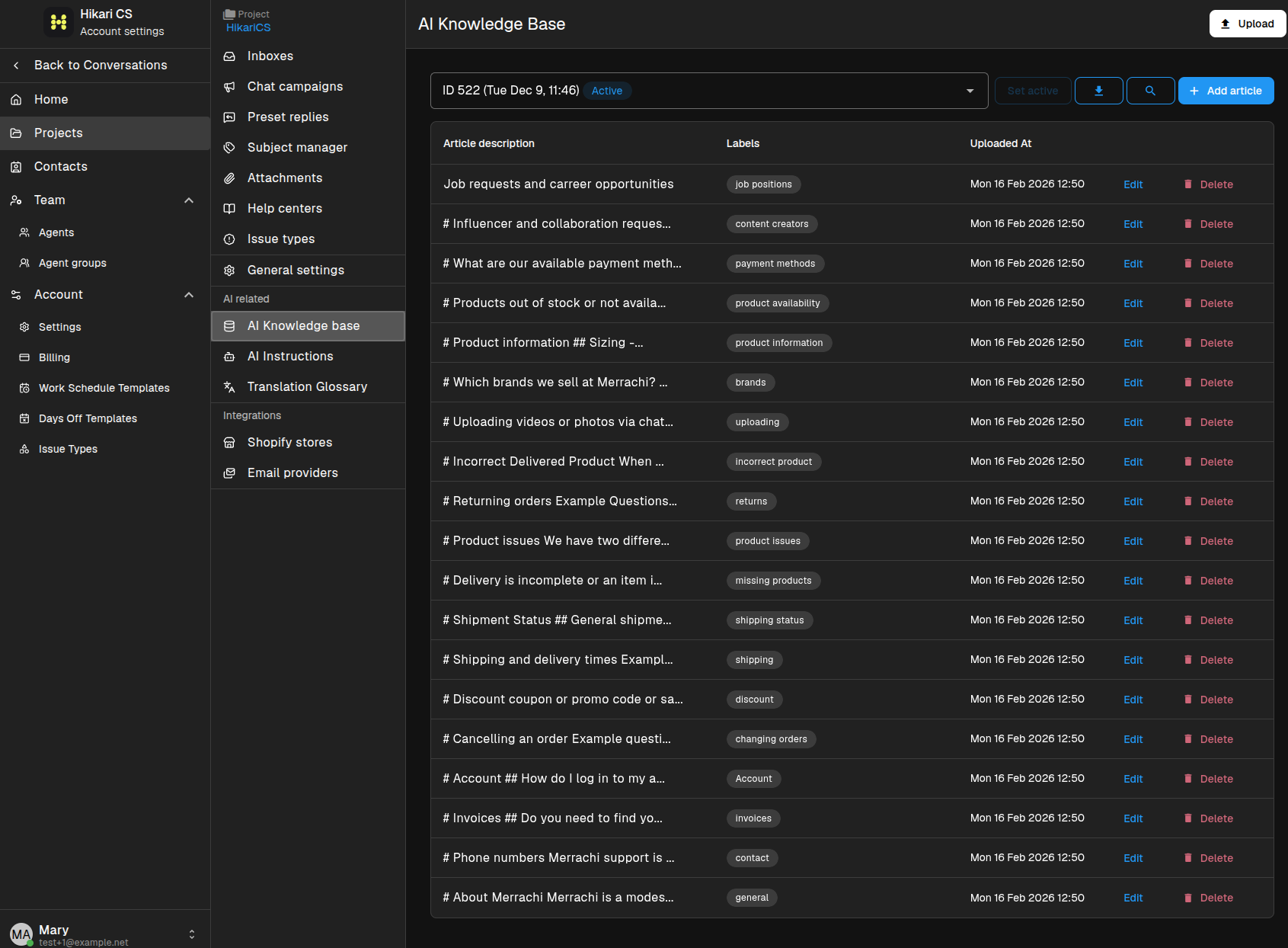
Add articles to the AI knowledge base so Copilot has accurate information about your products, policies, and workflows.
Use suggestions in conversations
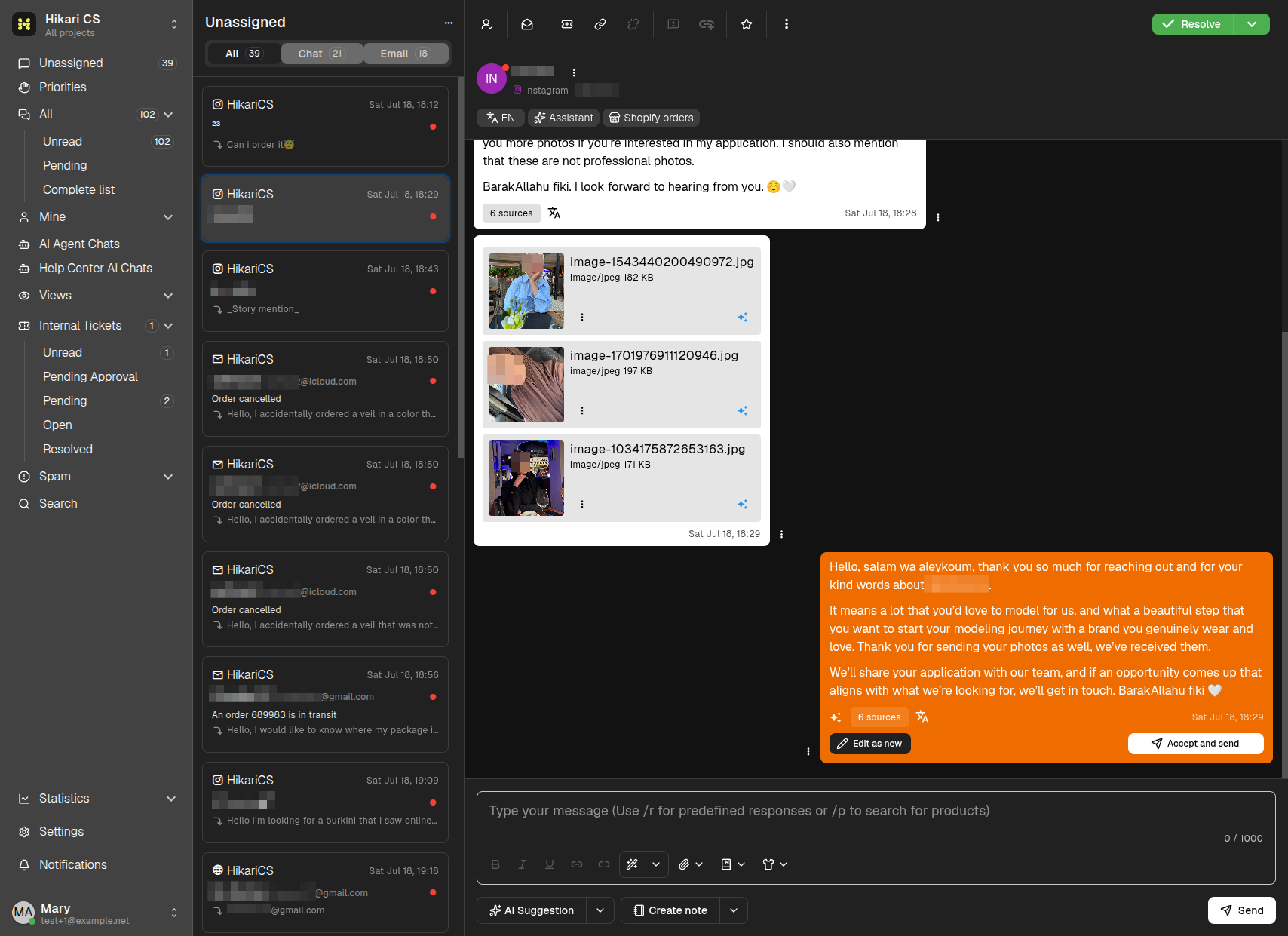
When AI Copilot has a suggestion, it appears above the composer as an AI Suggestion orange message. This message is not yet sent, and you can edit it before sending. You can also recreate the suggestion or discard it to write your own reply.
You can:
- Accept and send — send the suggestion as-is.
- Edit as new — use the suggestion as a draft and change it before sending.
- Click the AI Suggestion button in the composer section (the bottom of the conversation) to recreate the suggestion.
- Discard it and write your own reply.
Summary
- Enable AI Copilot in the project general settings.
- Configure AI Instructions and build the AI knowledge base.
- Accept or edit suggestions directly from the conversation composer.