How to set up product issue reporting
Updated at 2026-07-26
Product issue reporting lets you log problems tied to Shopify orders and individual products directly from a conversation. You can track issue types, resolutions, and timelines, and use the data to spot recurring quality trends.
Requirements
- Your project must be connected to a Shopify store.
- The conversation must be linked to a customer with a Shopify order.
Open the Shopify orders drawer
From the conversation dashboard, open a conversation in a Shopify-connected project. If the customer's email matches a Shopify customer, the Shopify orders button appears in the conversation header.
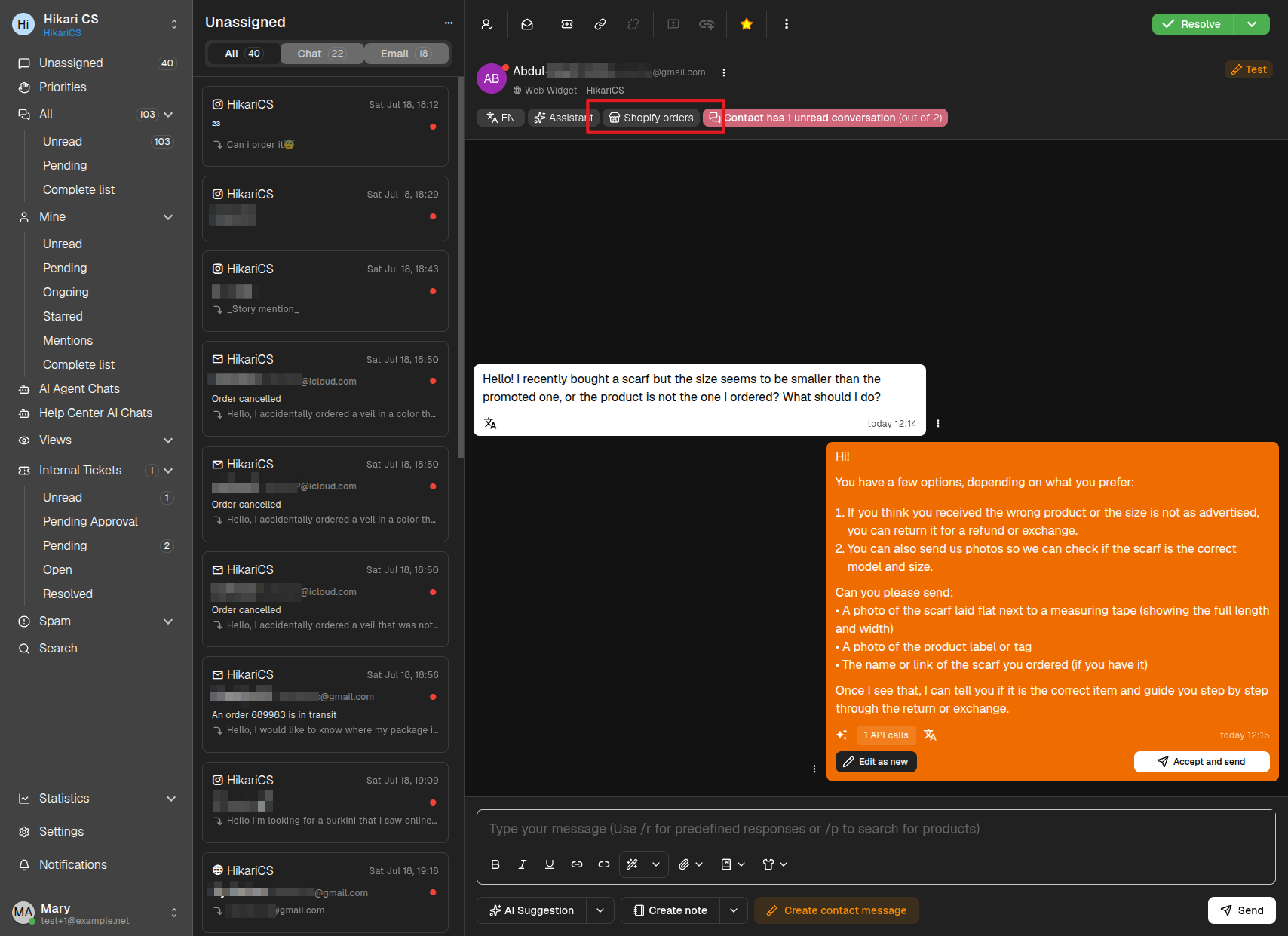
Click Shopify orders to open the order details drawer.
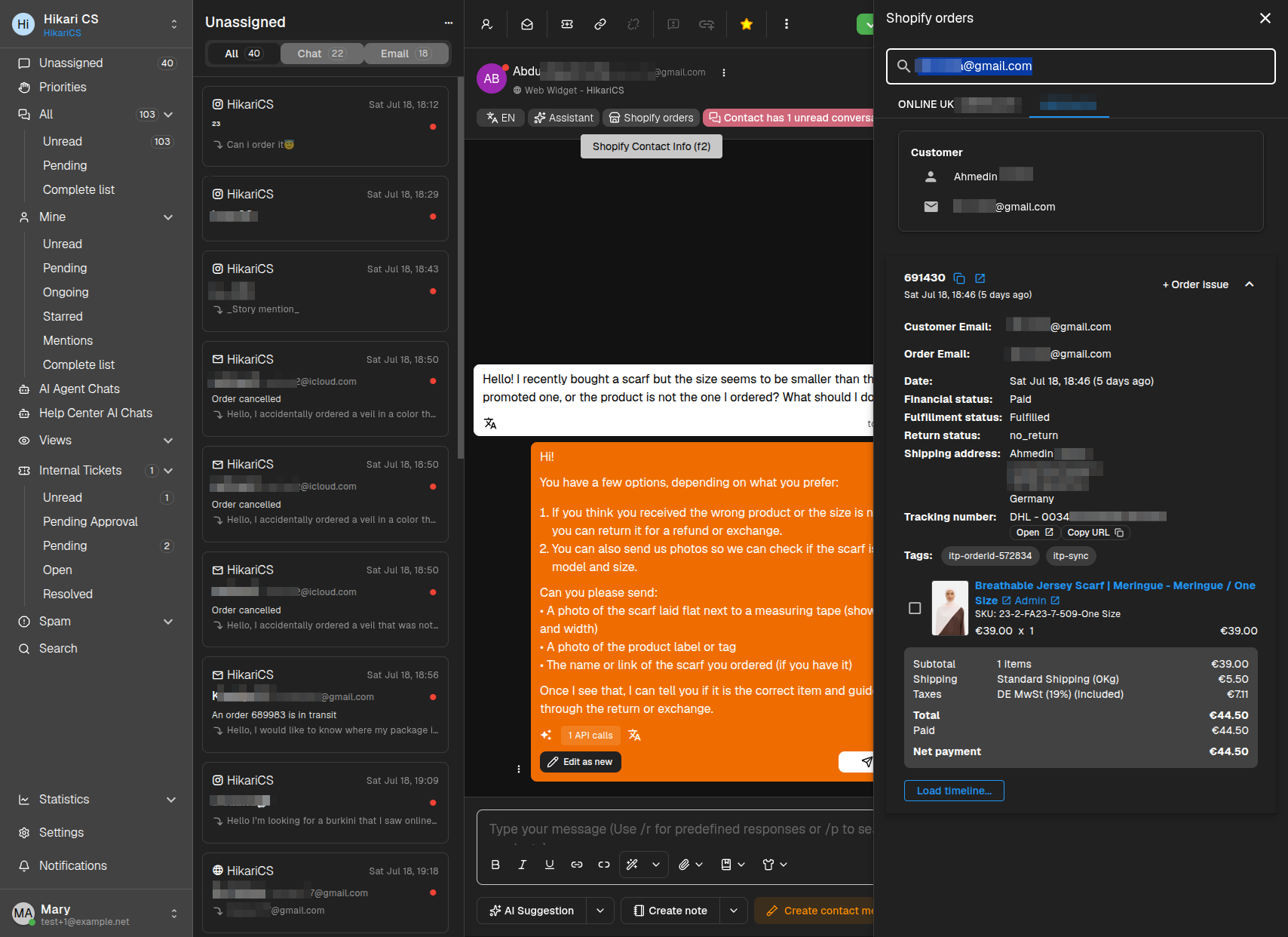
The drawer shows the customer's orders, including order number, date, financial and fulfillment status, shipping details, and line items.
Create an order-level issue
To report a problem that applies to the whole order:
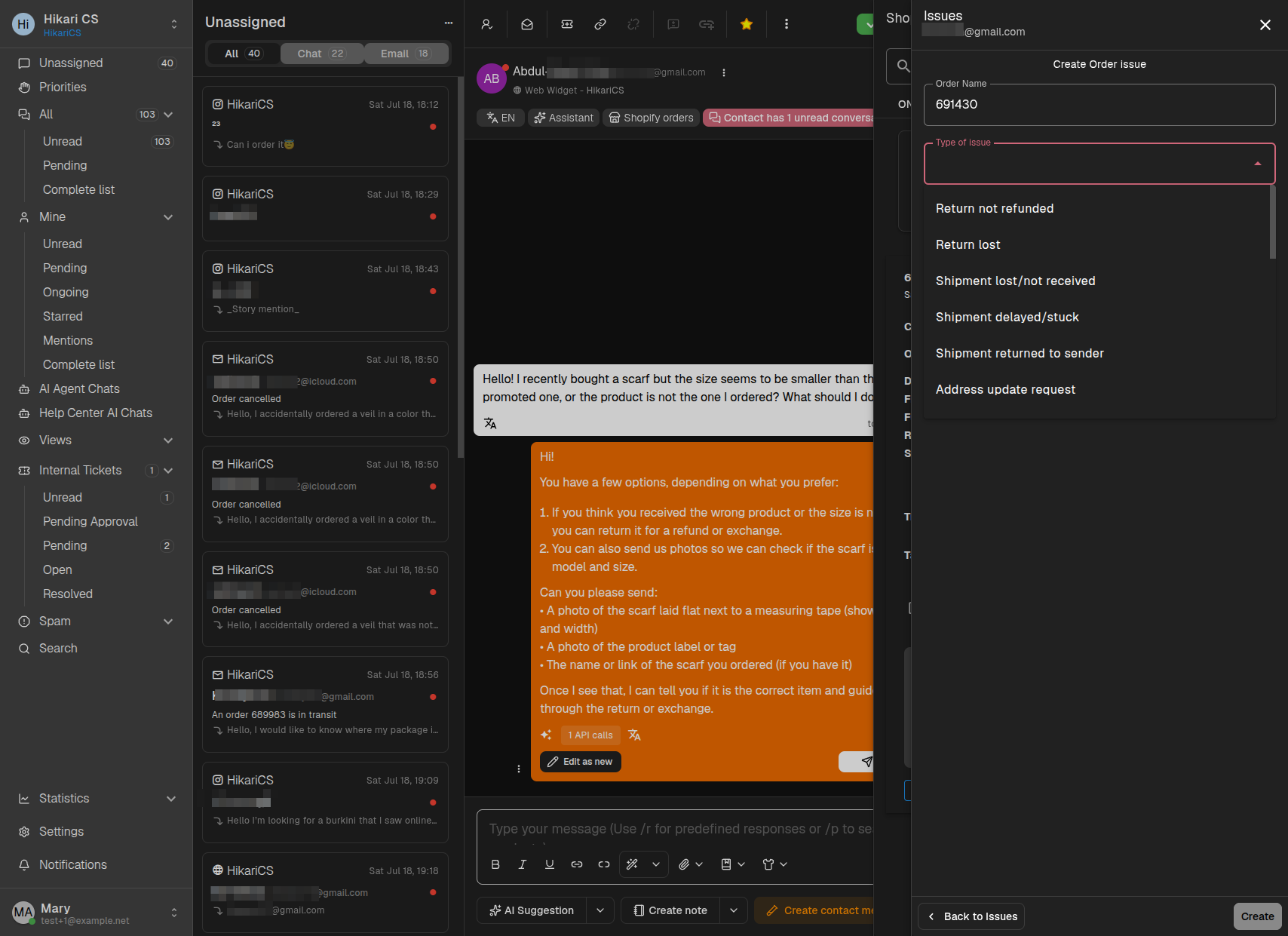
- Click + Order issue next to the order.
- In the Create Order issue drawer, select an Issue type.
- Optionally choose a Resolution if the issue is already resolved.
- Add any extra details in the Notes field.
- Click Create.
Create a product-level issue
To report a problem that applies to one or more products in the order:
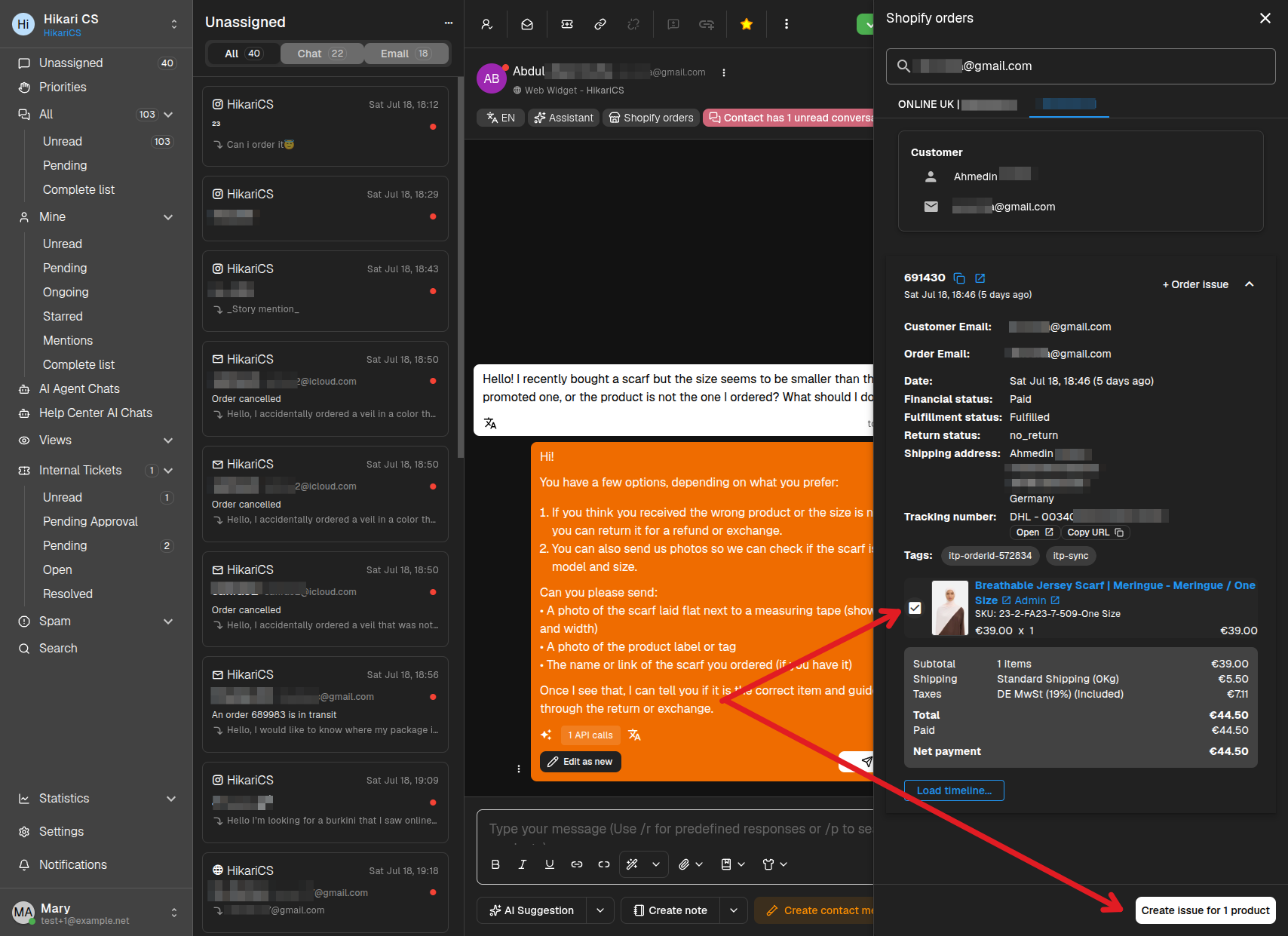
- Select the checkbox next to each affected product image.
- Click the Create issue for # products button that appears at the bottom of the drawer.
- Fill in the issue type, optional resolution, and notes.
- Click Create.
Manage existing issues
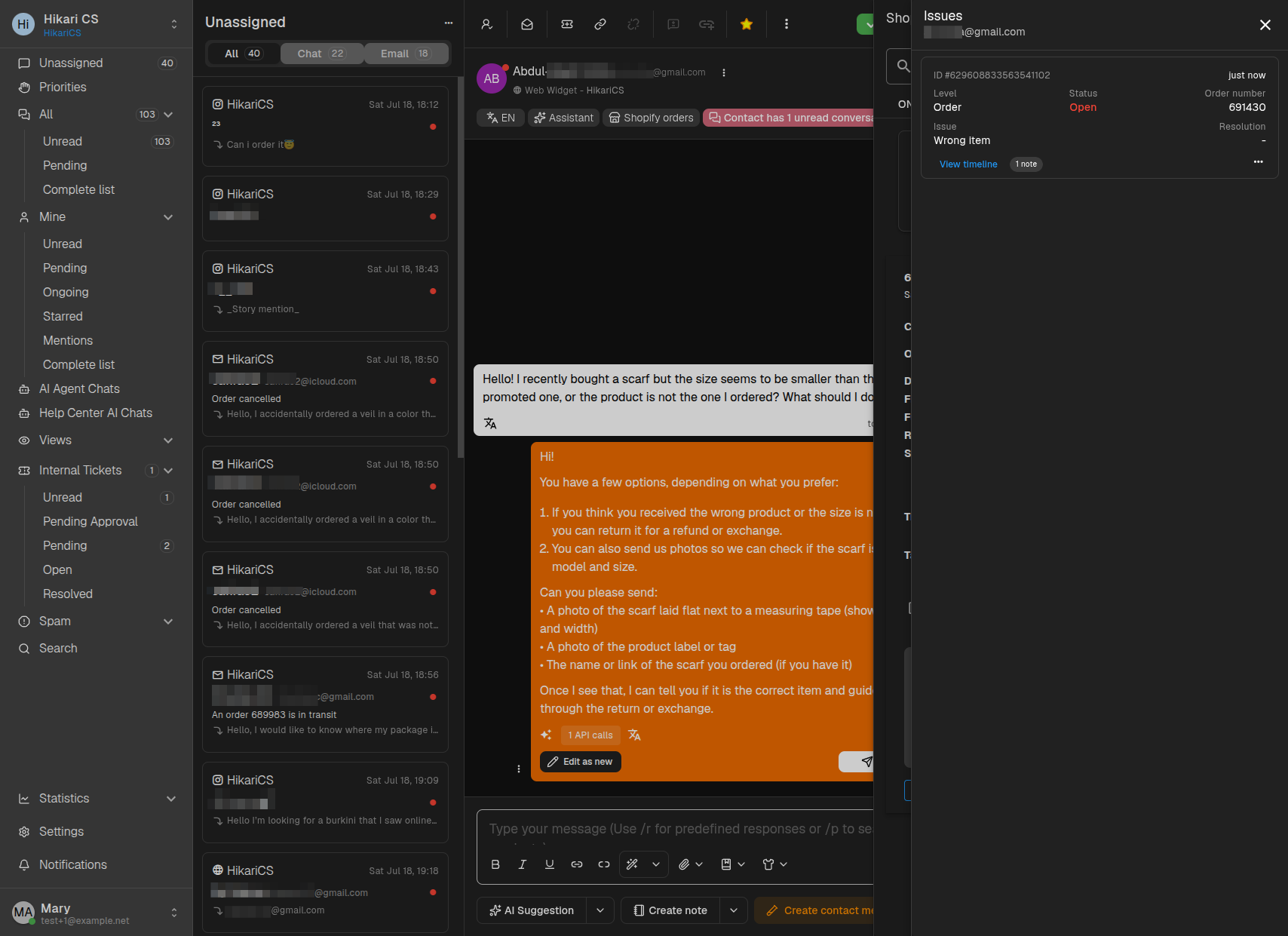
Once an issue is created, it appears in the order's issue list. You can:
- Edit the issue by clicking on it.
- View the timeline by clicking the Timeline link to see all events related to the issue.
- Delete the issue by opening the three-dot menu on the right side of the issue and choosing Delete.
Summary
- Product issue reporting requires a Shopify-connected project.
- Open a conversation, click Shopify orders, then create an issue at order or product level.
- Track, edit, and review timelines of issues from the order drawer.