How to add a custom domain for your help center
Updated at 2026-07-26
You can serve your Help Center from your own domain instead of the default subdomain we provide.
Add the custom domain
Open your project settings and go to Help centers. Click Edit on the Help Center you want to configure.
Find the Custom domain field and enter the subdomain you want to use, such as:
support.yourdomain.com
help.yourdomain.com
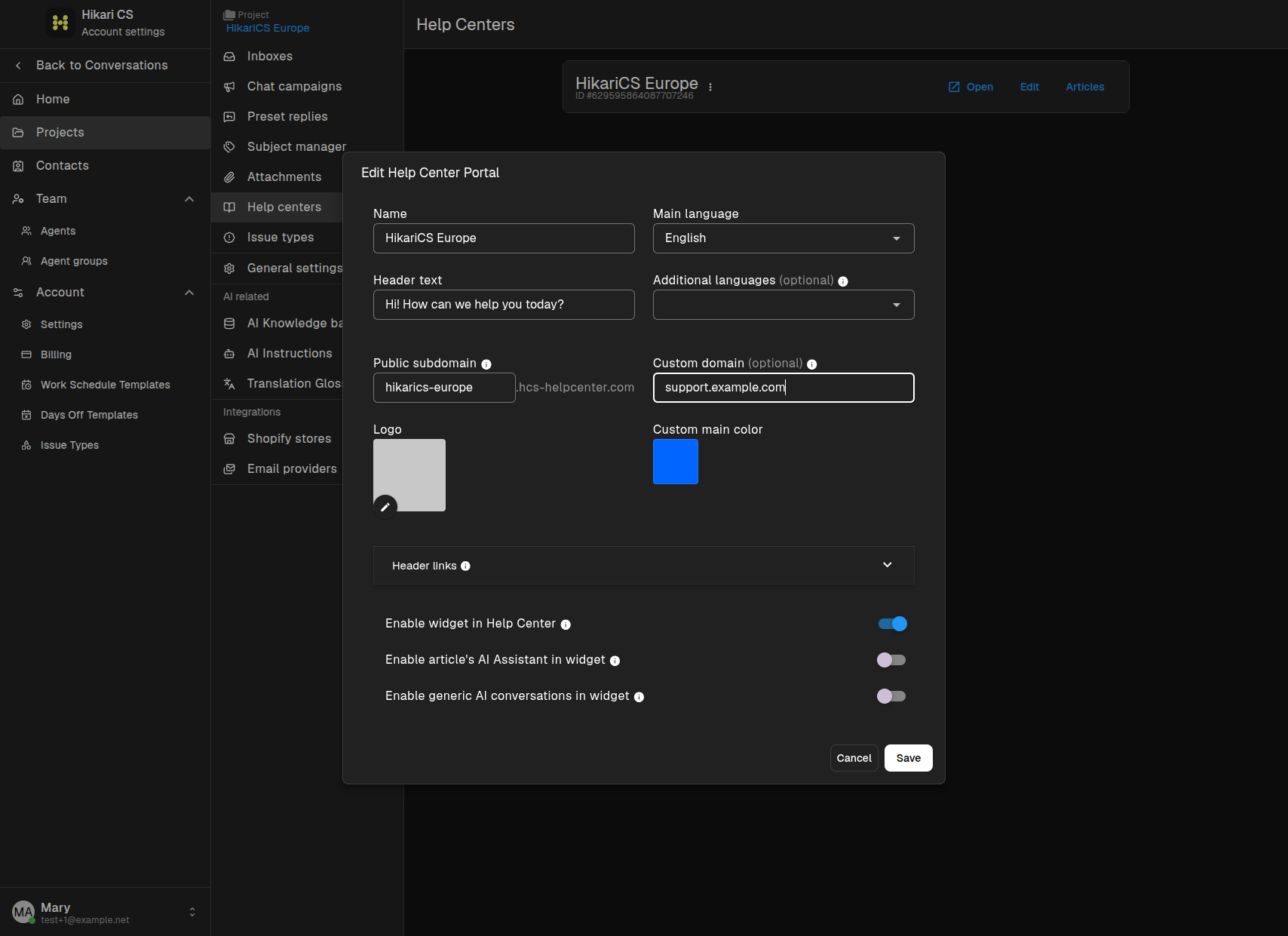
Click Save changes.
Configure DNS
For the custom domain to work, create a CNAME record in your DNS provider that points your chosen subdomain to the subdomain we provided.
| Type | Name | Value |
|---|---|---|
| CNAME | support | your-subdomain.hcs-helpcenter.com |
Replace support with the subdomain you chose and your-subdomain.hcs-helpcenter.com with the subdomain shown in the Public subdomain field.
DNS changes can take a few minutes to several hours to propagate, depending on your provider.
Verify the domain
After DNS propagates, visit your custom domain in a browser. It should load your Help Center.
Summary
- Open the Help Center settings and enter your custom domain.
- Create a CNAME record pointing your custom subdomain to the provided subdomain.
- Wait for DNS propagation, then test the custom domain.