Create hidden categories
Updated at 2026-07-26
A hidden category is not shown on the public Help Center home page. This is useful when you want to keep articles out of the main browsing view while still making them available elsewhere.
Mark a category as hidden
Open your Help Center, go to Articles, and click the three-dot menu next to the category you want to hide. Choose Edit.
Check the Hidden in Help Center? option and click Save.
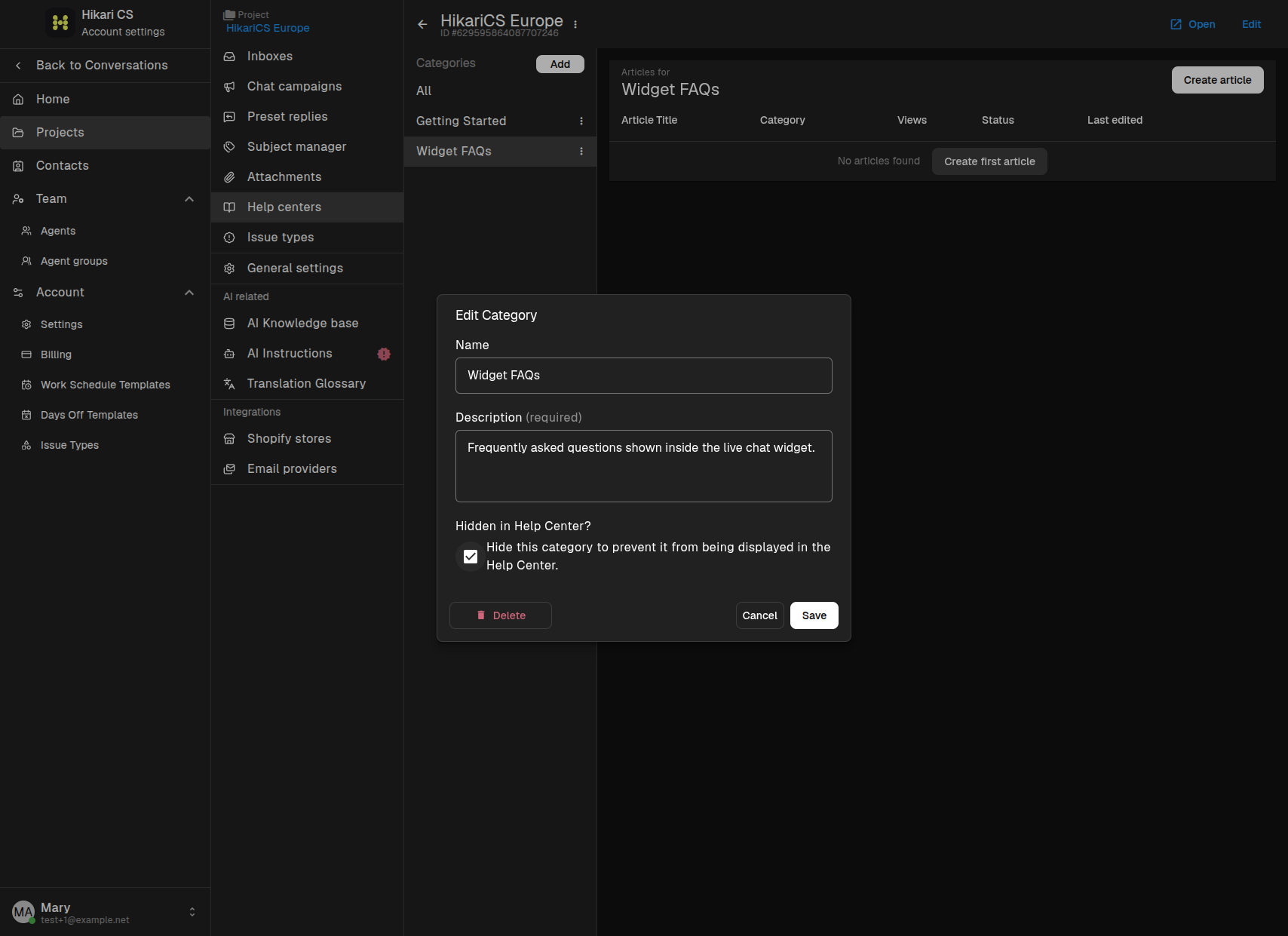
The category is now hidden from the Help Center home page.
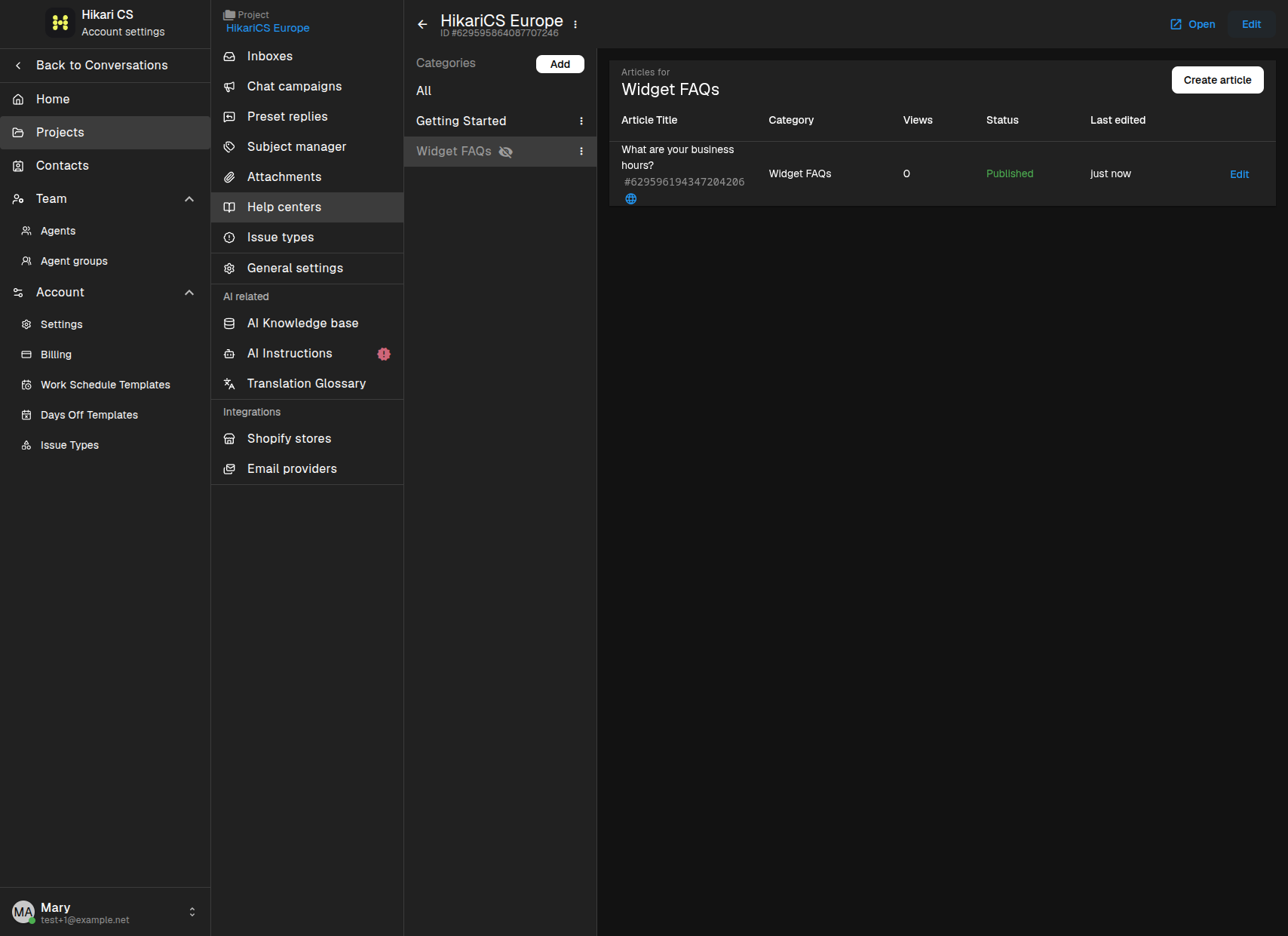
How hidden categories appear to visitors
When a category is hidden, visitors browsing your Help Center do not see it listed.
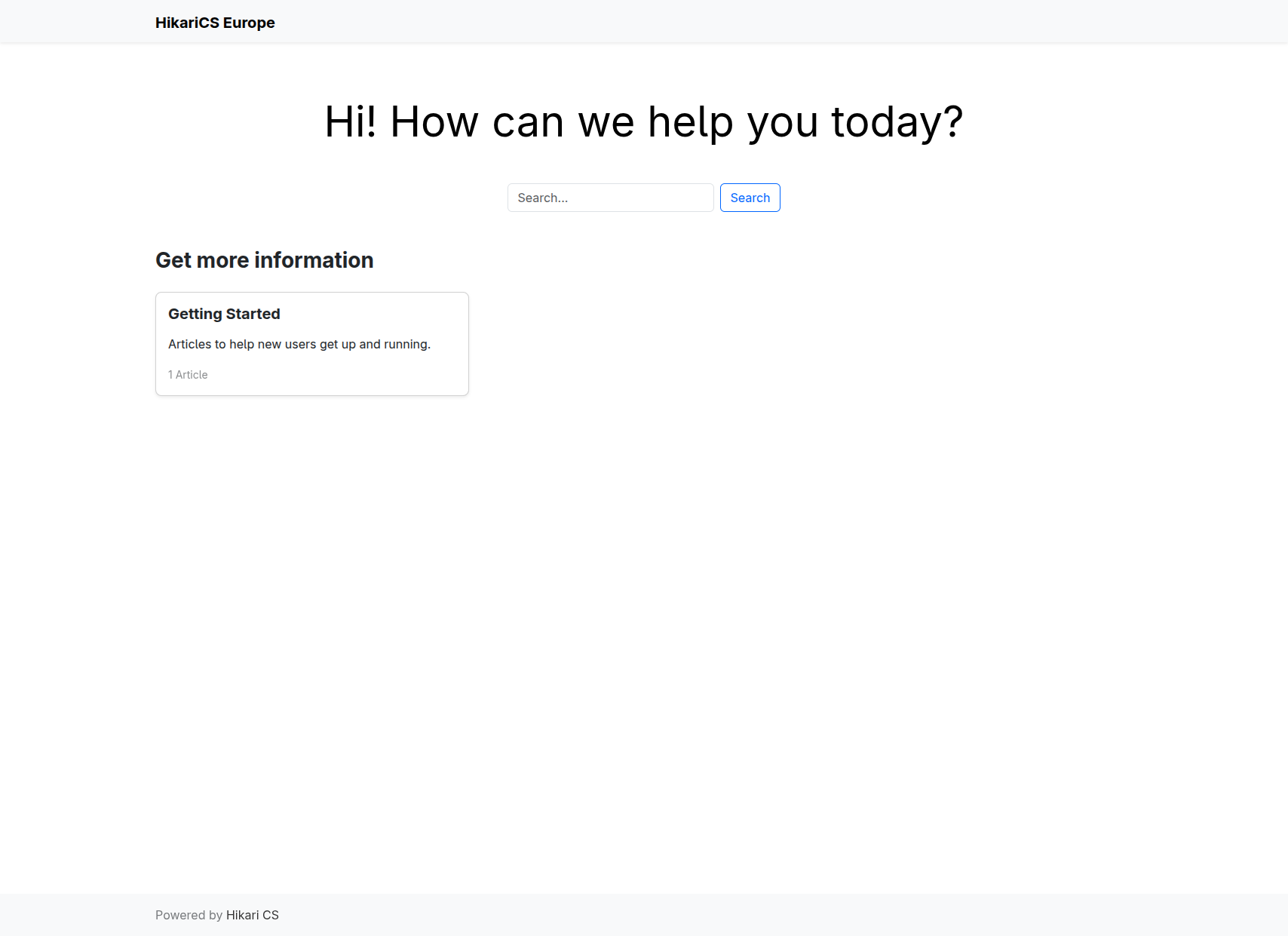
In this example, only the Getting Started category is visible, even though another category exists.
Show hidden articles in the live chat widget
Articles inside a hidden category can still be shown on the live chat widget start page. When editing an article, enable Visible in widget's home page?. Because the category is hidden, the article will not appear in the Help Center, but it can appear in the widget.
Summary
- Edit a category and check Hidden in Help Center? to hide it.
- Hidden categories and their articles do not appear on the public Help Center.
- Articles in hidden categories can still be shown in the live chat widget by enabling widget visibility.