Conversations reports
Updated at 2026-07-26
Use Conversations reports to understand your support volume, how conversations are resolved, and where customers contact you.
Open the report
In the main left menu, open Statistics, then select Conversations.
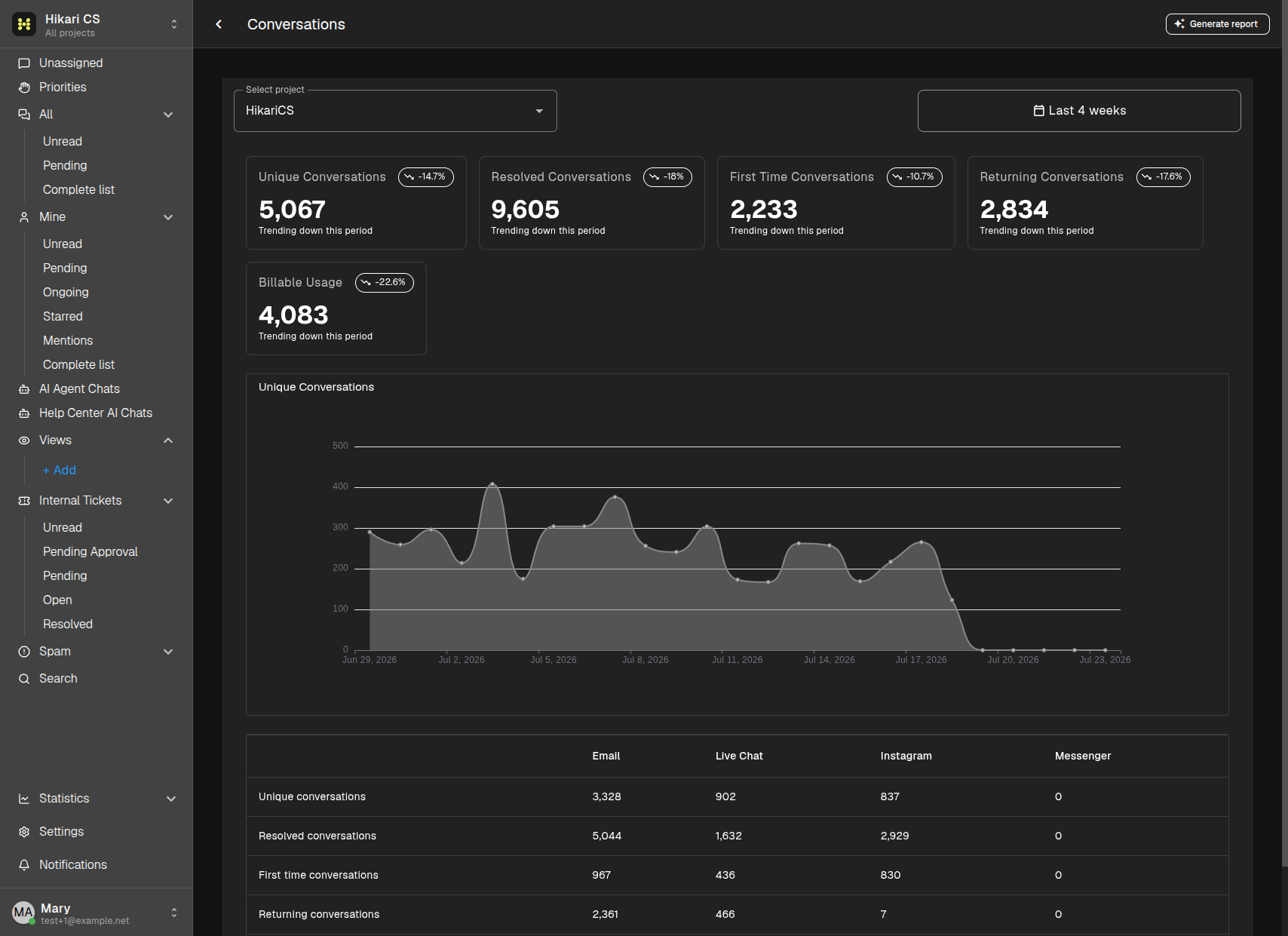
Choose the data to analyze
At the top of the report, select a project and a date range. You can use a preset period or choose a custom range. The cards compare the selected period with the immediately preceding period of the same length.
The report includes:
- Unique Conversations - conversations received in the selected period.
- Resolved Conversations - conversations marked as resolved.
- First Time Conversations - conversations from contacts who are new to your team.
- Returning Conversations - conversations from contacts with previous conversations.
- Billable Usage - billable conversation usage for the selected project and period.
The chart shows how unique conversations changed over time. The table below it breaks each conversation measure down by Email, Live Chat, Instagram, and Messenger.
Generate an AI report
After selecting the project and date range, click Generate report in the top-right corner. This AI Pro feature prepares an insight report for the report type, project, and period you selected.
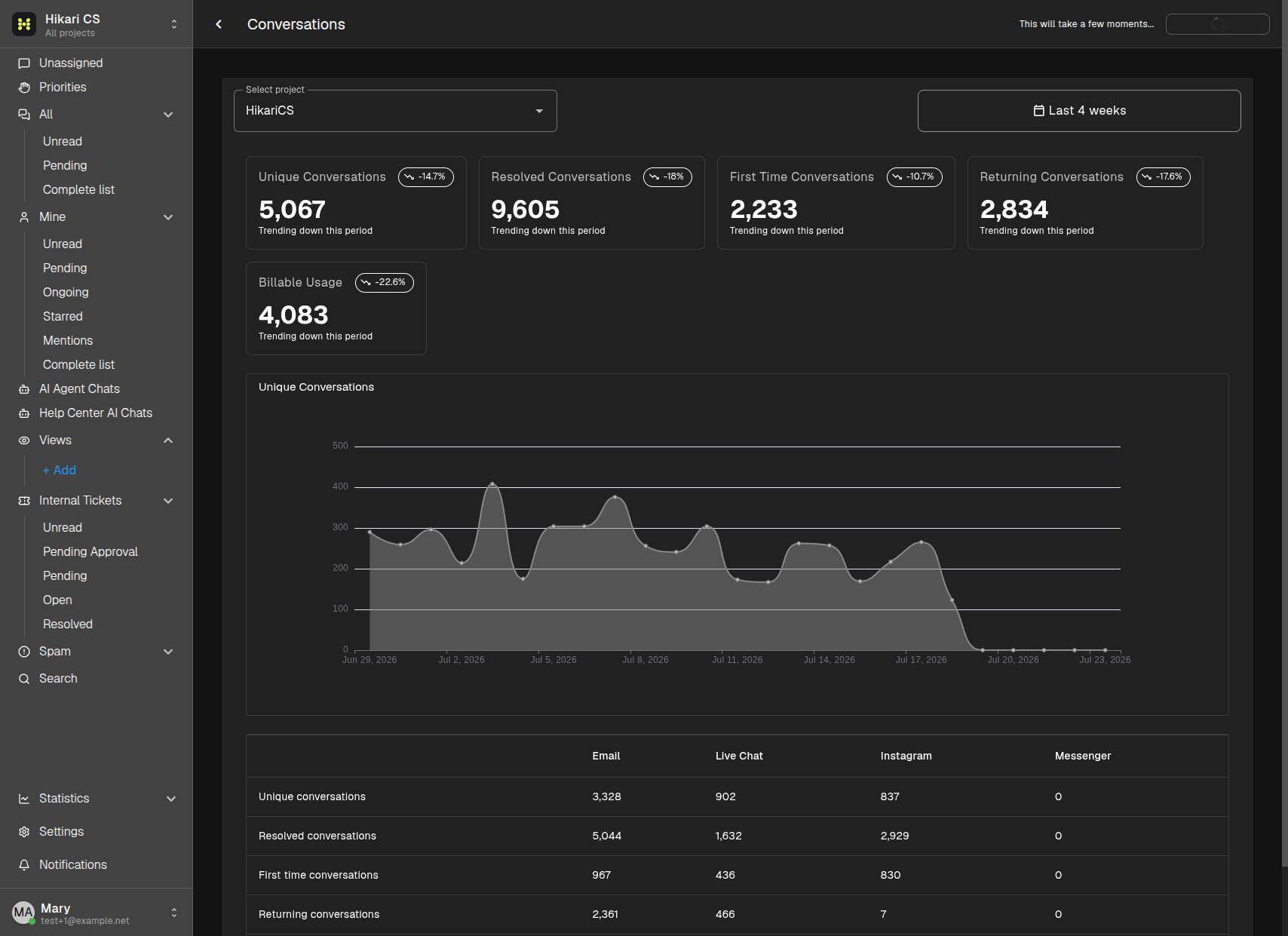
While it is being created, the button is unavailable and the page shows This will take a few moments.... When it is ready, click View report to open the AI-generated report in a drawer.
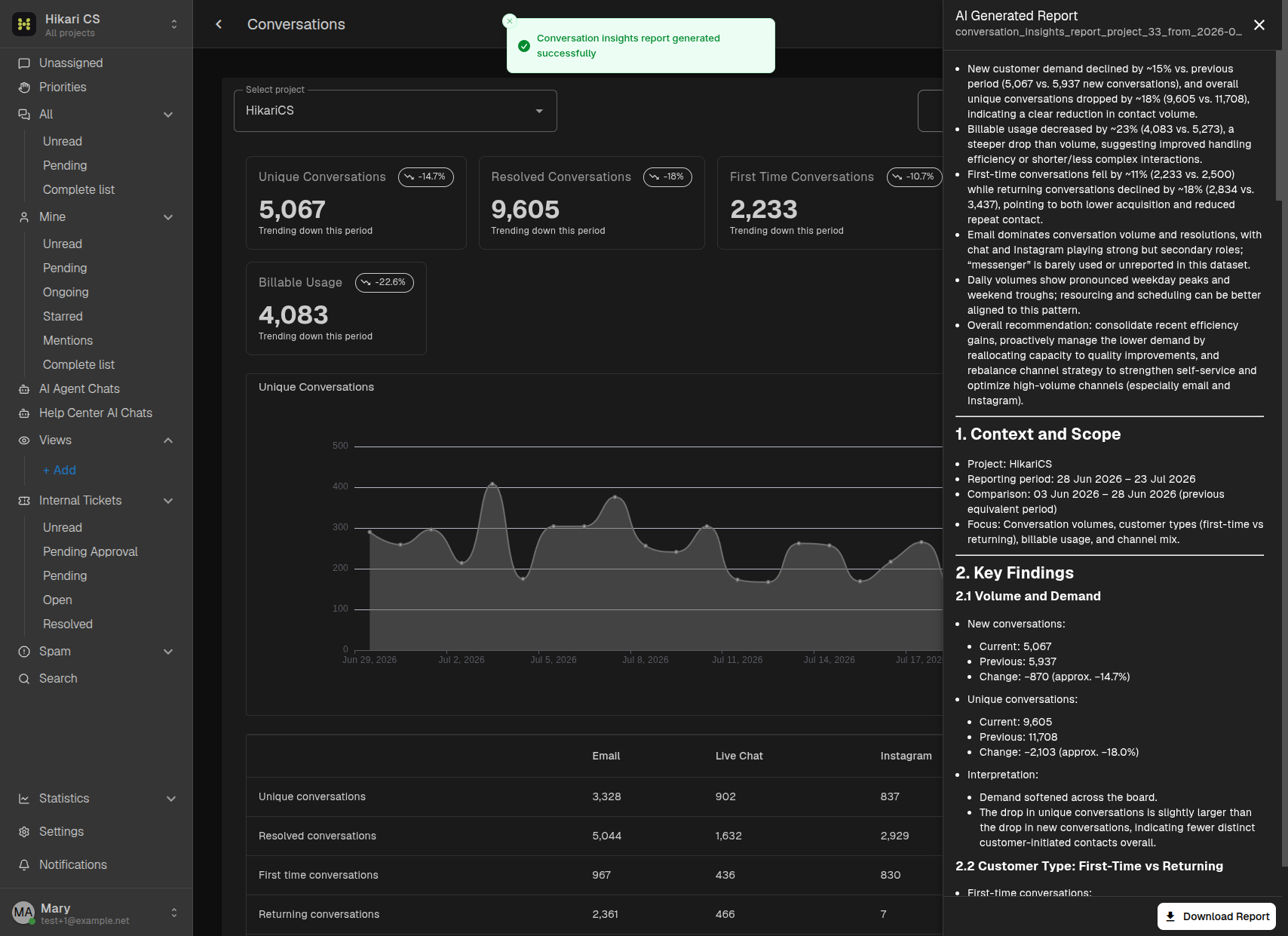
Review the findings and recommendations in the drawer, then click Download Report to save the report as a Markdown file. Close the drawer with X before generating another report.
Summary
- Select Statistics > Conversations.
- Filter by project and reporting period.
- Use the chart and channel table to identify changes in support demand.
- Generate, view, and download an AI report when you need a written summary.