SLA reports
Updated at 2026-07-26
Use the SLA report to monitor response speed, resolution speed, and customer satisfaction for a project.
Open the SLA report
In the main left menu, open Statistics, then select SLA. The page is titled Service Level Agreement.
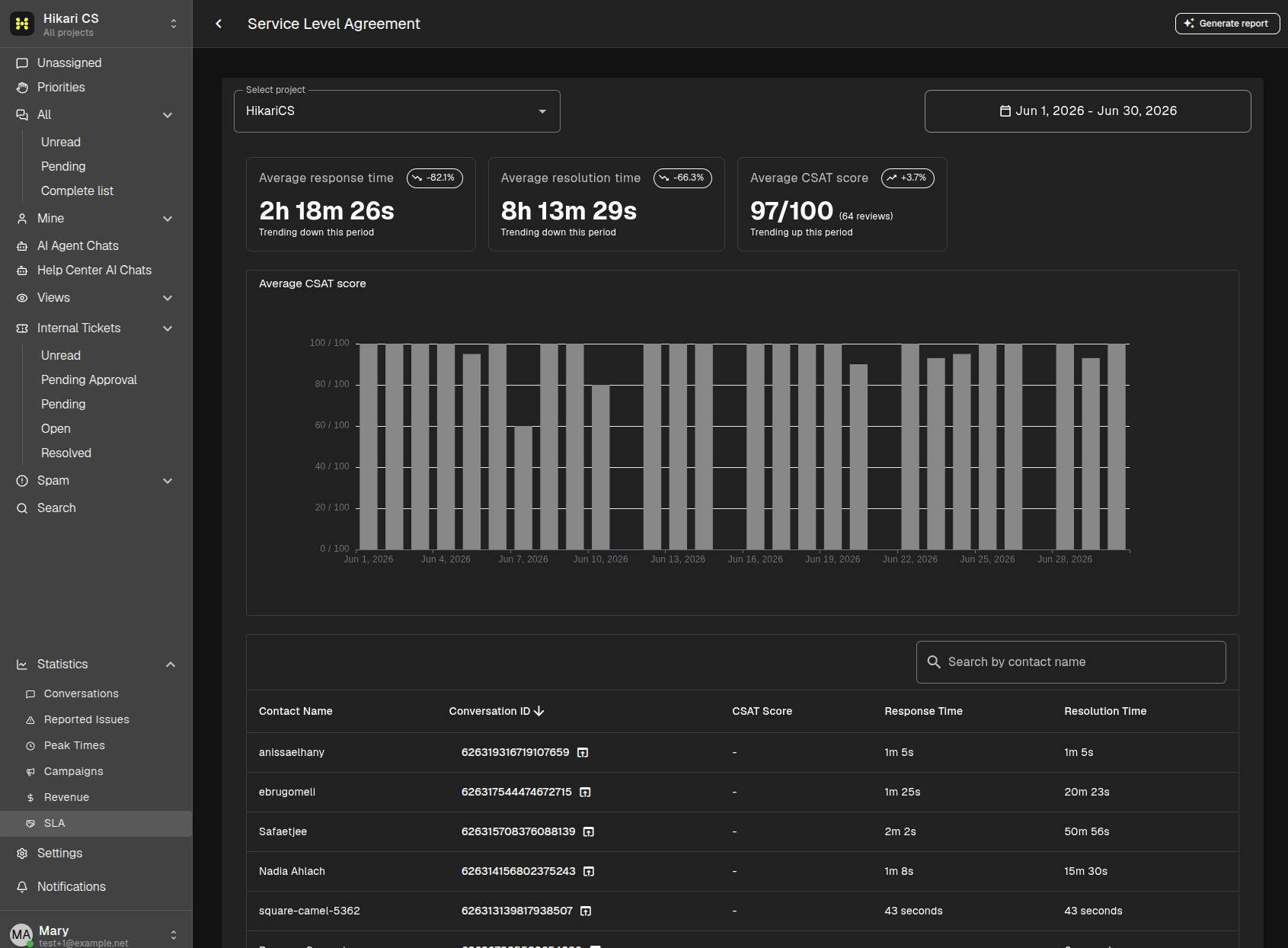
Review service performance
Select a project and date range at the top of the page. Each value is compared with the preceding period of the same length.
The report shows:
- Average response time - average time to send the first response.
- Average resolution time - average time until a conversation is resolved.
- Average CSAT score - average customer satisfaction score and the number of reviews received.
The Average CSAT score chart shows scores across the selected period. Use the table to search for a contact, sort by a column, and review individual response and resolution times. Click a Conversation ID to open that conversation.
An increase is a comparison with the previous period, not a quality rating. For example, an increase in response time means responses took longer on average.
Generate an AI report
Click Generate report in the top-right corner after choosing the project and date range. The AI Pro report summarizes the selected SLA data and may take a few moments to finish.
When View report appears, click it to read the report in the drawer. Select Download Report to save the Markdown file. Close the drawer with X before creating another report.
Summary
- Select Statistics > SLA.
- Compare response time, resolution time, and CSAT over a chosen period.
- Search the table and open a conversation when you need more detail.
- Generate an AI report for a written service-level summary.