Manage languages and translations
Updated at 2026-07-26
Hikari CS supports multilingual conversations. Your personal language settings and the project language settings work together to decide when messages are shown in their original language and when they are translated automatically.
Set your personal languages
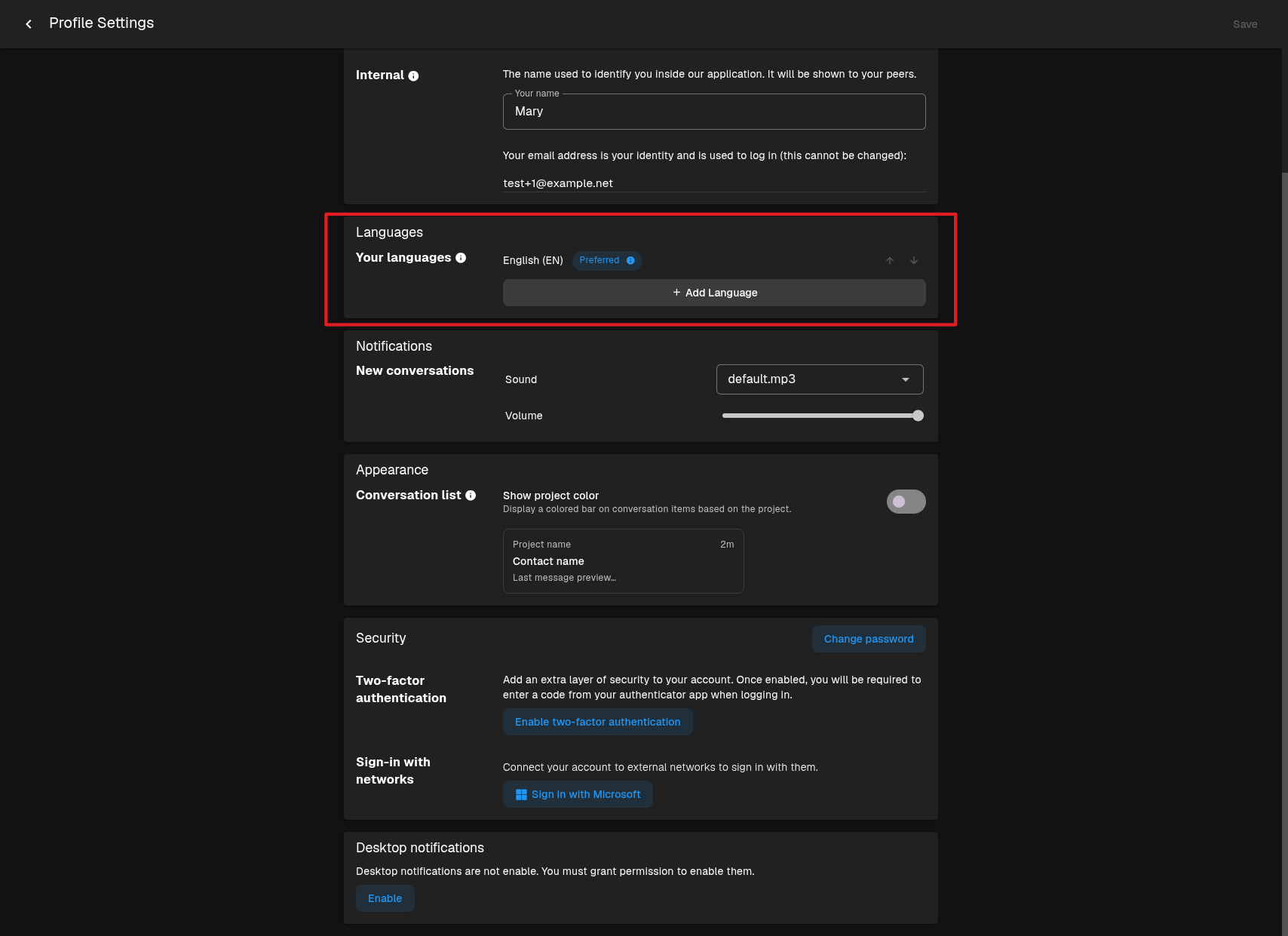
Your profile languages tell the system which languages you understand. Messages in those languages can be left untranslated, while messages in other languages are translated into your main language.
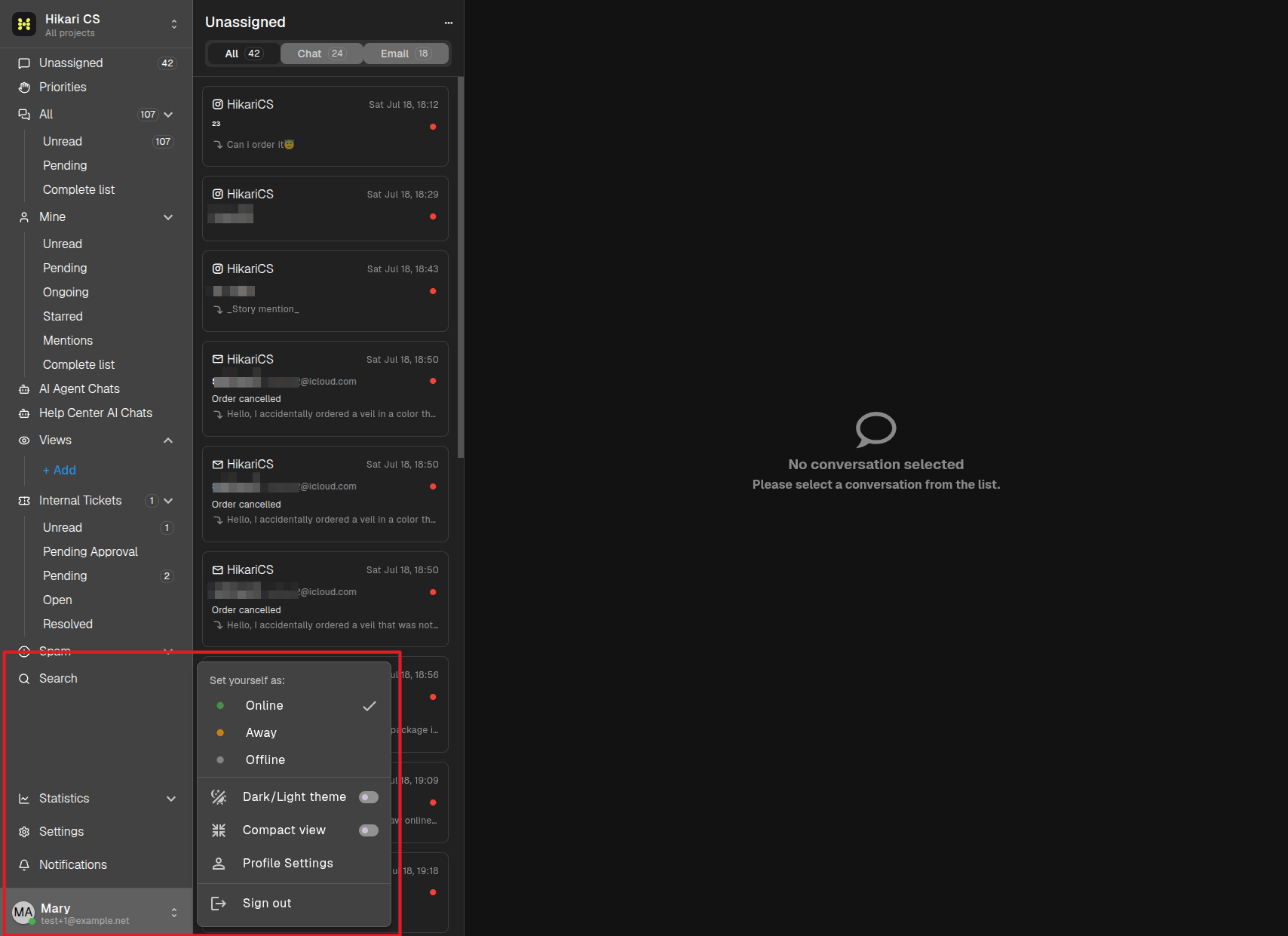
- Click your profile picture in the bottom-left corner of the app.
- Choose Profile Settings.
- In the Your languages section, add or remove languages as needed. Mark one language as preferred.
Configure project language settings
Project language settings control the widget and AI translation behavior.
- Go to Settings > Projects and select your project.
- Open General settings.
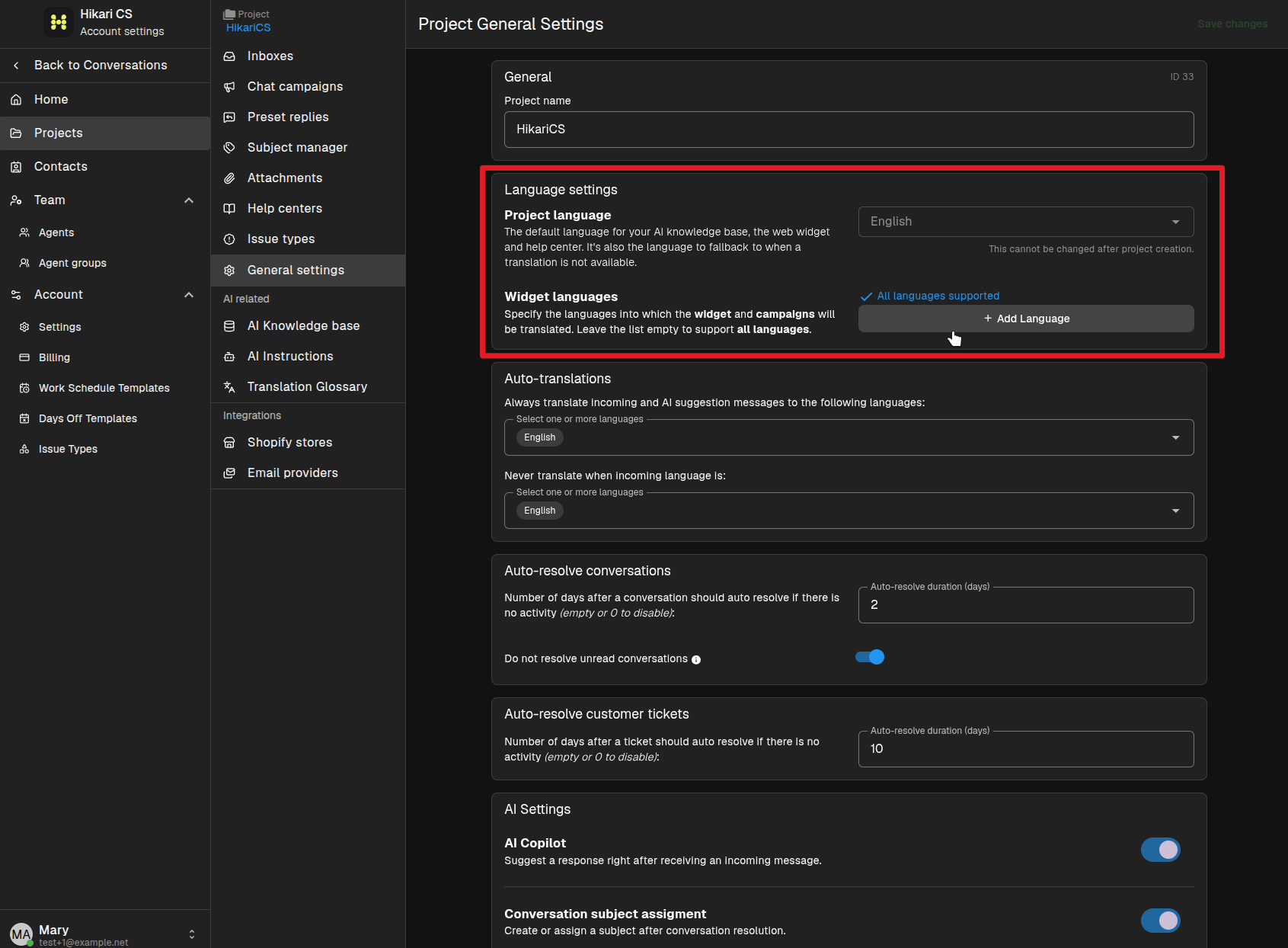
Project language
The Project language is the fallback for the AI knowledge base, web widget, and help center. It cannot be changed after the project is created.
Widget languages
Widget languages are the languages the widget and campaigns will be translated into. If the visitor's browser language is in this list, the widget appears in that language. Otherwise it falls back to the project language.
Auto-translations
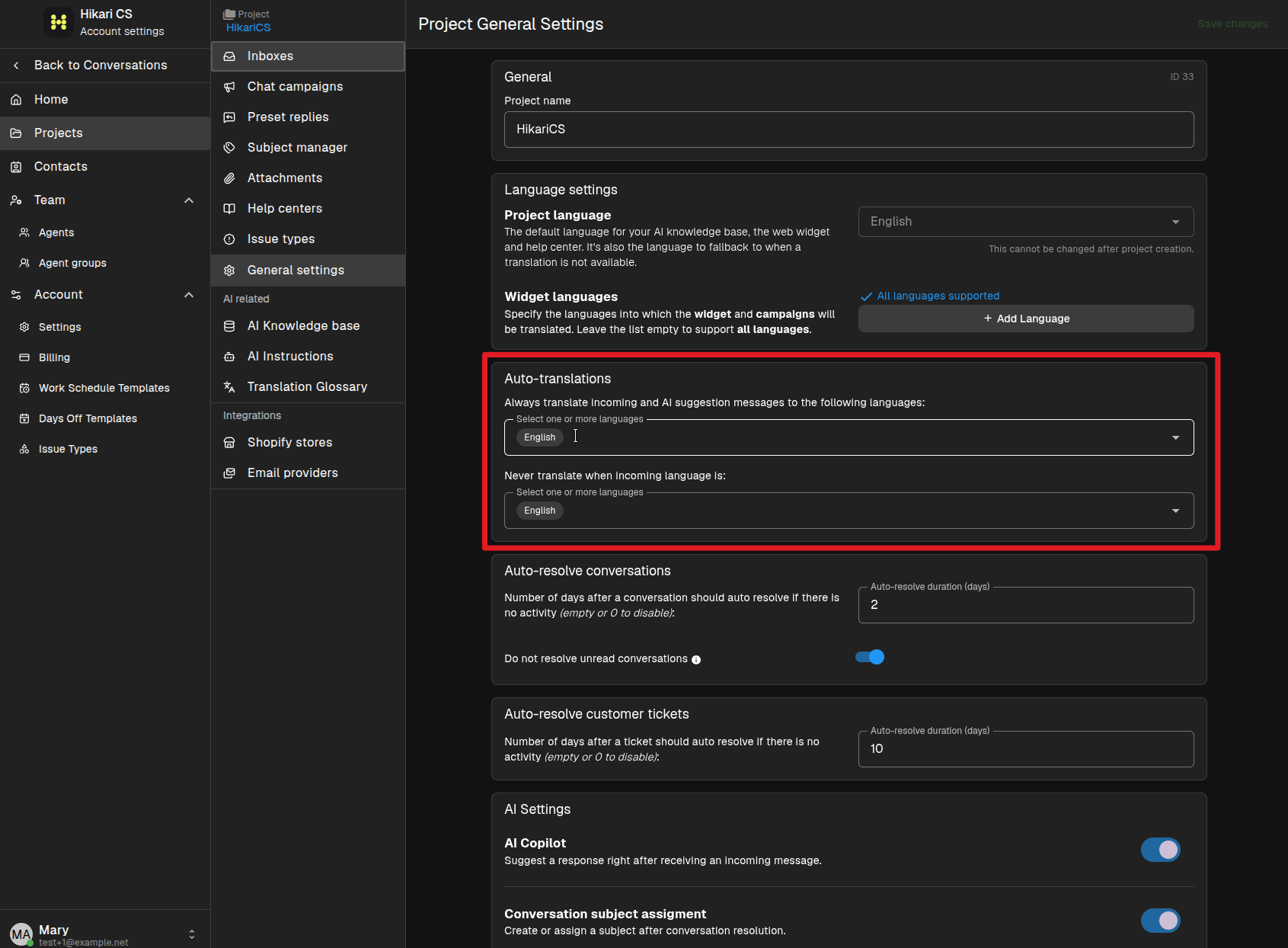
The Auto-translations section lists the languages the AI should translate to and from automatically. If a language is not listed here, the AI will not translate messages in that language.
You can also exclude certain languages from translation, so messages arriving in those languages are always shown as-is.
How it fits together
- The widget uses the visitor's browser language when it is supported, otherwise it falls back to the project language.
- Incoming messages are translated based on your personal languages and the project's auto-translation settings.
- For business-specific terms, you can also use the Translation Glossary in the project settings.