Manage days off templates
Updated at 2026-07-26
Days off templates let you mark dates when your team is unavailable, such as holidays or company events. You create the template once at account level and assign it to any website widget inbox.
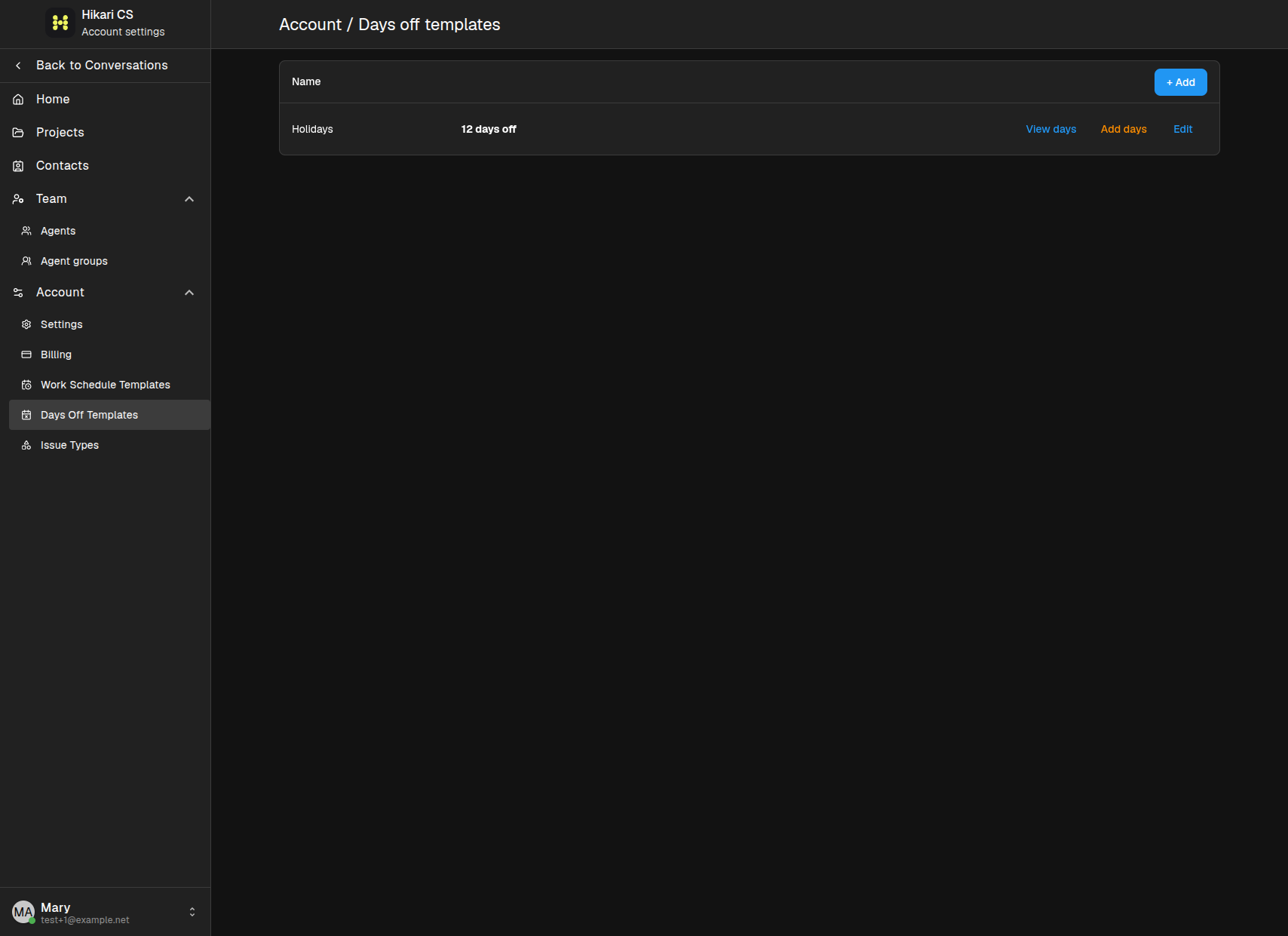
Create a days off template
- Go to Settings > Account > Days Off Templates.
- Click + Add.
- Name the template, for example "Holidays".
- Add the individual dates or date ranges.
- Save the template.
Assign a days off template to a web widget
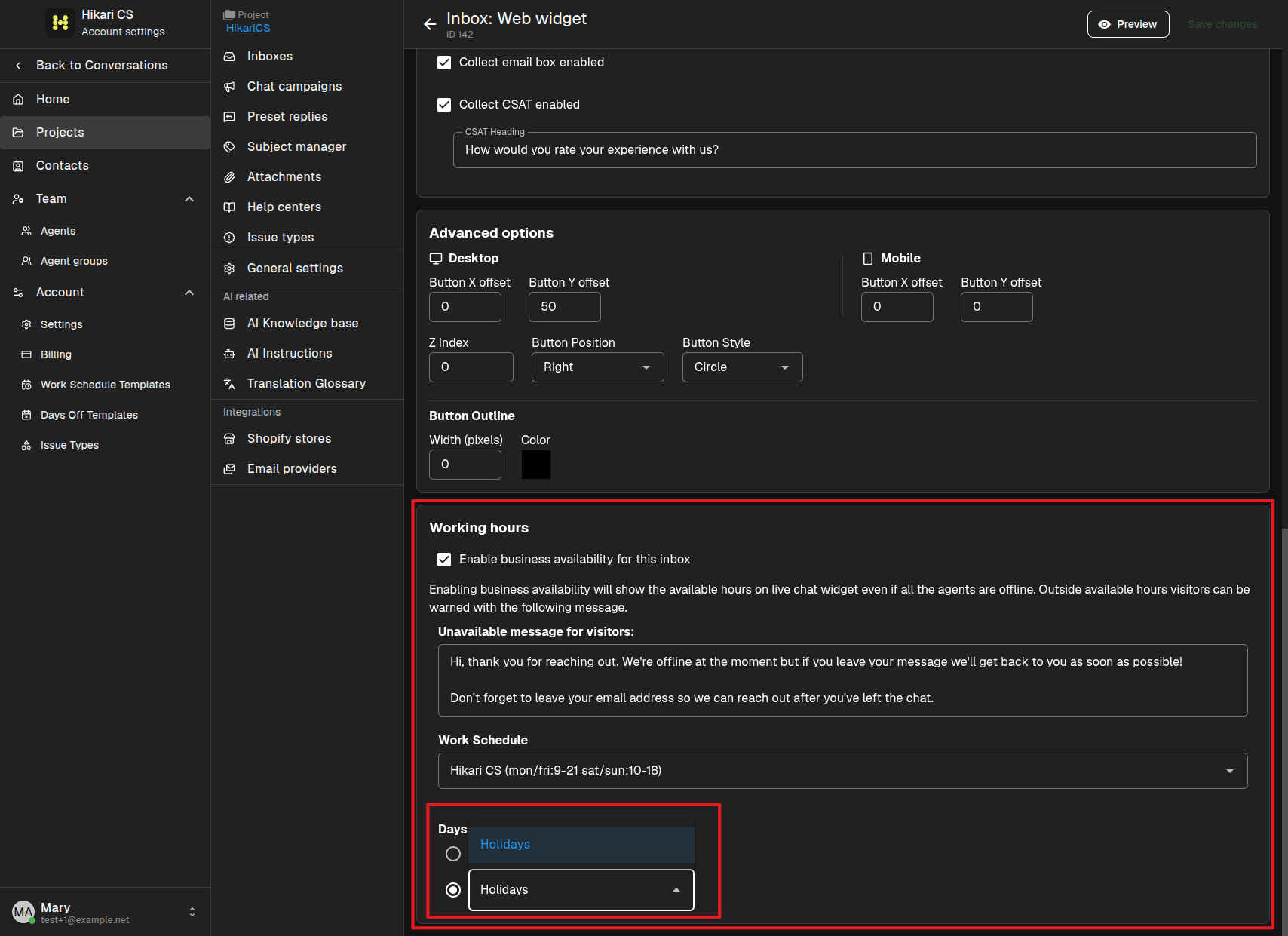
- Go to Settings > Projects and select your project.
- Click Inboxes, then edit the Website widget inbox.
- Scroll to the Working hours card.
- Make sure business availability is enabled.
- Under Days off template, choose the template you created.
How it works
When a days off template is assigned, the widget treats those dates as non-working days. Visitors see the unavailable message if they start a chat during a day off, even if the regular work schedule says you are normally open.
You can reuse the same days off template across multiple website widgets, or create different templates for different teams or regions.