How to use the Translation Glossary
Updated at 2026-07-26
The Translation Glossary helps the AI translate messages more accurately by teaching it the specific words and phrases your business uses. Each project can have its own glossary.
Open the Translation Glossary
Go to your project settings and open the Translation glossary page.
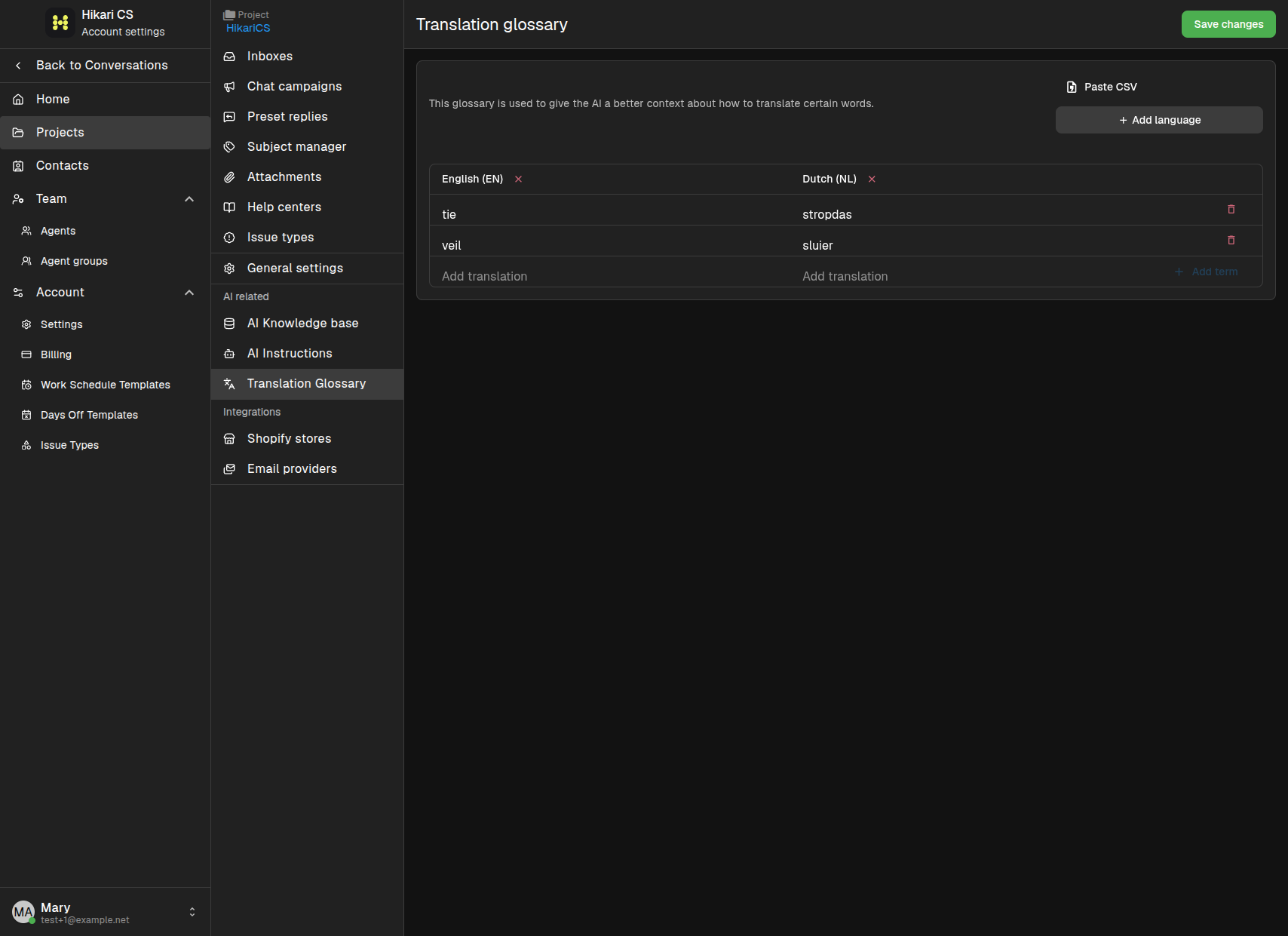
Add glossary entries
Each entry maps a term from one language to another. You can add entries one by one or import many at once.
A typical entry contains:
- From language and To language — the language pair.
- Original term — the source word or phrase.
- Translated term — how it should be translated.
- Optional notes about context.
Import entries from CSV
If you already have a list of terms, use the CSV import dialog to upload them in bulk.
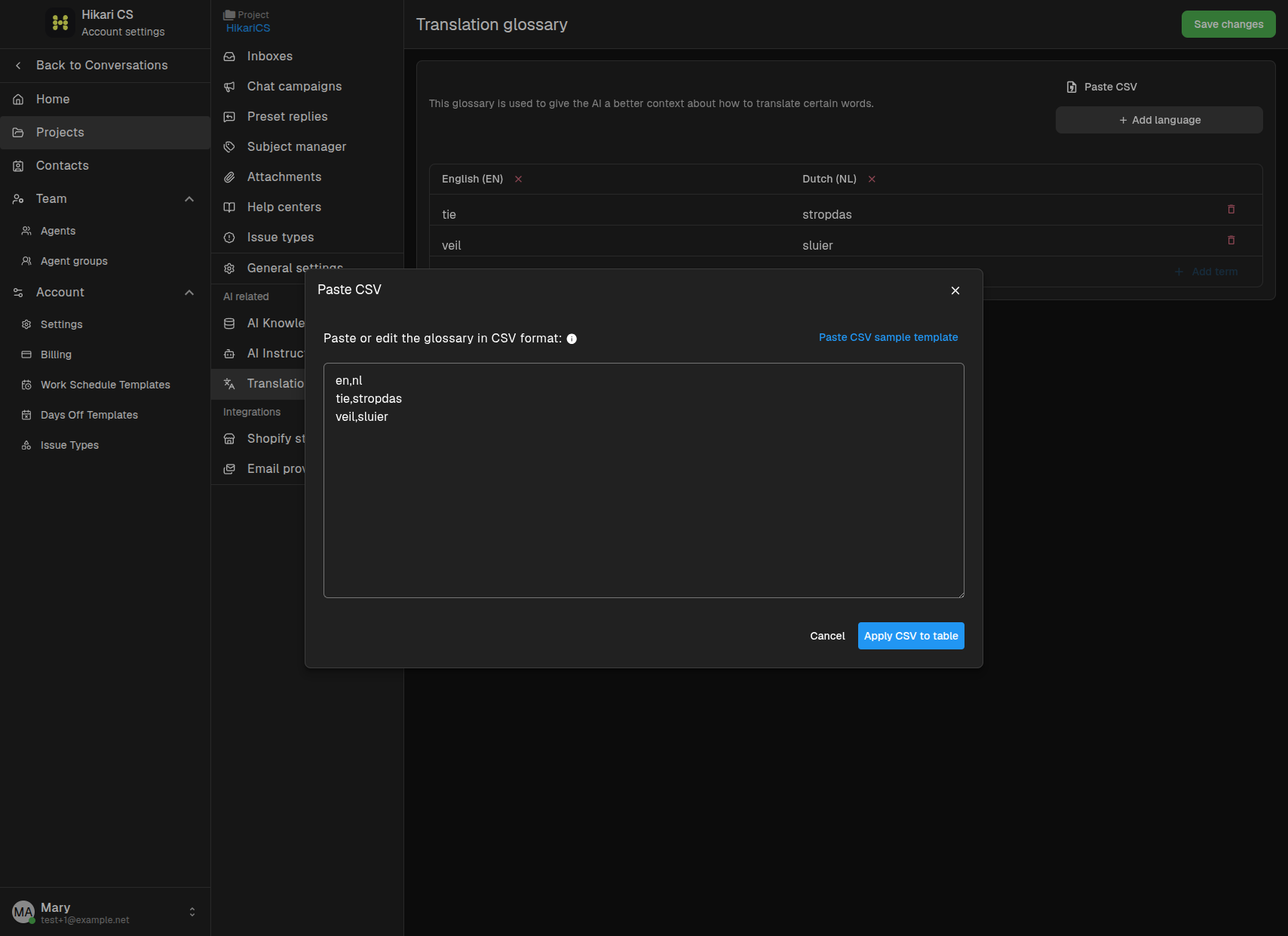
Make sure your CSV follows the required column format before uploading.
How the glossary is used
When AI Copilot or the AI Agent translates a message, it checks the glossary for matching terms and uses your preferred translations. This is especially useful for product names, brand terms, and industry-specific vocabulary.
Summary
- Each project has its own Translation Glossary.
- Add terms manually or import them via CSV.
- The glossary improves translation quality for business-specific language.