How to use the subject manager
Updated at 2026-07-26
The subject manager helps you organize conversations by topic. After a conversation is resolved, the AI can automatically assign a subject based on what the conversation was about.
The subject manager is available on the AI Pro plan.
How it works
Subject assignment is enabled in the project General Settings. Once enabled, the AI handles subjects in one of two ways:
- Pick from the list (default) — The AI chooses the most relevant subject from your existing list.
- Pick or generate — If no existing subject fits, the AI creates a new one.
You choose the method in Project General Settings under Conversation subject assignment.
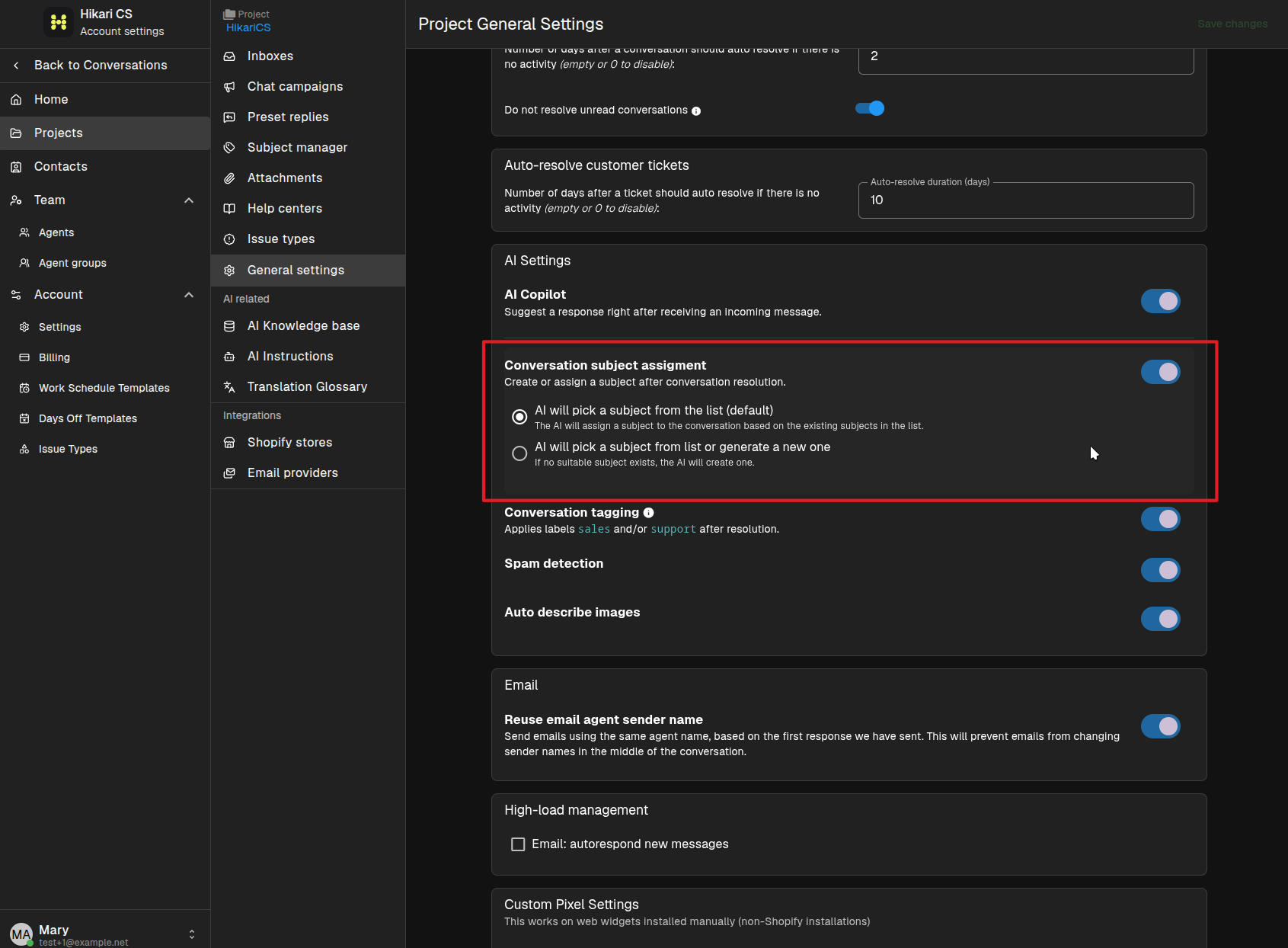
Manage your subject list
- Go to Settings and select your project.
- Click Subject manager in the project menu.
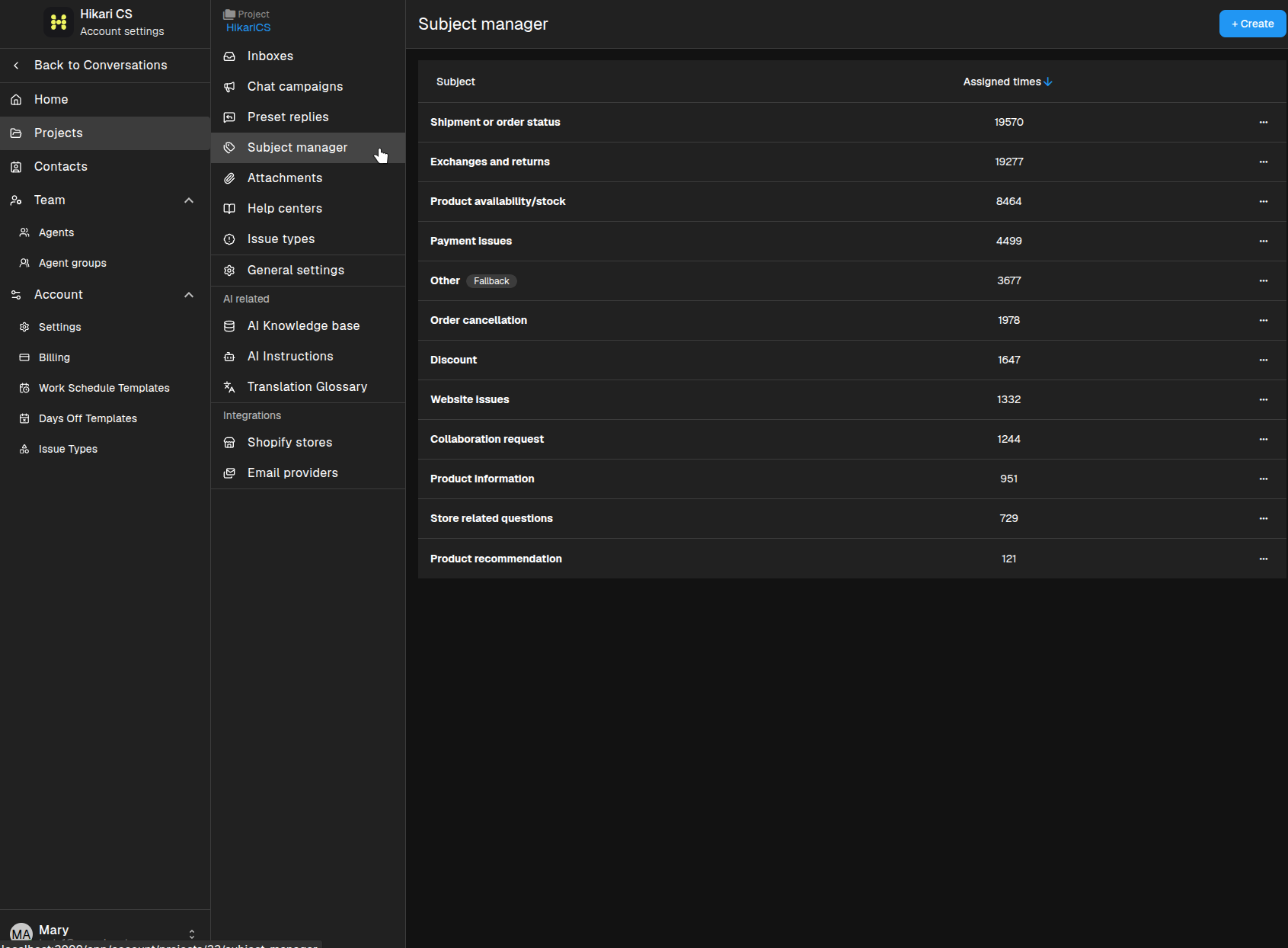
The list shows every subject and how many times it has been assigned. Subjects are shared across the project.
Add a new subject
If you prefer to keep subjects under manual control, click + Create and enter a subject name. The AI can then assign this subject to future conversations when it fits.
Why use subjects?
Subjects make it easier to:
- Spot trends in what customers are asking about.
- Filter and report on conversation topics.
- Keep your team aligned on common issue types.