How to setup Facebook & Instagram messenger
Updated at 2026-07-26
You can connect Facebook Messenger and Instagram Direct Messages to Hikari CS so your team can reply to social conversations from the same dashboard as chat and email.
Requirements
- A Facebook Page for Messenger.
- An Instagram Business Account linked to that Facebook Page.
- Admin access to the Facebook Page to authorize the connection.
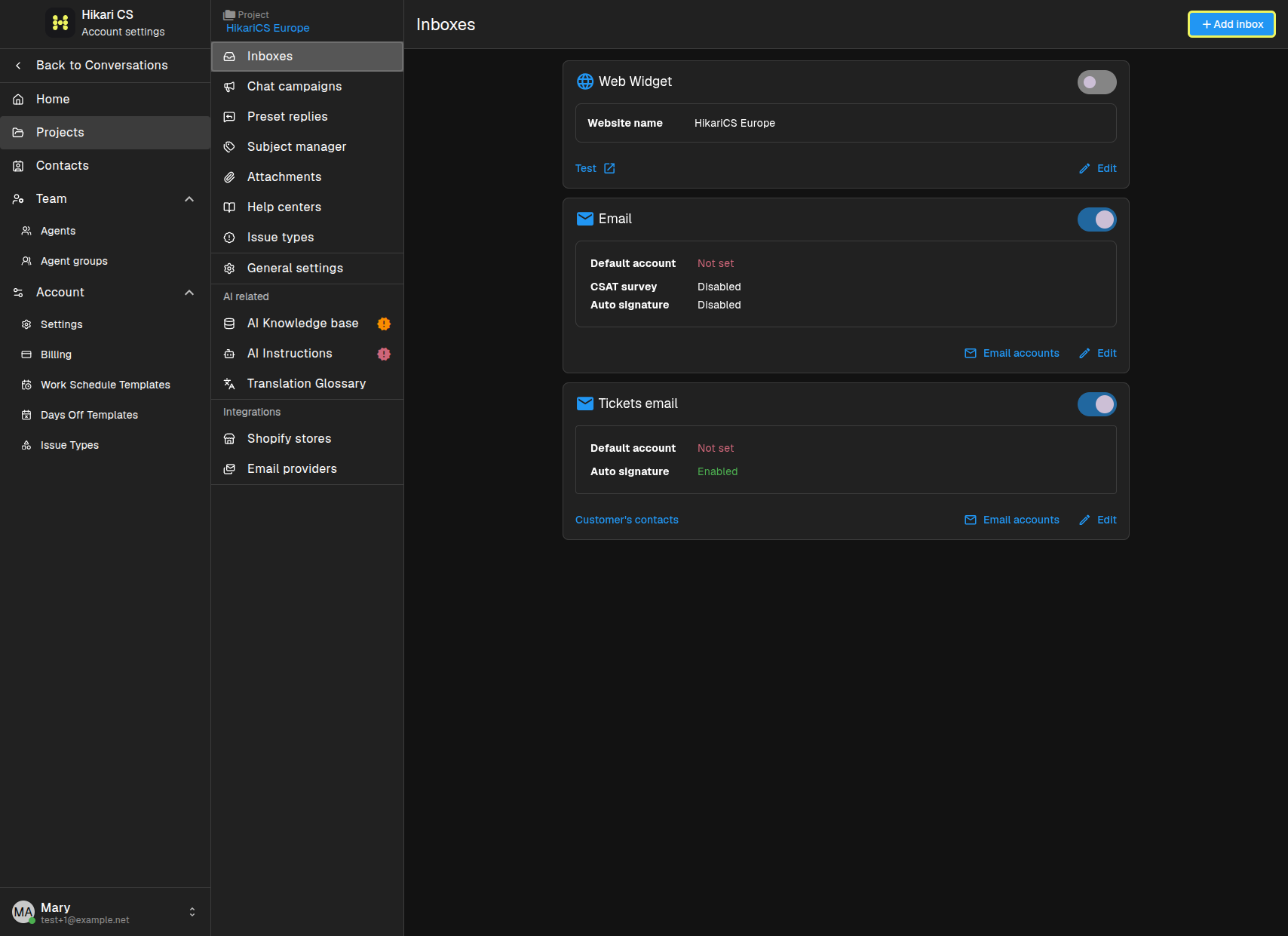
Open the Inboxes page
Go to your project settings and open the Inboxes page.
Add an Instagram inbox
Click Add inbox and select Instagram. A dialog explains that Hikari CS needs access to the Page's Business Instagram account.
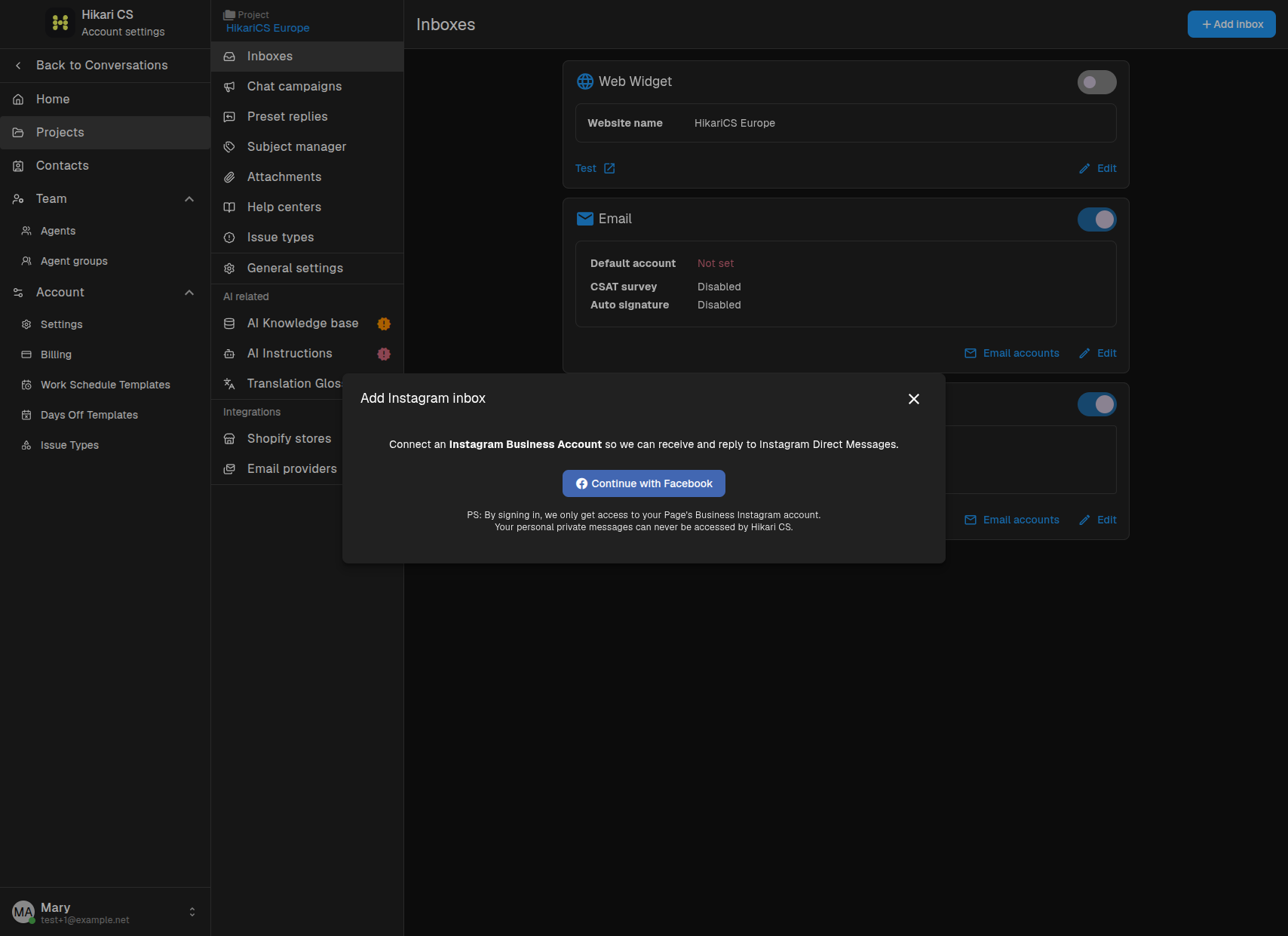
Click Continue with Facebook and sign in with the Facebook account that manages the Page. Select the Instagram Business Account you want to connect when prompted.
Add a Facebook Messenger inbox
Click Add inbox and select Facebook Messenger. A dialog explains that Hikari CS needs access to the Page's messages.
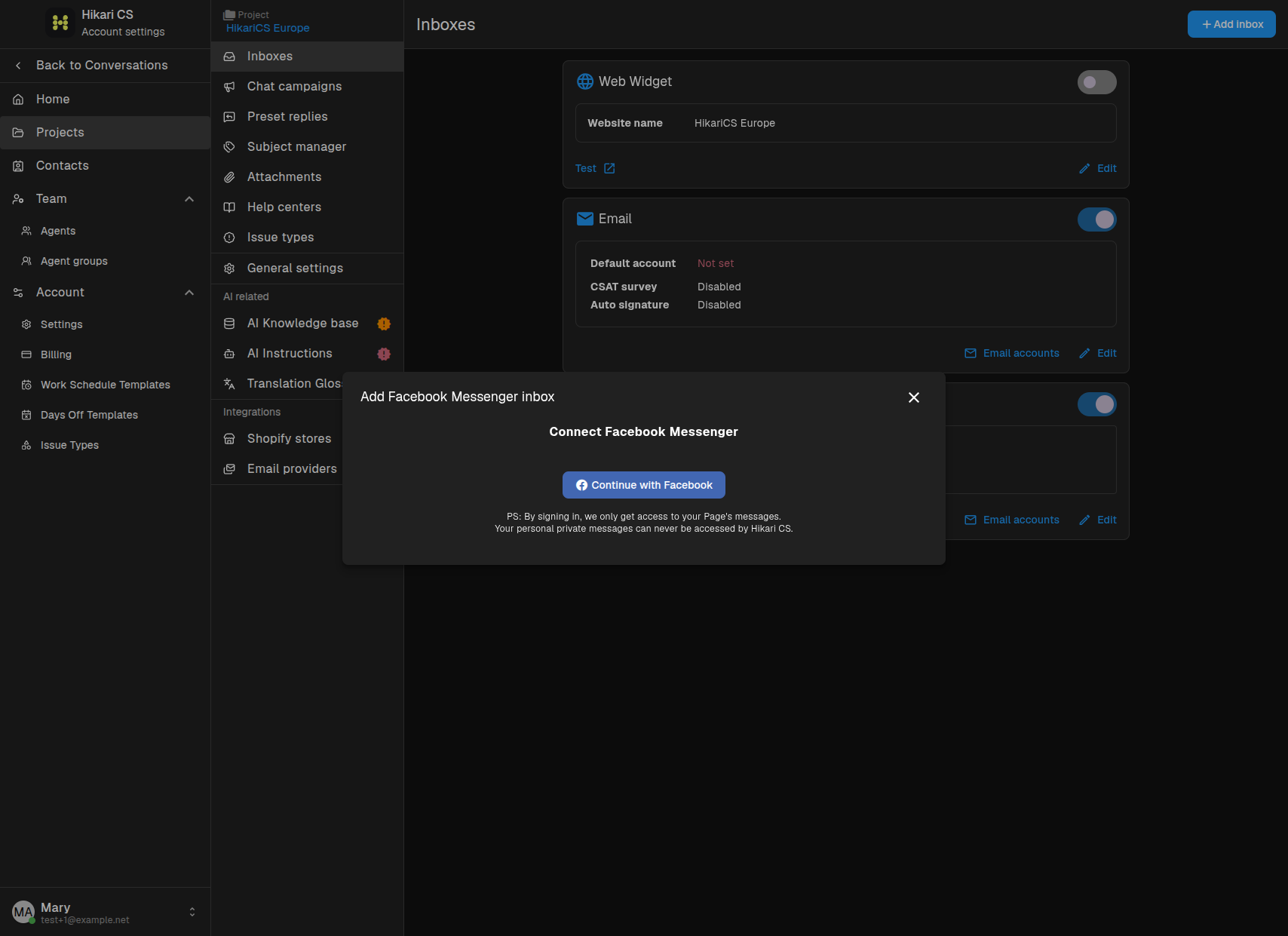
Click Continue with Facebook and sign in with the Facebook account that manages the Page. Select the Page whose Messenger inbox you want to connect.
Privacy note
Hikari CS only gets access to the connected Page's messages and Business Instagram account. Your personal private messages are never accessed.
Summary
- Open Inboxes in your project settings.
- Click Add inbox > Instagram or Add inbox > Facebook Messenger.
- Click Continue with Facebook and sign in.
- Select the Page or Instagram Business Account to connect.
- Your social messages will appear in the conversation dashboard.