How to navigate the app
Updated at 2026-07-26
When you sign in to Hikari CS, you land on the Conversations dashboard. This is the main workspace where you can view, search, and reply to all incoming messages.
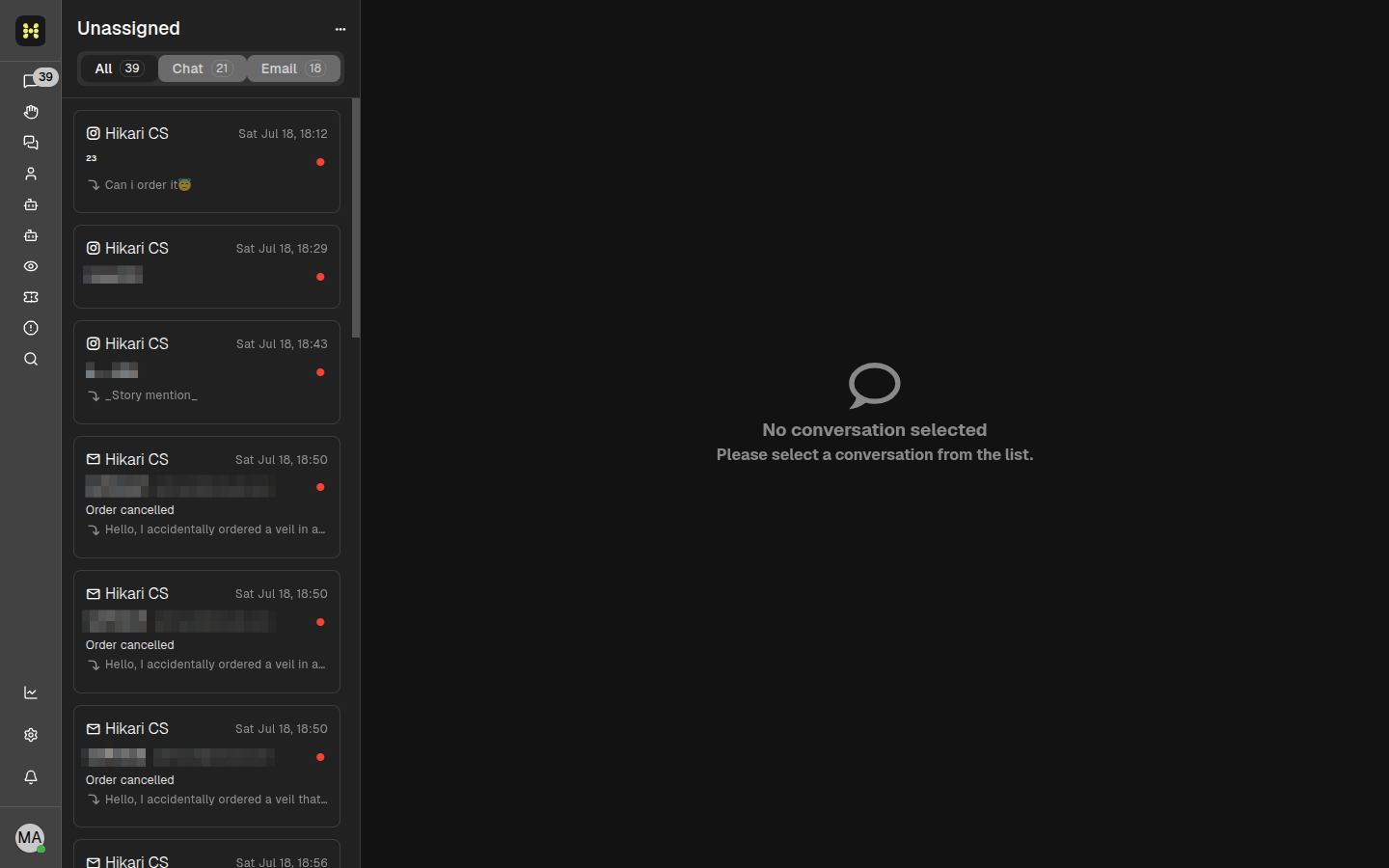
Main areas of the app
The screen is divided into three main areas:
- Left sidebar — Quick access to the main sections of the app.
- Conversation list — The list of conversations, filtered by the section you selected.
- Main panel — The conversation details and composer, or an empty state when no conversation is selected.
Left sidebar
The left sidebar contains the main navigation icons. From top to bottom, you can access:
- App switcher — Switch between projects or accounts.
- Unassigned — Conversations that are not yet assigned to an agent.
- Priorities — Conversations marked as high priority.
- Unread — All unread conversations.
- Pending — Conversations waiting for a follow-up.
- Complete list — All conversations regardless of status.
- Mine — Conversations assigned to you.
- AI Agent Chats — Conversations handled by the AI Agent bot.
- Help Center AI Chats — Conversations started from the help center widget.
- Views — Saved custom views of your conversations.
- Internal Tickets — Internal support tickets.
- Search — Find conversations, contacts, or messages.
- Statistics — Reports and analytics.
- Settings — Account, team, and project settings.
- Notifications — Your notification center.
- Profile menu — Your user profile and logout options.
Conversation list
The middle column shows the conversations for the selected section. At the top, you can switch between:
- All — Every conversation in the current view.
- Chat — Only chat conversations.
- Email — Only email conversations.
Each conversation card shows the project name, date, contact name, subject or preview, and a status indicator.
Top toolbar in a conversation
When you open a conversation, the top toolbar lets you:
- Assign or unassign the conversation.
- Add tags.
- Mark the conversation with a star.
- Change the conversation status (resolve, pending, snooze, or spam).
- Open additional options from the three-dot menu.
Settings and account management
To manage your account, team, projects, and billing, click Settings in the left sidebar. This opens the Account settings page.
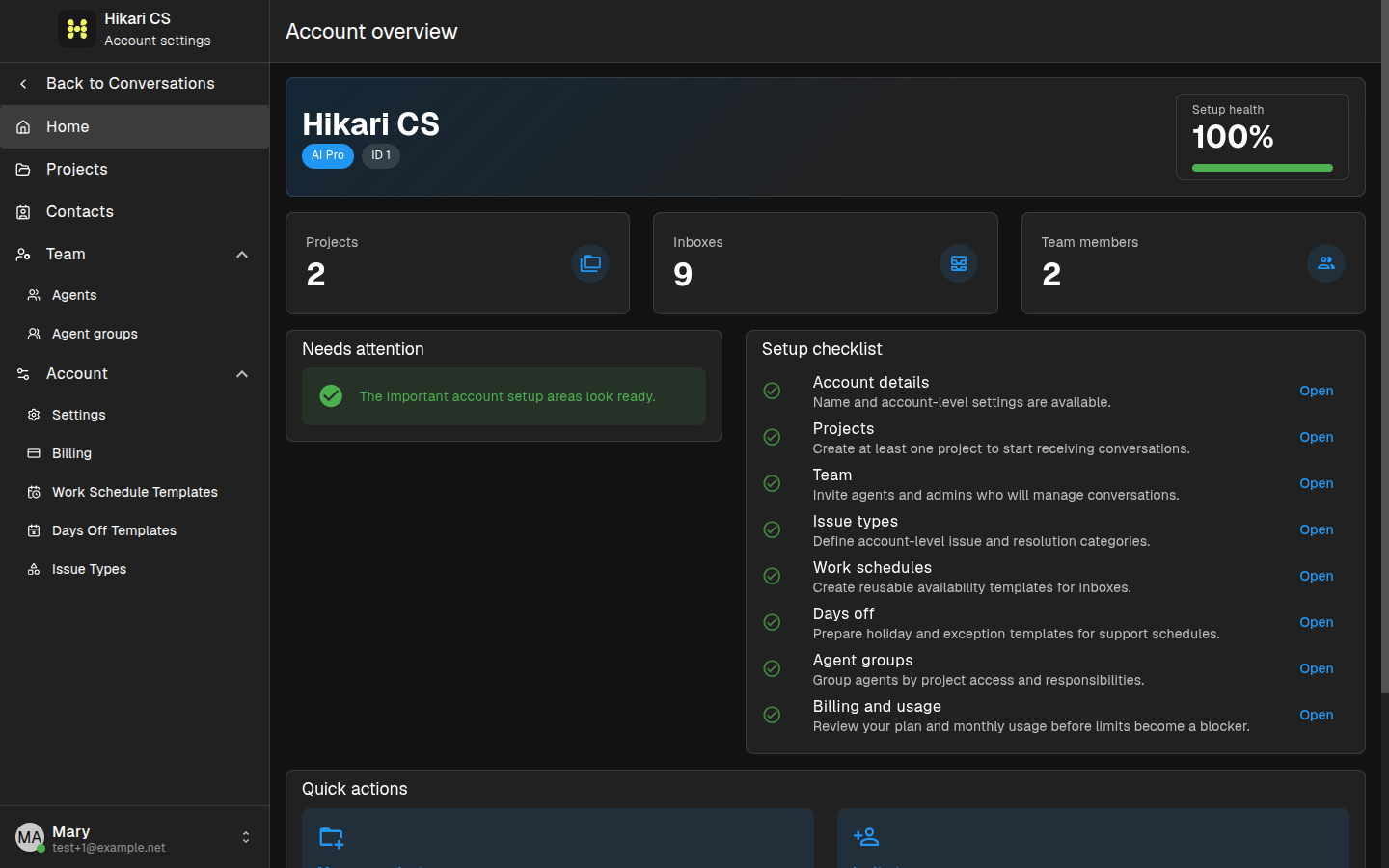
From the settings sidebar, you can navigate to:
- Home — Account overview and setup checklist.
- Projects — Manage projects and inboxes.
- Contacts — Manage your contacts.
- Team — Invite and manage agents.
- Account — General settings, billing, work schedules, days off, and issue types.
Click Back to Conversations at any time to return to the main dashboard.