How to manage conversations
Updated at 2026-07-26
Conversations are the core of Hikari CS. A conversation groups all messages between your team and a customer across channels such as chat, email, Instagram, and Facebook Messenger.
Open a conversation
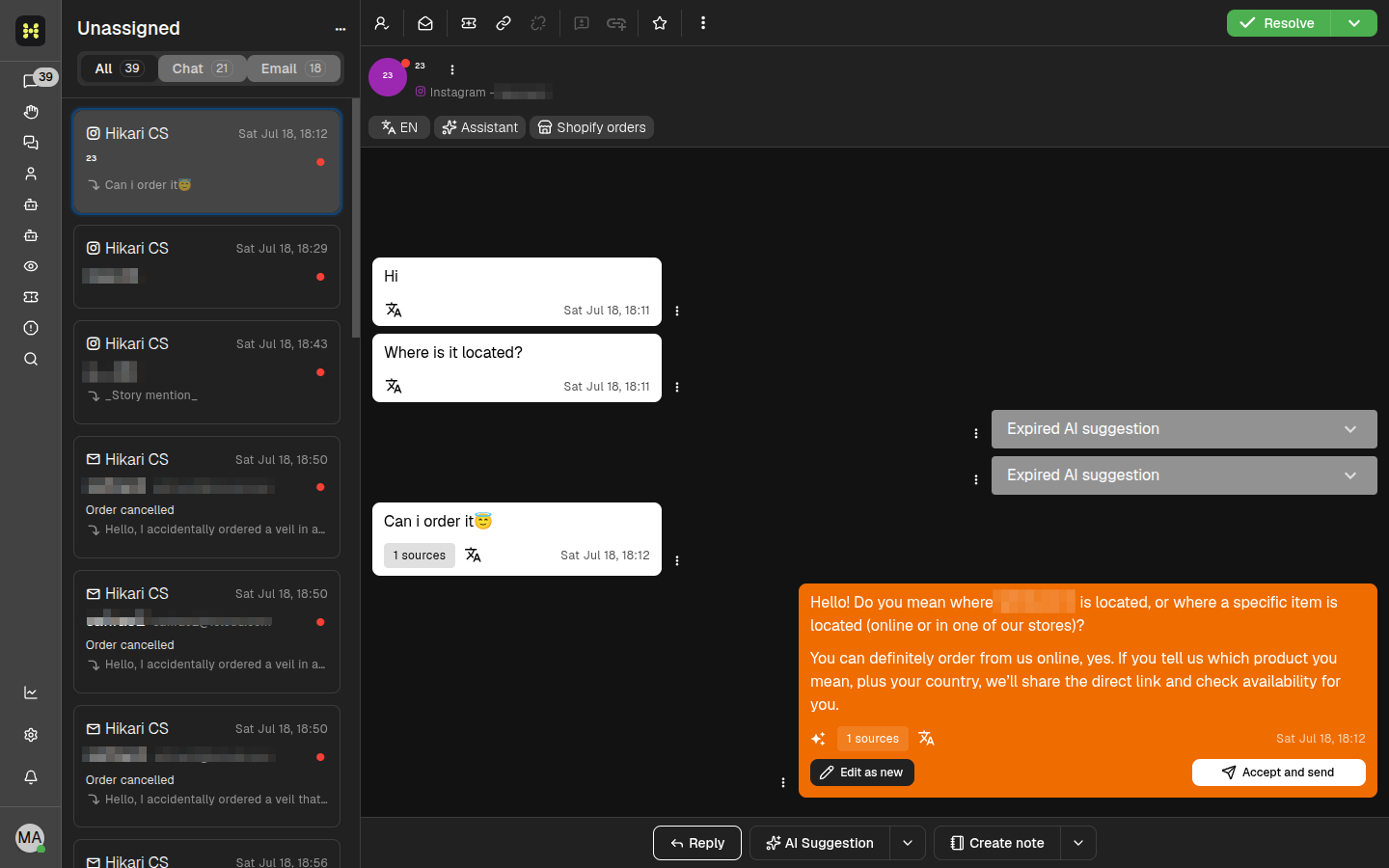
From the conversation list, click any conversation to open it in the main panel. The message history, contact details, and available actions are shown on the right.
Reply to a message
At the bottom of the conversation, you will find the composer. You can:
- Type your reply in the text field.
- Use the Reply button to send a normal message.
- Use the Create note button to add an internal note that the customer cannot see.
The composer also supports rich options such as preset replies, file attachments, and Shopify product links.
Use AI suggestions
Hikari CS can suggest replies based on the conversation context. When an AI suggestion is available, it appears above the composer or as a highlighted message bubble.
You have three options for AI suggestions:
- Accept and send — Send the suggestion as-is.
- Edit as new — Use the suggestion as a draft and edit it before sending.
- Discard — Close the suggestion and type your own reply.
Expired AI suggestions are also visible in the conversation history for reference.
Assign a conversation
To take ownership of a conversation, click the assign icon in the top toolbar. You can assign the conversation to yourself or to another team member. When a conversation is assigned to you, it appears under the Mine section in the left sidebar.
Mark as read or unread
Conversations with unread messages are highlighted in the conversation list. To mark a conversation as read, open it. To mark it as unread again, open the conversation actions menu and select Mark as unread.
Star a conversation
Starring a conversation makes it easier to find later. Click the star icon in the top toolbar to add or remove a star.
Change a conversation's status
The status button in the top toolbar lets you control the workflow state of a conversation.
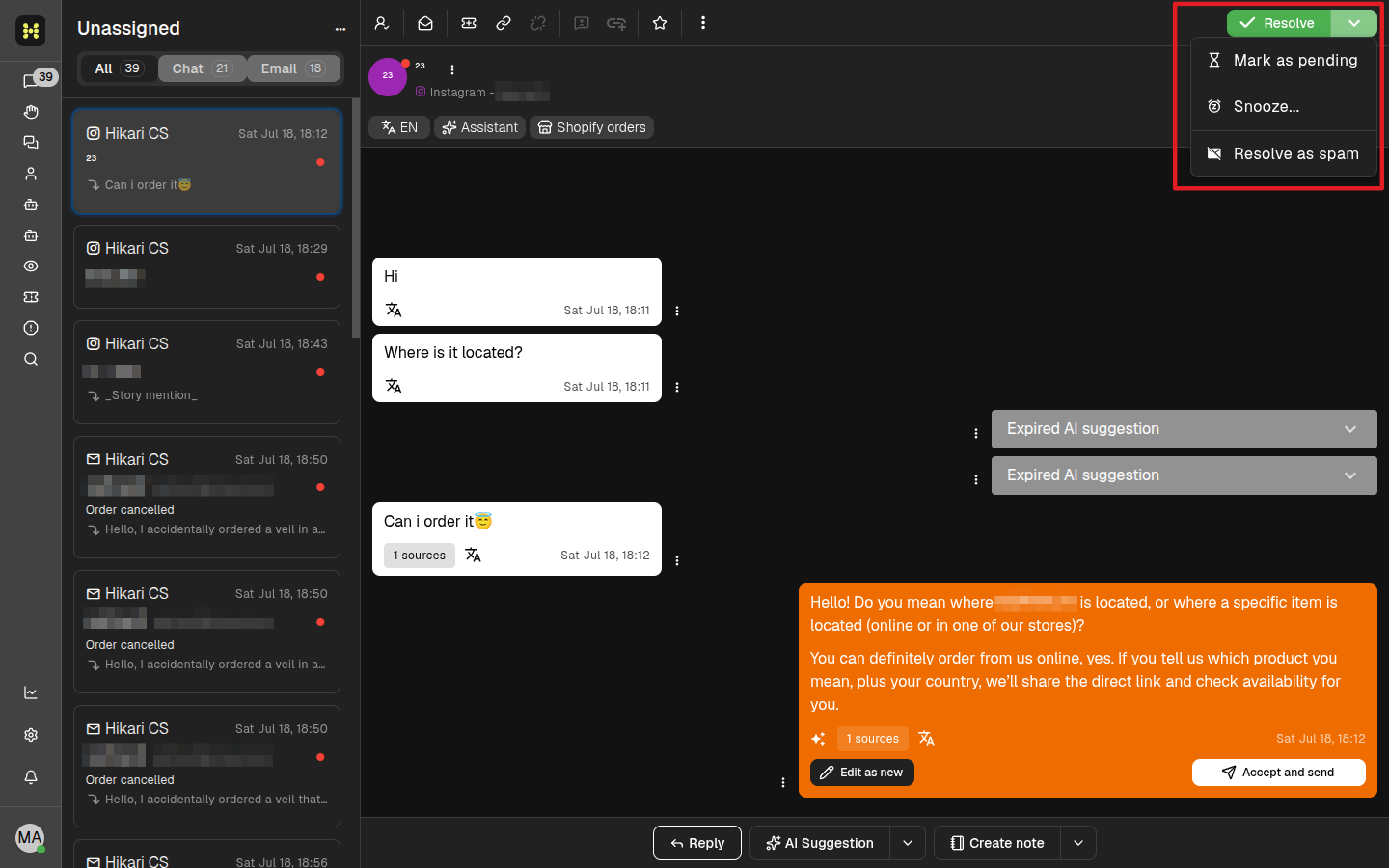
The available statuses are:
- Resolve — Close the conversation when the issue is solved.
- Mark as pending — Set the conversation aside while waiting for more information.
- Snooze — Hide the conversation until a specific date or time.
- Resolve as spam — Close the conversation and mark it as spam.
Create notes
Use the Create note button in the composer to add internal information. Notes are visible to your team but not to the customer. You can also create a private note to restrict visibility further, depending on your permissions.
Edit contact details
To update the contact information for the current conversation, click the contact name or the three-dot menu in the conversation header. From there, you can edit fields such as name, email, phone number, and language.
Change the conversation language
If you support multiple languages, you can change the conversation language from the top toolbar. This helps route the conversation to the right agents and improves AI suggestion accuracy.
Use preset replies
Preset replies are saved message templates. To insert one, start typing in the composer or use the preset reply shortcut, then select the template you want. Preset replies help you answer common questions faster and more consistently.
Summary
- Click a conversation in the list to open it.
- Use the composer to reply, create notes, or insert preset replies.
- Accept or edit AI suggestions to save time.
- Use the top toolbar to assign, star, or change the status of a conversation.