How to connect Gmail to Hikari CS
Updated at 2026-03-16
To securely connect your Gmail account to Hikari CS, you'll need to enable 2-Step Verification and generate a dedicated App Password. This process ensures your email account remains secure while allowing Hikari CS to send emails on your behalf.
Summary
1. Turn on 2-Step Verification in your Google Account
2. Enable IMAP
3. Generate a Google App Password for Hikari CS
4. Use that App Password to connect your Gmail account to Hikari CS
Step-by-Step Instructions
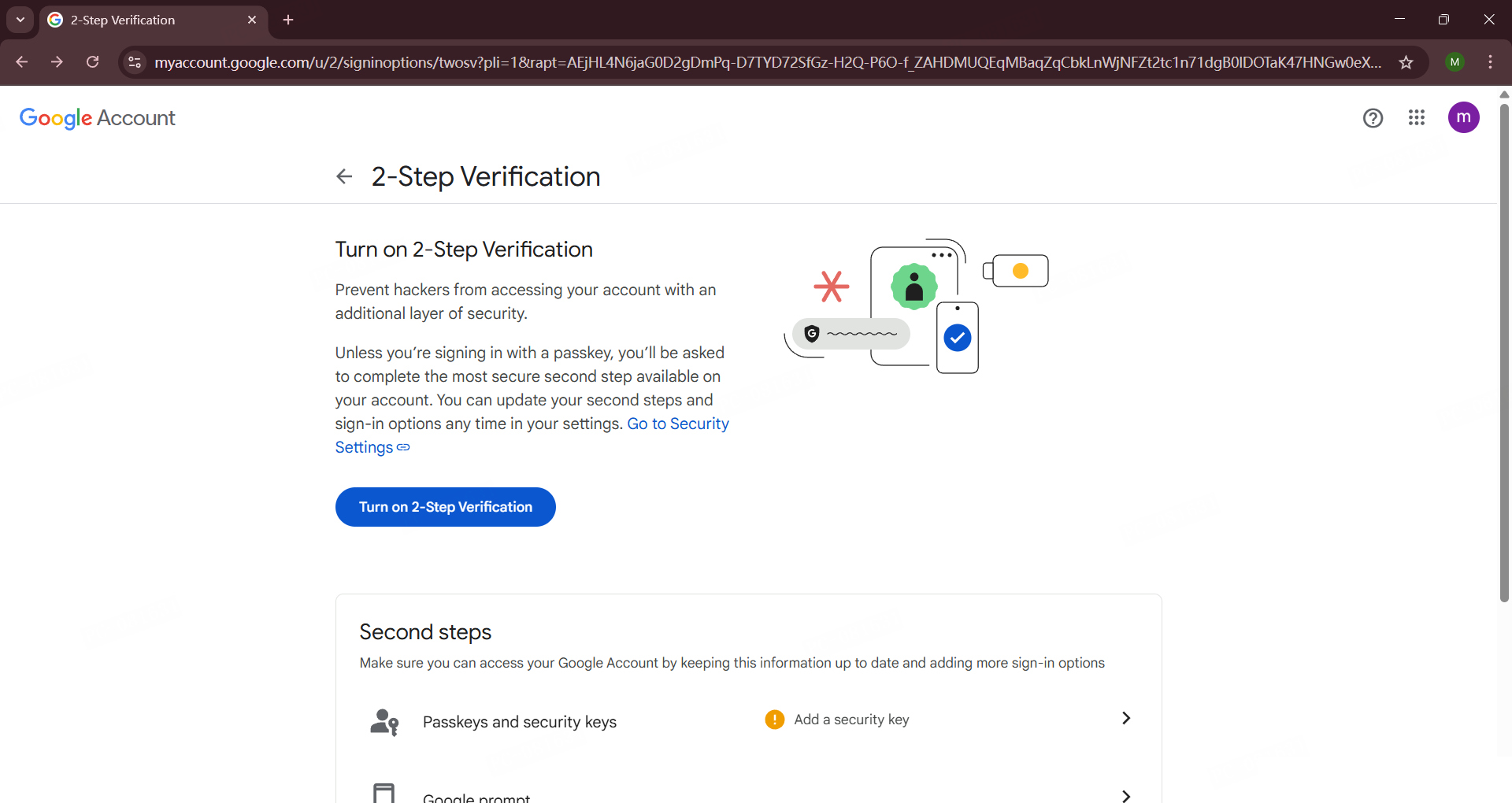
1. Log in and Turn on 2-Step Verification
Visit: Enable 2-Step Verification
Click “Turn on 2-Step Verification” and complete the setup process.
2. Generate a Google App password
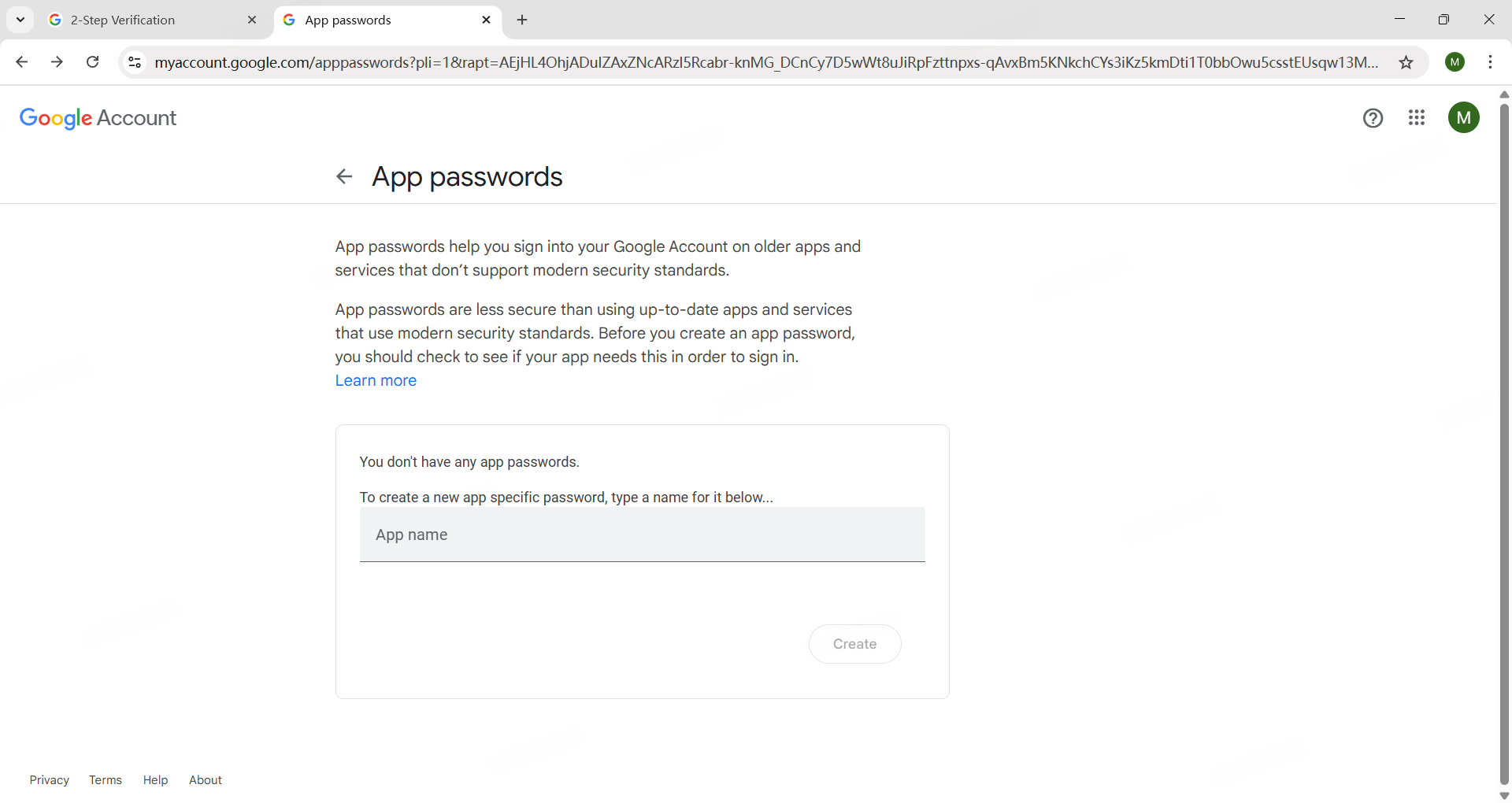
Go to: Create App Password
- In the App passwords page, you can name this password “Hikari CS" or any other name, it doesn't matter.
- Click Create
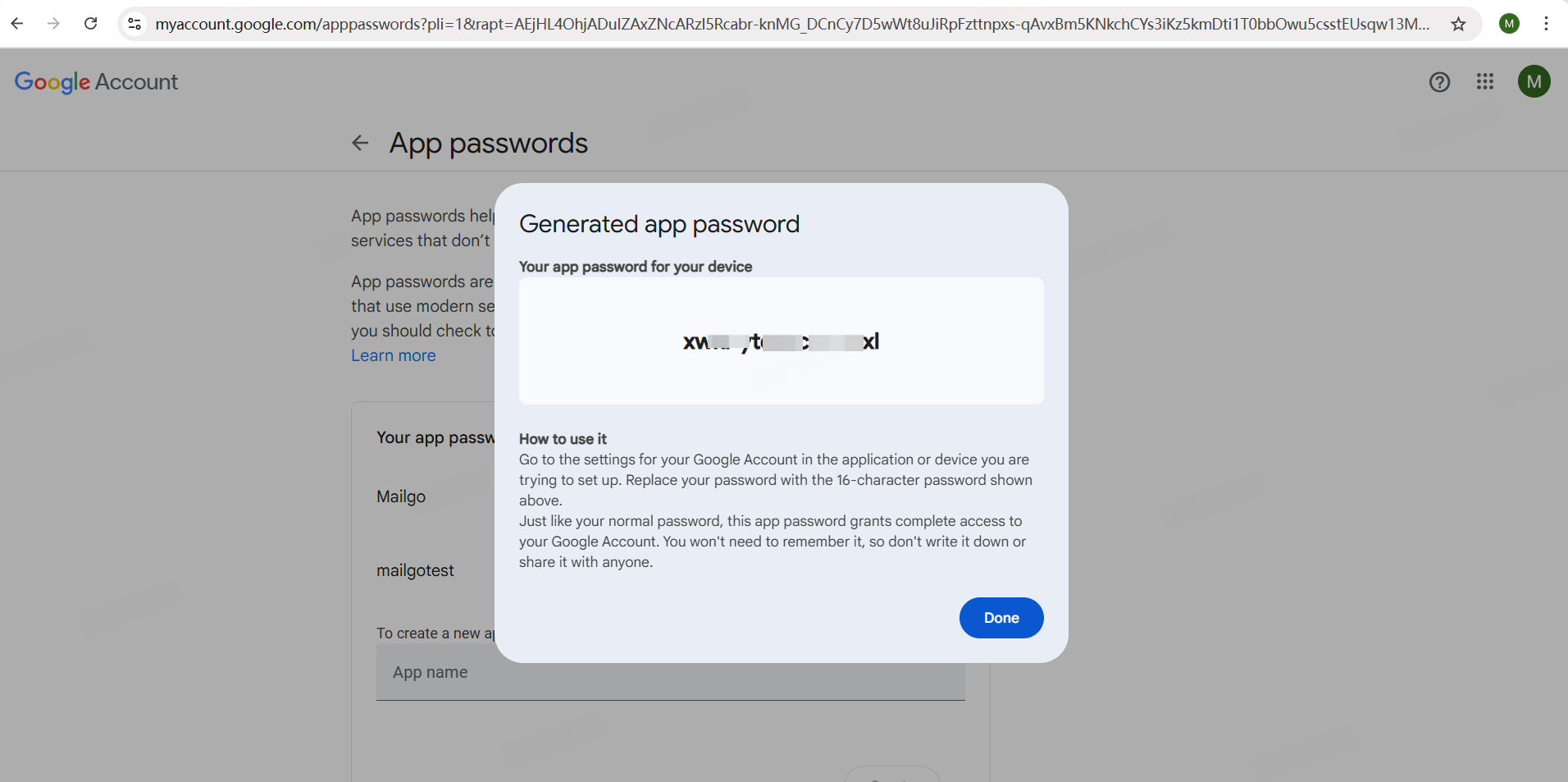
- Copy your generated App Password (that's the one you'll use to connect the account to Hikari CS).
3. Connect your Gmail account in Hikari CS
Now go back to Hikari CS > Settings > Inboxes
Choose Google as the account type.
Fill in the following fields:
- Email (your Gmail address)
- Sender First Name
- Sender Last Name
- Password→ Paste the App Password you just generated
Note: This is not your regular Gmail password, only the App Password generated above.
And you’re done!