Edit a contact in a conversation
Updated at 2026-07-26
Every conversation is linked to a contact. You can update the contact's details without leaving the conversation.
Open the contact options
In the conversation header, click the three-dots menu next to the contact's name and email. You will see three actions:
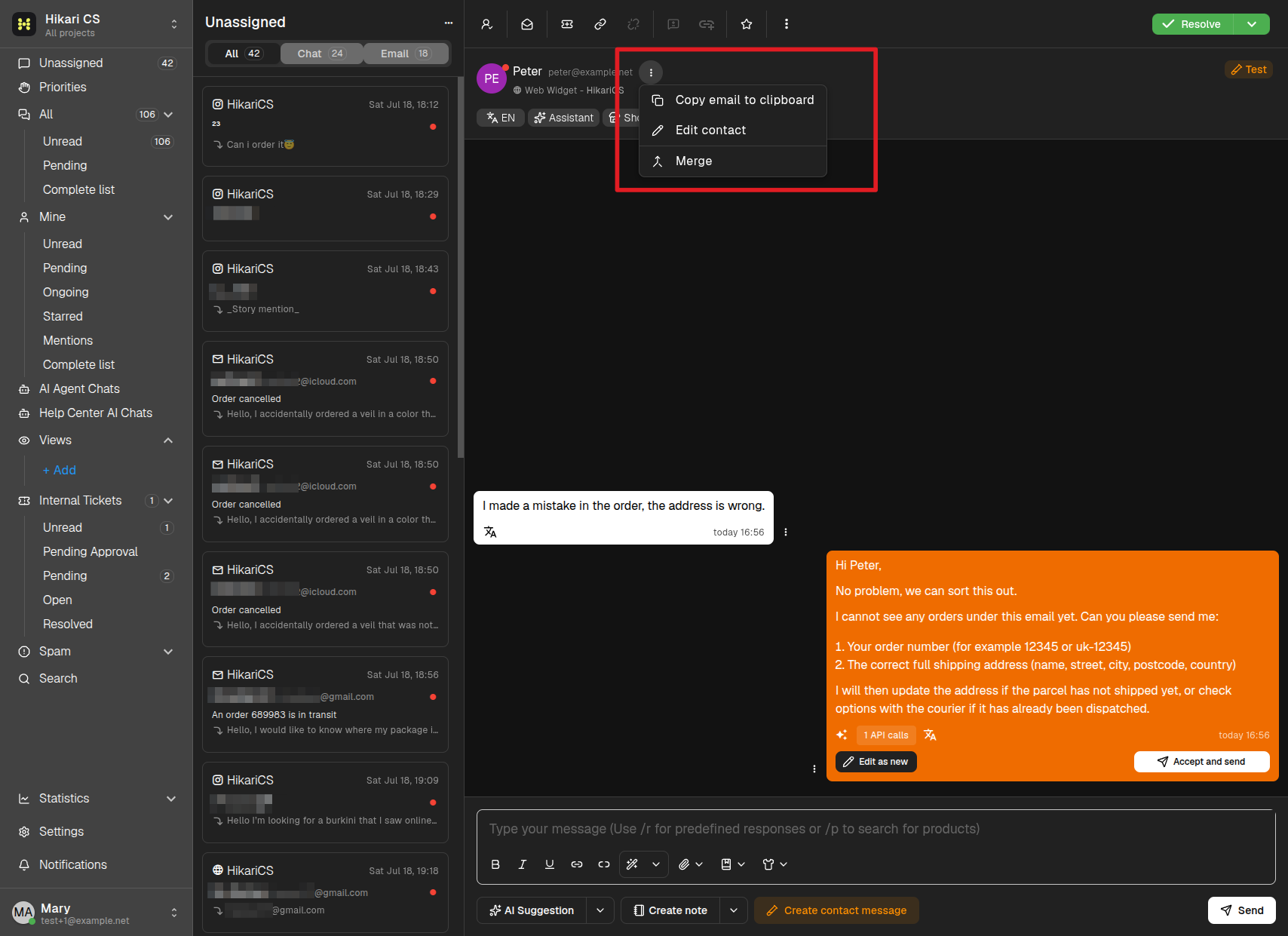
- Copy email to clipboard — Copies the contact's main email address.
- Edit contact — Opens the contact editor.
- Merge — Combines this contact with another one.
Edit the contact
Click Edit contact to open the editor:
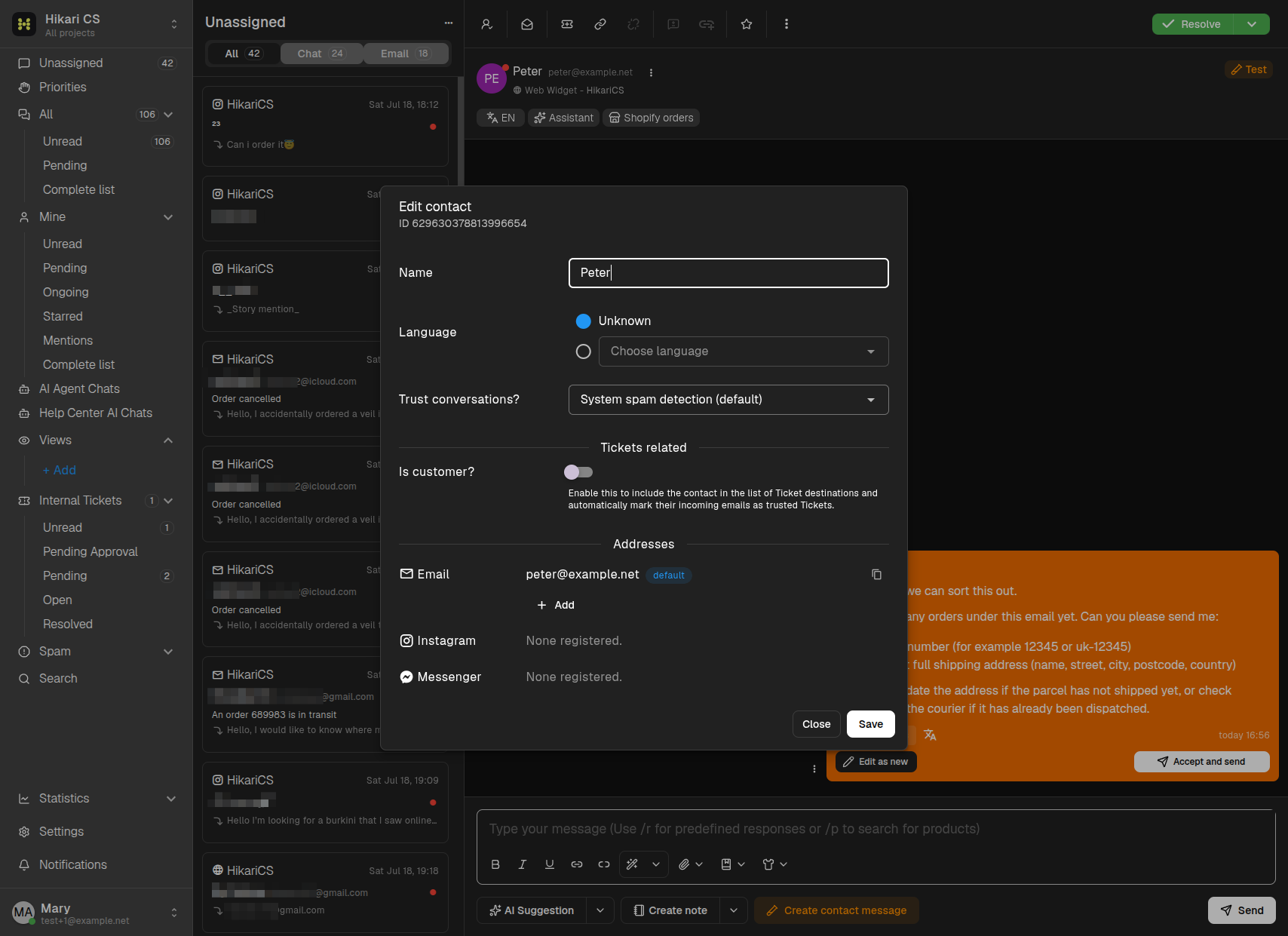
From here you can:
- Change the contact's Name.
- Set their Language (or leave it as Unknown for automatic detection).
- Decide whether to trust their conversations instead of using the system spam detection.
- Manage their addresses: the Email section shows the current addresses, and the + Add button lets you register additional email addresses for the same contact. Instagram and Messenger identities are listed too when available.
Click Save when you are done.
Add an email detected in a message
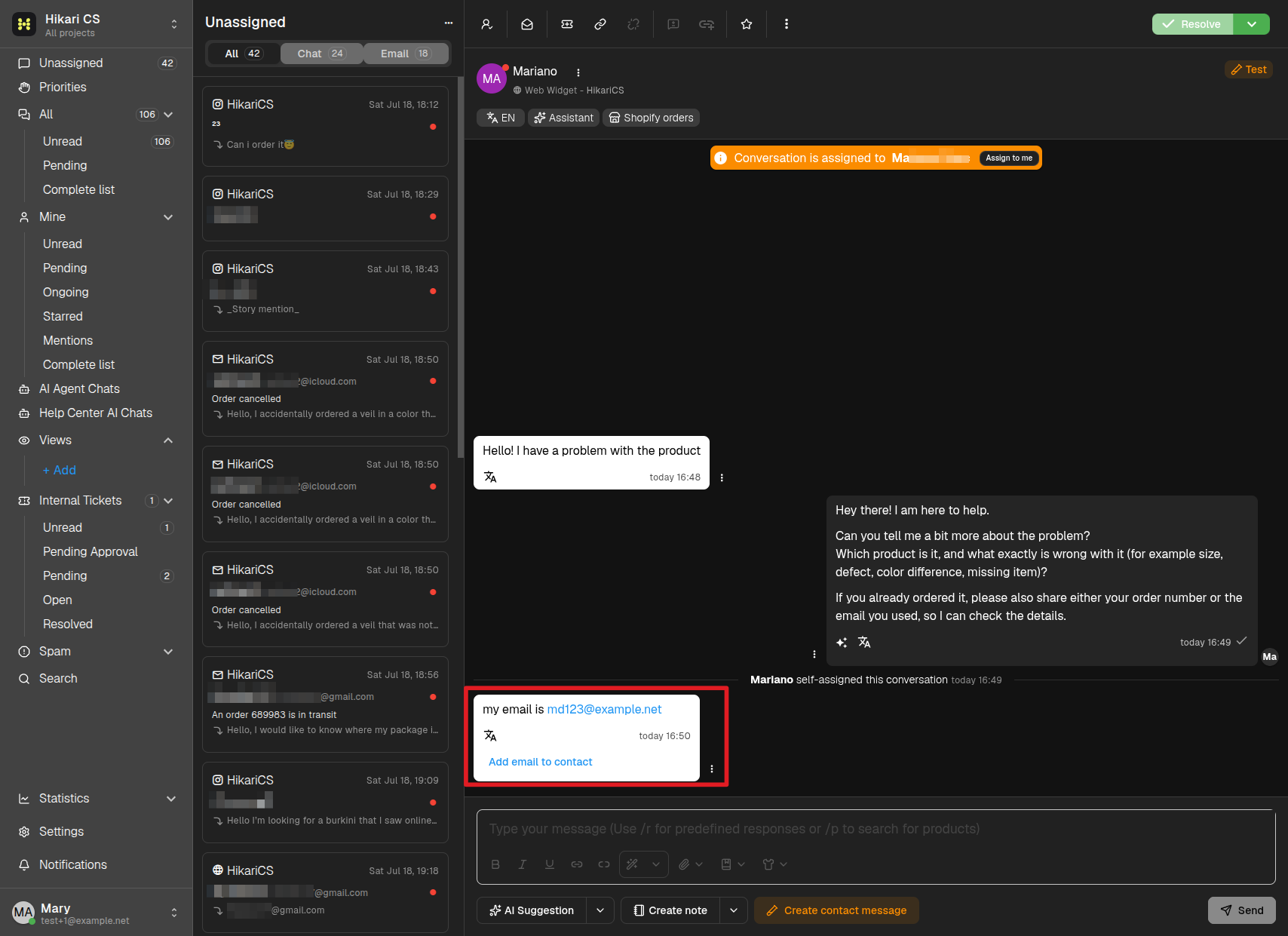
When a contact writes an email address inside a message, the system detects it and shows an Add email to contact button right below that message. Click it to register the address on the contact with one click — no need to open the editor.
Merge two contacts
If the same person exists as two different contacts (for example, they wrote from two different email addresses), you can merge them:
- Open the contact options menu and choose Merge.
- In the Merge contact dialog, use the search field to find the other contact. This is the contact that will be kept.
- The current contact is marked as To be deleted — its conversations and data move to the kept contact.
- Click Merge to confirm.
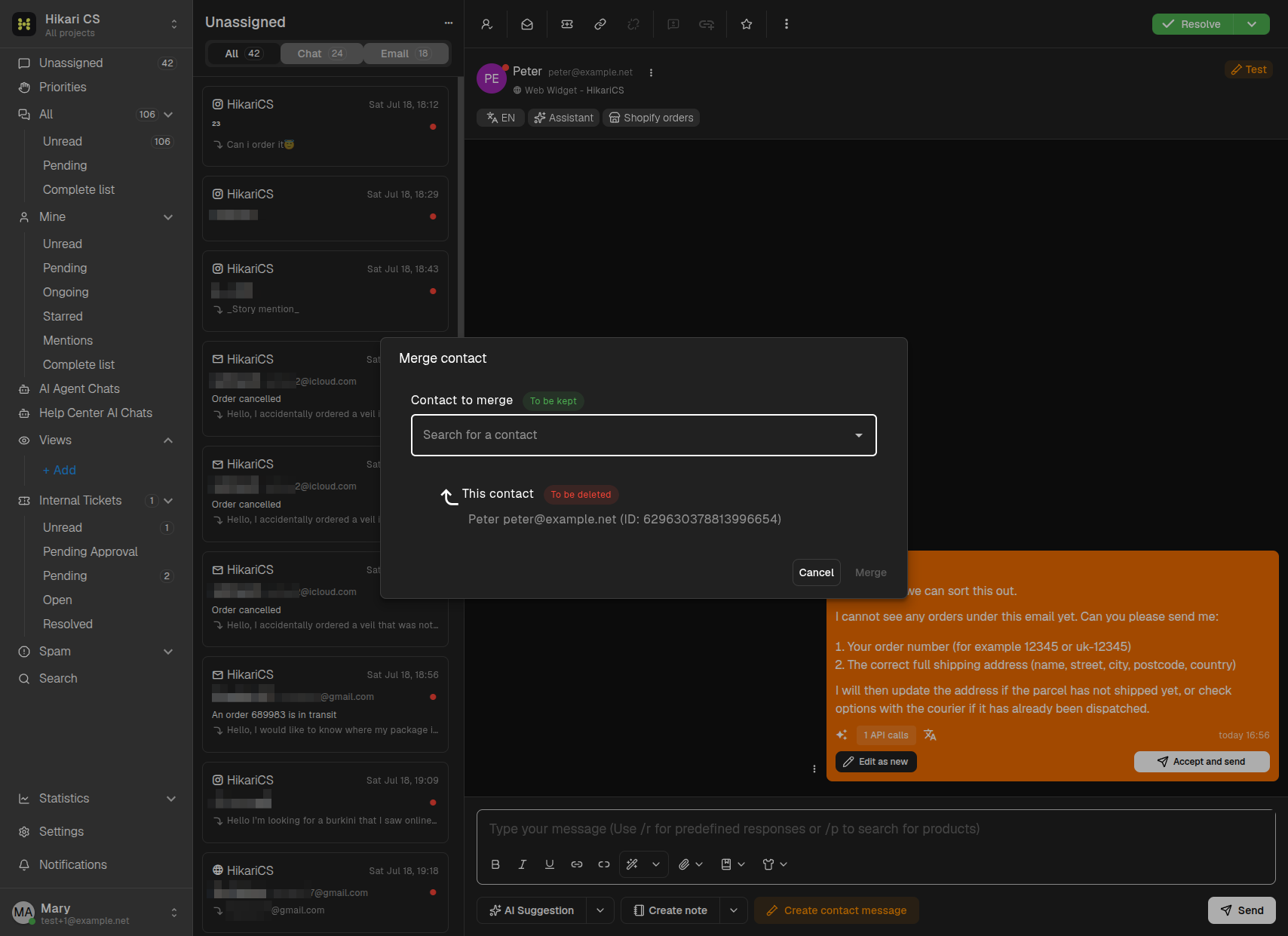
Merging cannot be undone, so double-check that both contacts really are the same person.