Conversation dashboard: basic navigation overview
Updated at 2026-07-26
The conversations dashboard is where you spend most of your time in Hikari CS. It is organized in three columns: the main menu on the left, the conversation list in the middle, and the open conversation on the right.
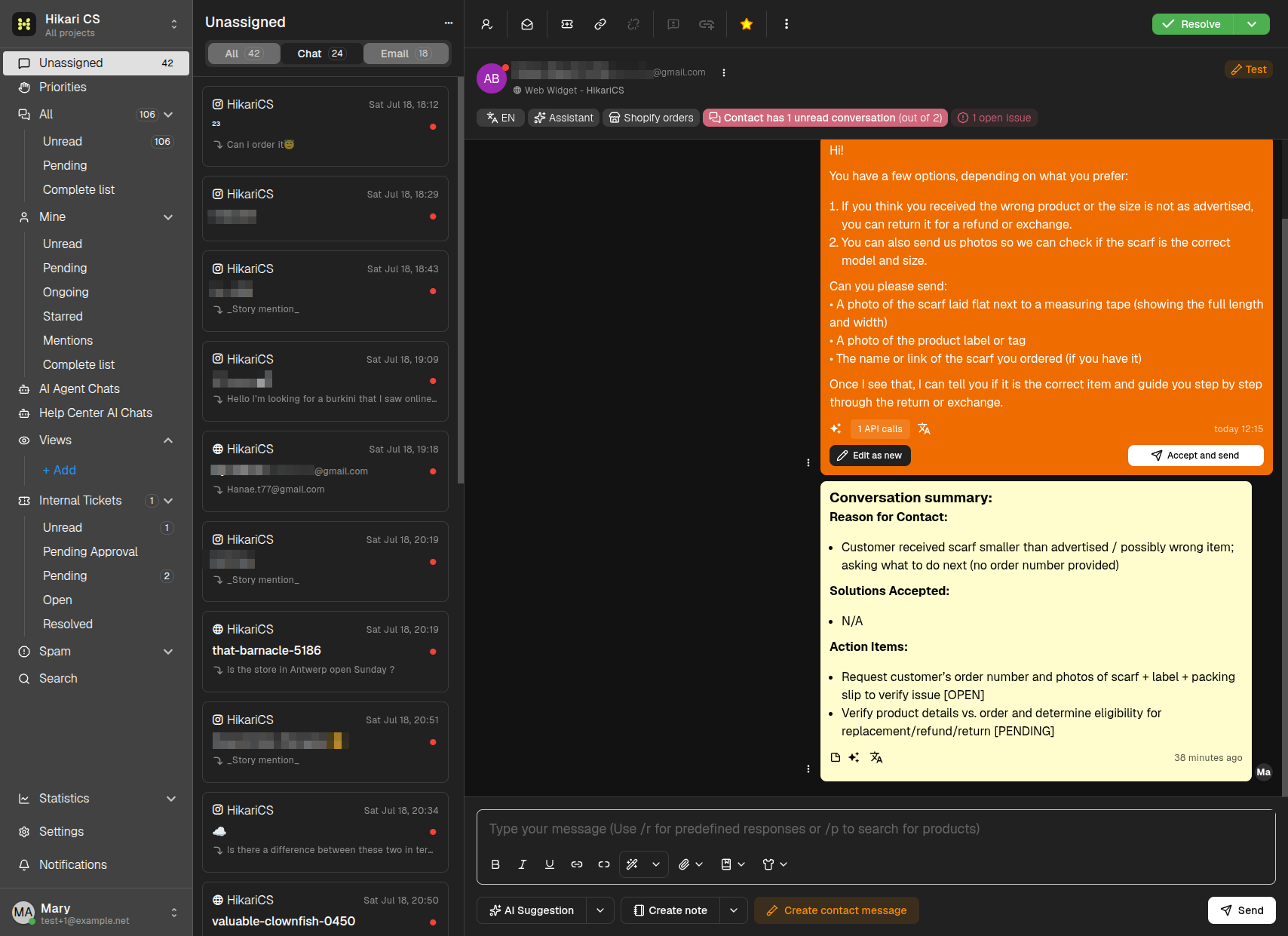
The left menu
The left menu groups your conversations so you always know where to look:
- Unassigned — New incoming conversations that nobody has picked up yet. The number badge shows how many are waiting.
- Priorities — The big picture across your team:
- All — Every open conversation.
- Unread — Conversations with messages nobody has read.
- Pending — Conversations set aside while waiting for something.
- Complete list — All conversations, including resolved ones.
- Mine — The conversations assigned to you, split into Unread, Pending, Ongoing, Starred, Mentions, and a Complete list.
- AI Agent Chats — Conversations currently handled by your AI Agent standalone bot.
- Help Center AI Chats — Conversations started from the AI answers in your Help Center.
- Views — Your custom saved filters.
- Internal Tickets — Tickets for your internal team, split into Unread, Pending Approval, Pending, Open, and Resolved.
- Spam — Conversations marked as spam (manually or by spam detection).
- Search — Search across all conversations.
At the bottom of the menu you also find:
- Statistics — Reports on conversations, reported issues, peak times, campaigns, revenue, and SLA.
- Settings — Account and project settings, including billing.
- Notifications — Your notification feed.
- Your profile — The bottom row shows your avatar, name, and email; click it for account actions.
The conversation list
The middle column shows the conversations of the group you selected in the left menu.
- The title at the top matches the selected group, and the ... button next to it refreshes the list.
- The tabs filter the list by channel: All, Chat, and Email, each with a counter.
- Every row shows the inbox icon, the date, the contact name (and email or social handle when available), the subject for emails, and a preview of the last message.
- A red dot means the conversation has unread messages.
- Badges such as Test or Resolved mark special states.
Click a conversation to open it in the main panel.
The main conversation panel
The right side is where you work on a single conversation:
-
Header toolbar — A row of icon buttons:
- Assign to me / Unassign — Take or release ownership.
- Mark as read — Clear the unread flag.
- Ticket buttons — Create a ticket or attach/detach one for follow-up.
- Star — Bookmark the conversation.
- Three-dots menu — More actions: Open in new tab, Stats and usage, Delete, and a CSAT enabled toggle when the inbox supports satisfaction surveys.
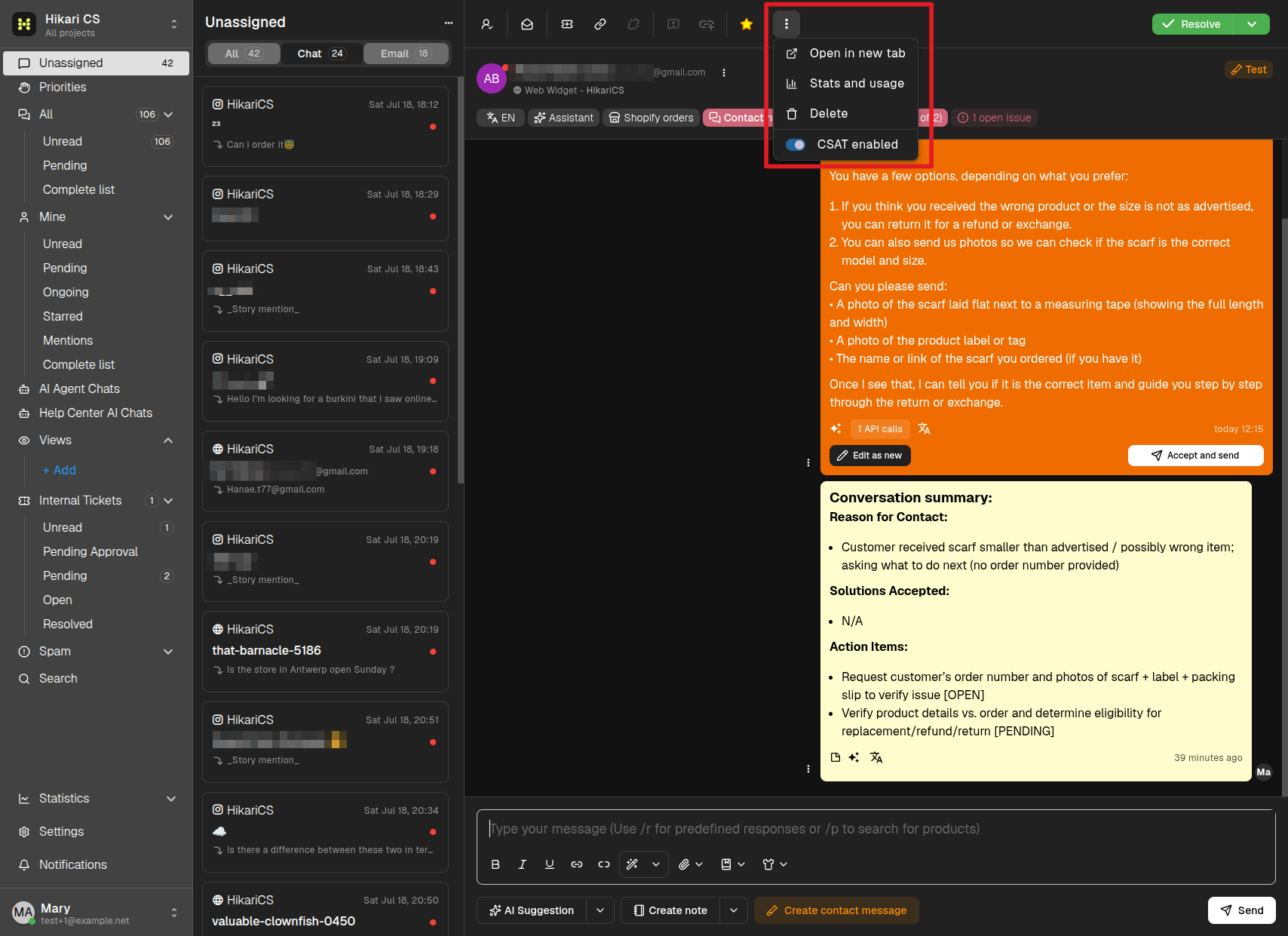
-
Status button — The green Resolve button with its chevron for Mark as pending, Snooze..., and Resolve as spam (see Change a conversation's status).
-
Contact row — The contact's name and email, with its own three-dots menu for Copy email to clipboard, Edit contact, and Merge.
-
Context buttons — Below the contact: the language button, Assistant, Shopify orders (for Shopify-connected projects), the red contact conversations button, and issue report chips when present.
-
Message stream — The full history: customer messages, agent replies, internal notes, and system events such as assignments or status changes.
-
Composer — The text field at the bottom where you write replies, notes, and use shortcuts like
/rand/p(see Reply to incoming messages).