Connect Shopify stores
Updated at 2026-07-26
Connecting your Shopify stores to Hikari CS lets you pull order and product data into conversations, power AI replies, and enable features like product issue reporting.
You can connect multiple Shopify stores to a single account, and each project can use one or more of those stores.
Connect a store from inside Hikari CS
-
In the left sidebar, click Settings to open Account settings.
-
Click Projects.
-
Select the project you want to connect a store to.
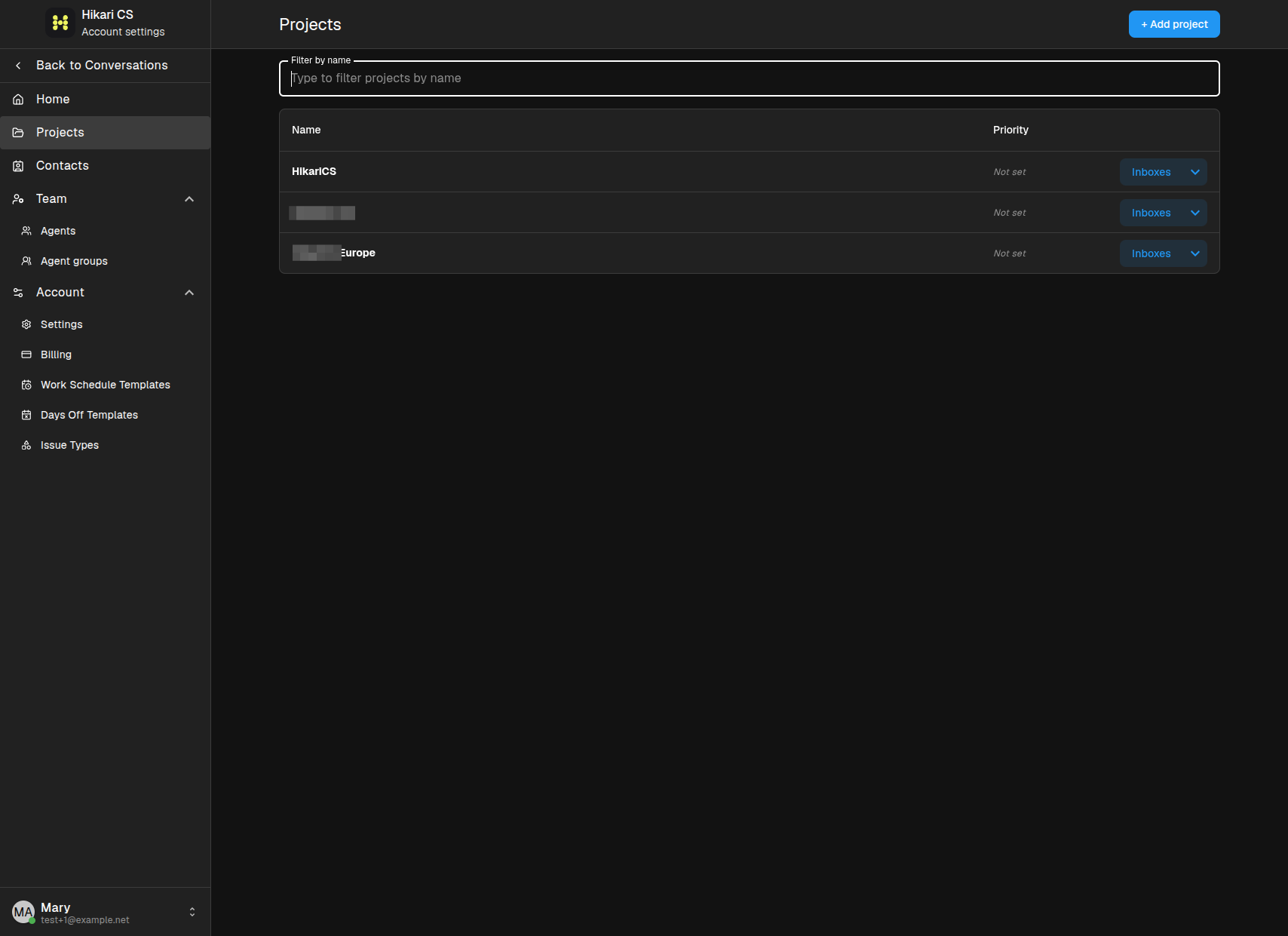
-
In the project menu, click Integrations > Shopify stores.
-
Click + Add Shopify store.
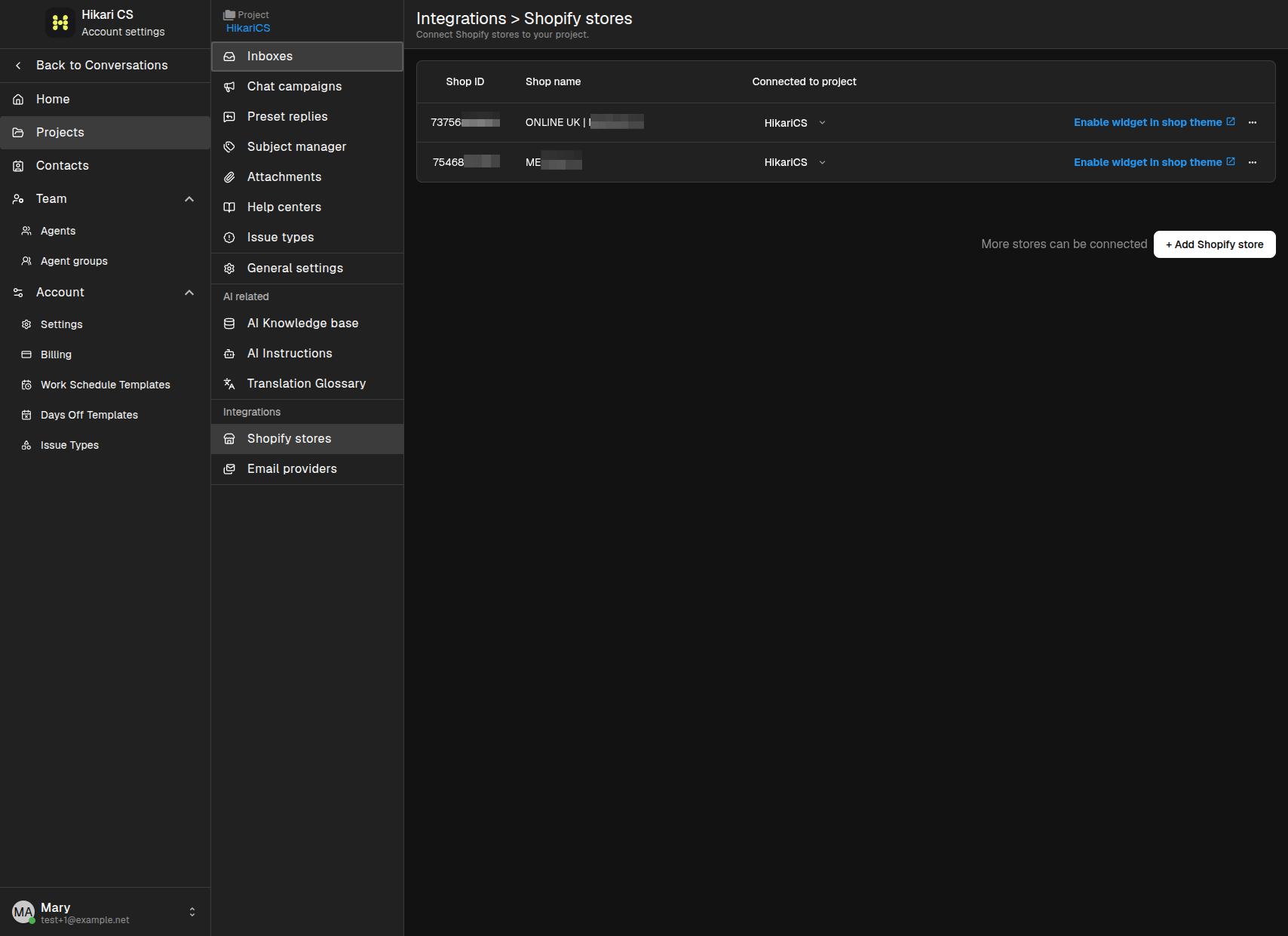
-
You are redirected to Shopify. Log in to your Shopify account and authorize Hikari CS to access your store.
-
When you return to Hikari CS, the store appears in the Shopify stores list.
Connect a store from the Shopify App Store
You can also start the connection from Shopify:
-
Go to the Hikari CS app listing in the Shopify App Store.
-
Click Install.
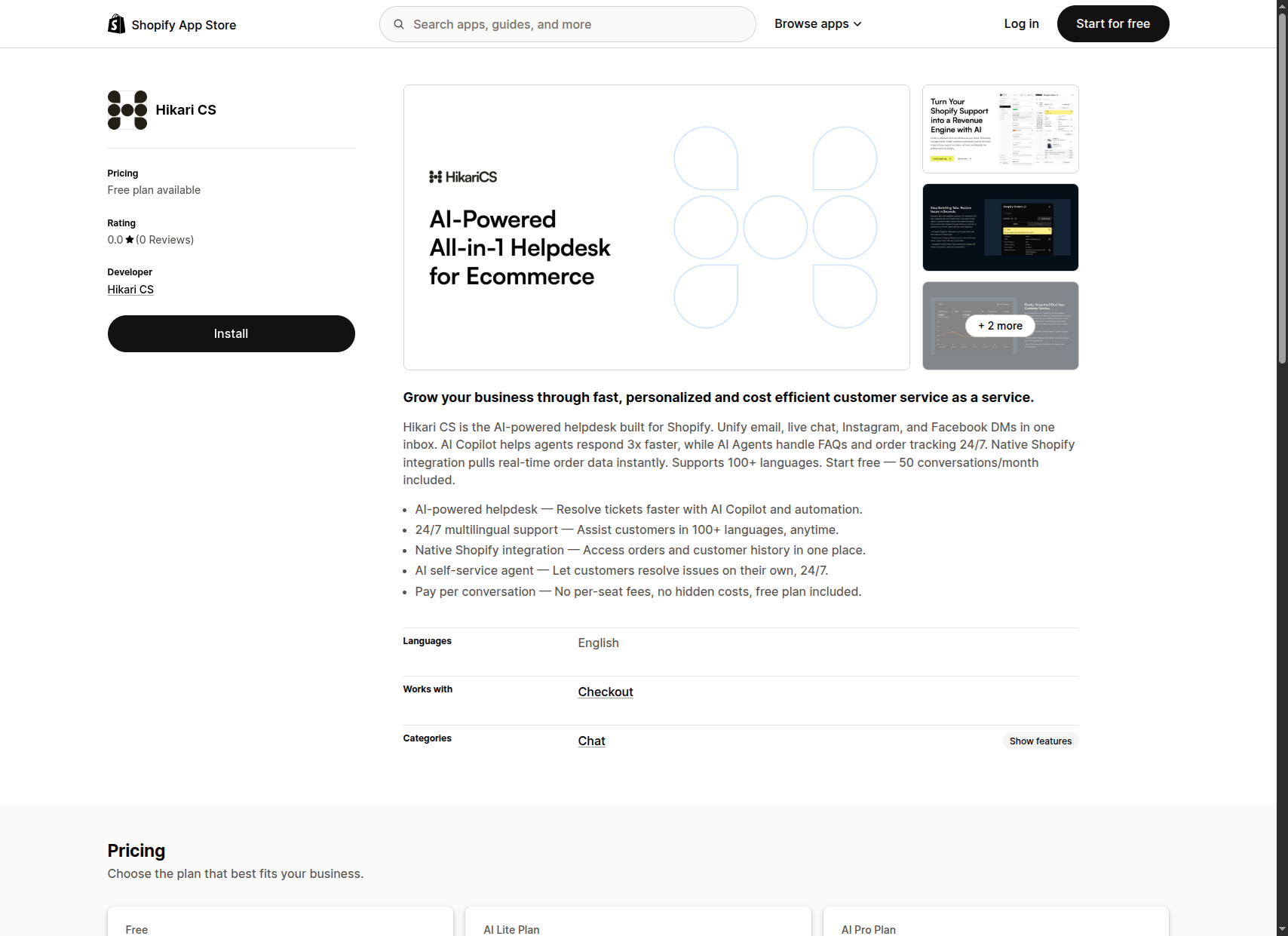
-
Log in to your Shopify account and authorize the connection.
-
You are redirected back to Hikari CS, where the store is added to your project.
Manage connected stores
After a store is connected, it appears in the Shopify stores list with its Shop ID, shop name, and the project it is connected to. From here you can also enable the Hikari CS widget in your shop theme.
Repeat the steps above to connect more stores to the same project or to other projects.