Change a conversation's status
Updated at 2026-07-26
The status of a conversation tells your team where it stands. You control it from the top-right corner of the conversation header.
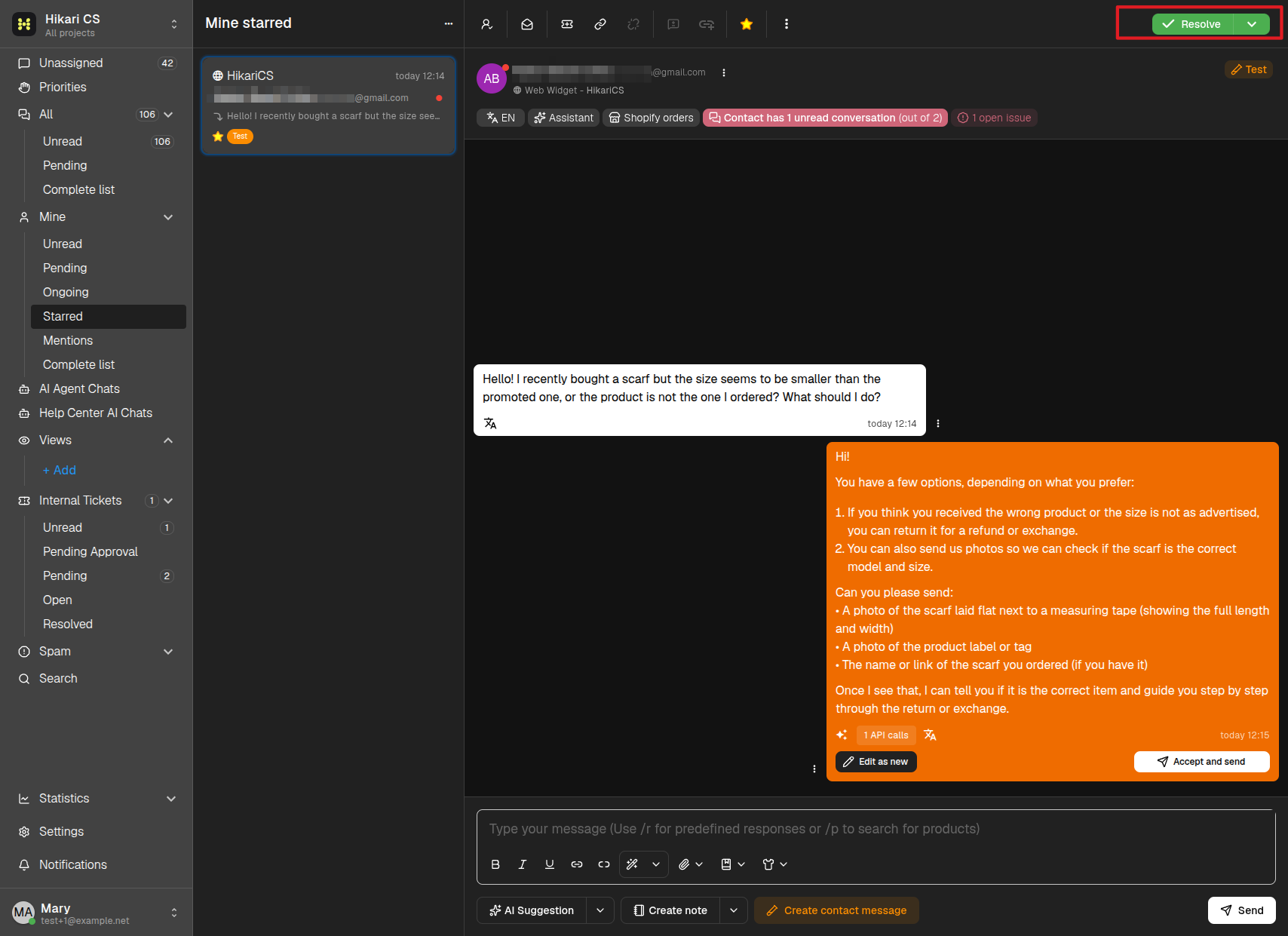
Resolve a conversation
When the customer's issue is solved, click the green Resolve button. The conversation closes and moves out of your open lists.
Resolved conversations are not deleted — you can always find them again and Reopen them if the customer comes back.
More status options
Click the chevron next to the Resolve button to see the other options:
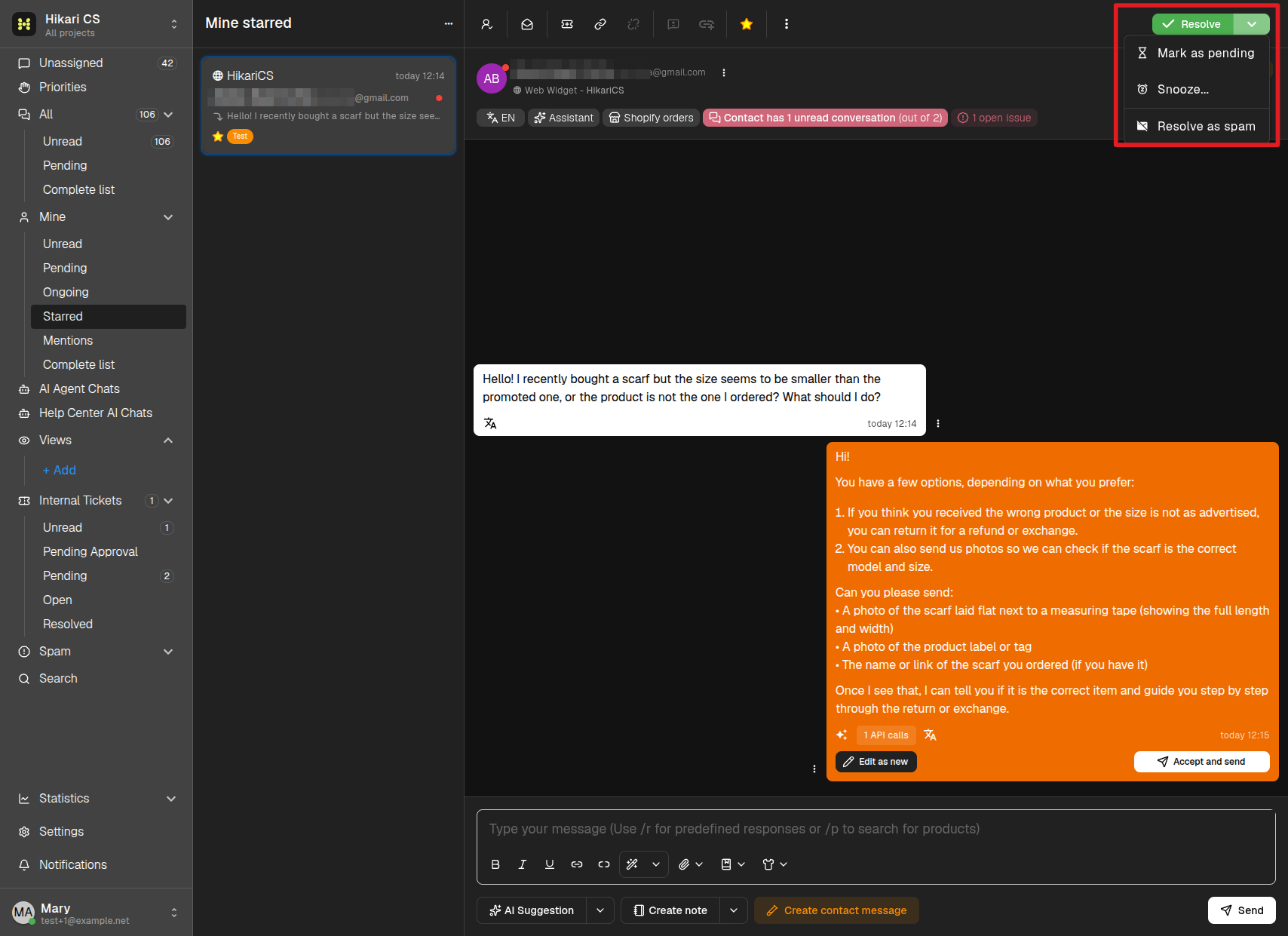
- Mark as pending — Sets the conversation aside while you wait for more information (for example, an answer from the customer or a colleague). Pending conversations appear under the Pending filters in the left menu, and the header button turns into Open so you can reactivate the conversation at any time.
- Snooze... — Hides the conversation until a date and time you choose.
- Resolve as spam — Closes the conversation and marks it as spam.
Snooze a conversation
Snoozing is perfect for conversations you want to handle later without losing them:
- Click the chevron next to Resolve and choose Snooze....
- In the Snooze conversation dialog, pick a date in the calendar on the left.
- Pick a time on the clock on the right (or type the hour and minutes).
- Click Snooze.
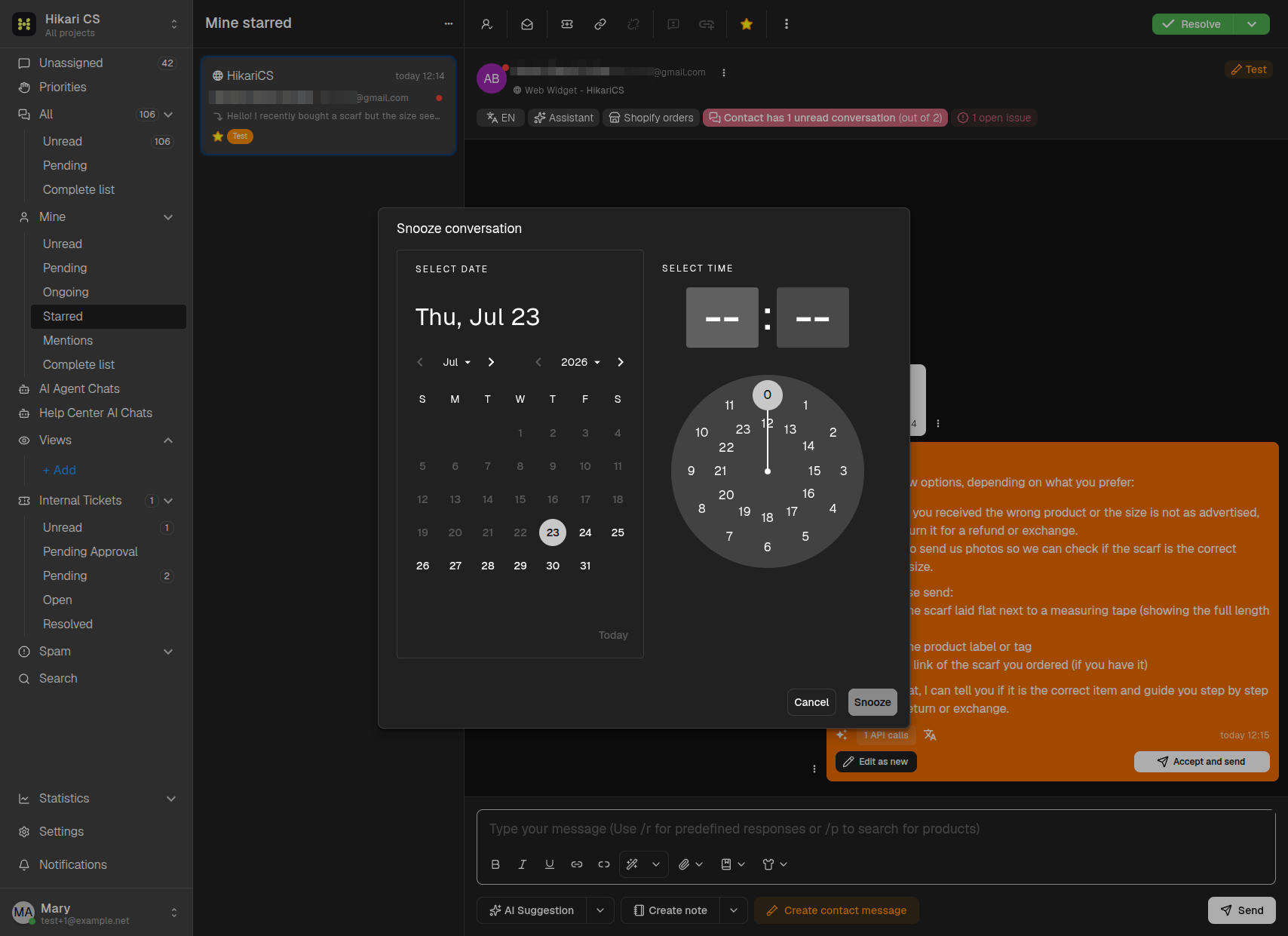
The conversation disappears from your open lists and automatically comes back when the snooze time arrives. While snoozed, the conversation header shows a Snoozed until … label. If you want it back earlier, open the same chevron menu and choose Clear snooze.