Add bol.com as a channel
Updated at 2025-03-19
In this guide we'll walk you through the setup of bol.com with Hikari CS.
This guide consists of 2 parts:
1. Adding a user to a bol.com seller account
Our agents need to access your bol.com account to look up orders in case customers reach out with order specific questions. For those cases we need an account.
You can easily add a new user by going to the "Gebruikers en Rollen" in your bol.com seller account or access it with this link.
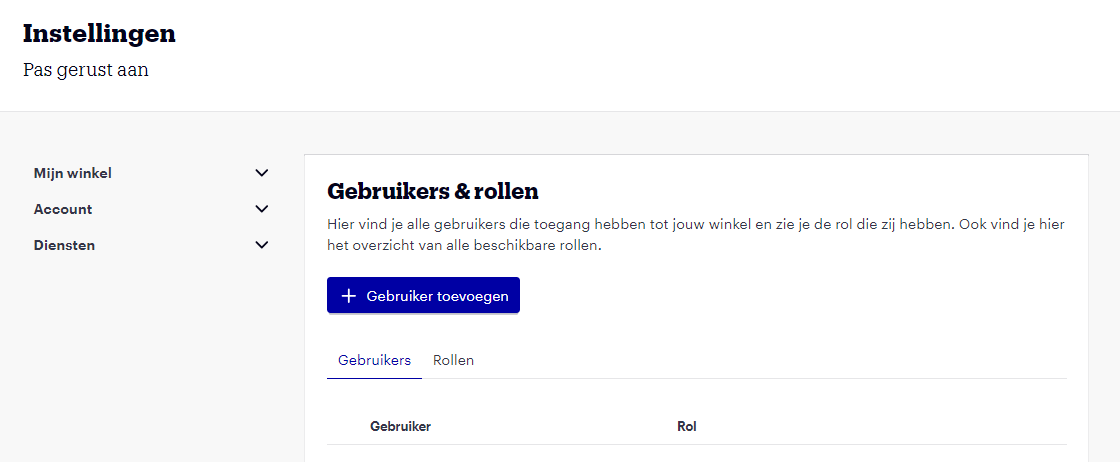
In the screen above add ops@hikarics.com as a new user and add the following rights to this user:
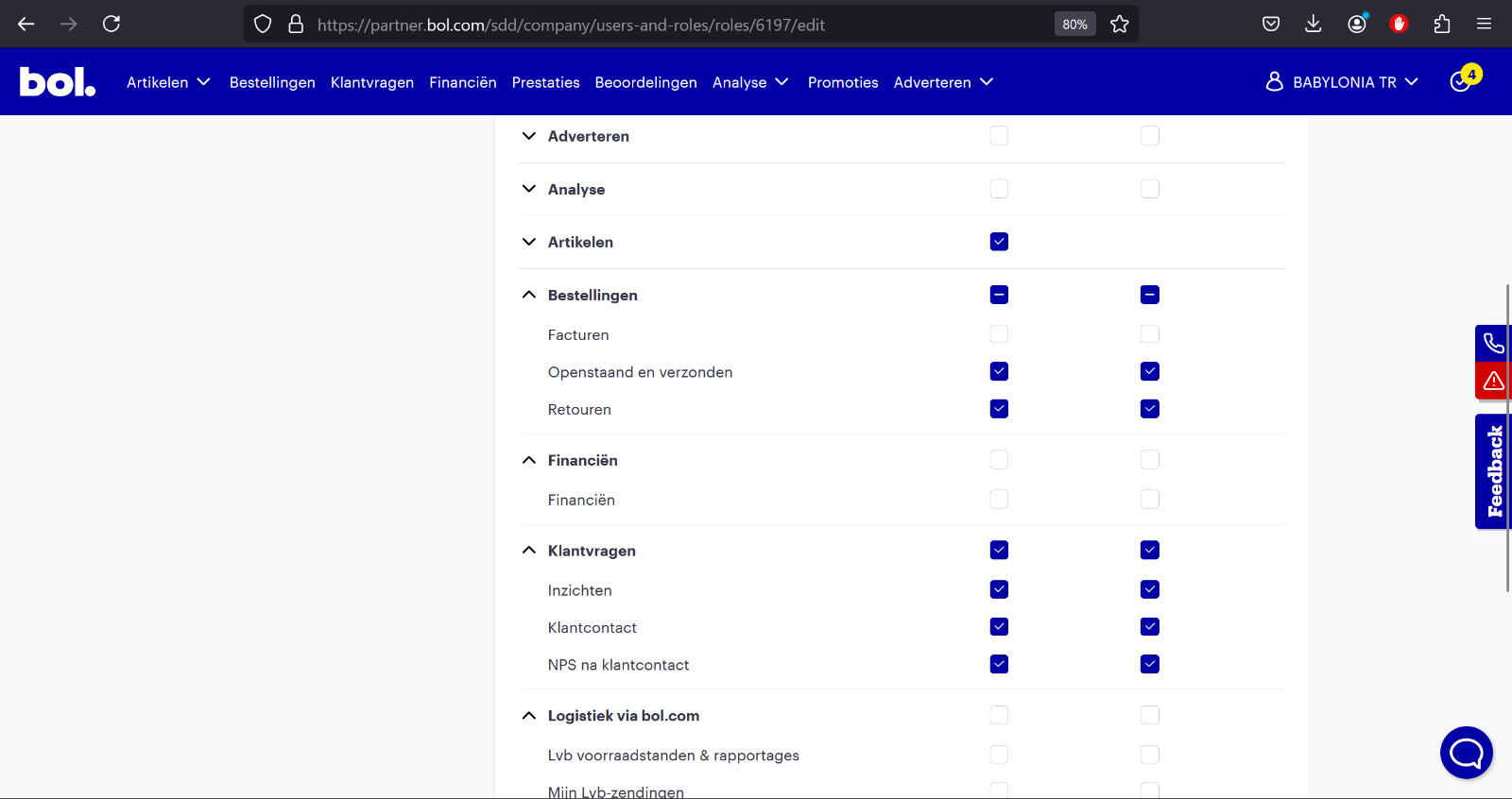
Perfect! We'll now receive an invitation which our team will accept.
2. Forwarding email from bol.com to Hikari CS
In order for us to automatically receive customer requests you'll need to setup the right email address in your seller account.
-
Copy the forwarding email address you've received from Hikari CS. It looks something like this: xxxxxxxx@hcs.yourdomain.com.
-
Login to your bol.com seller account at https://partner.bol.com/sdd/
-
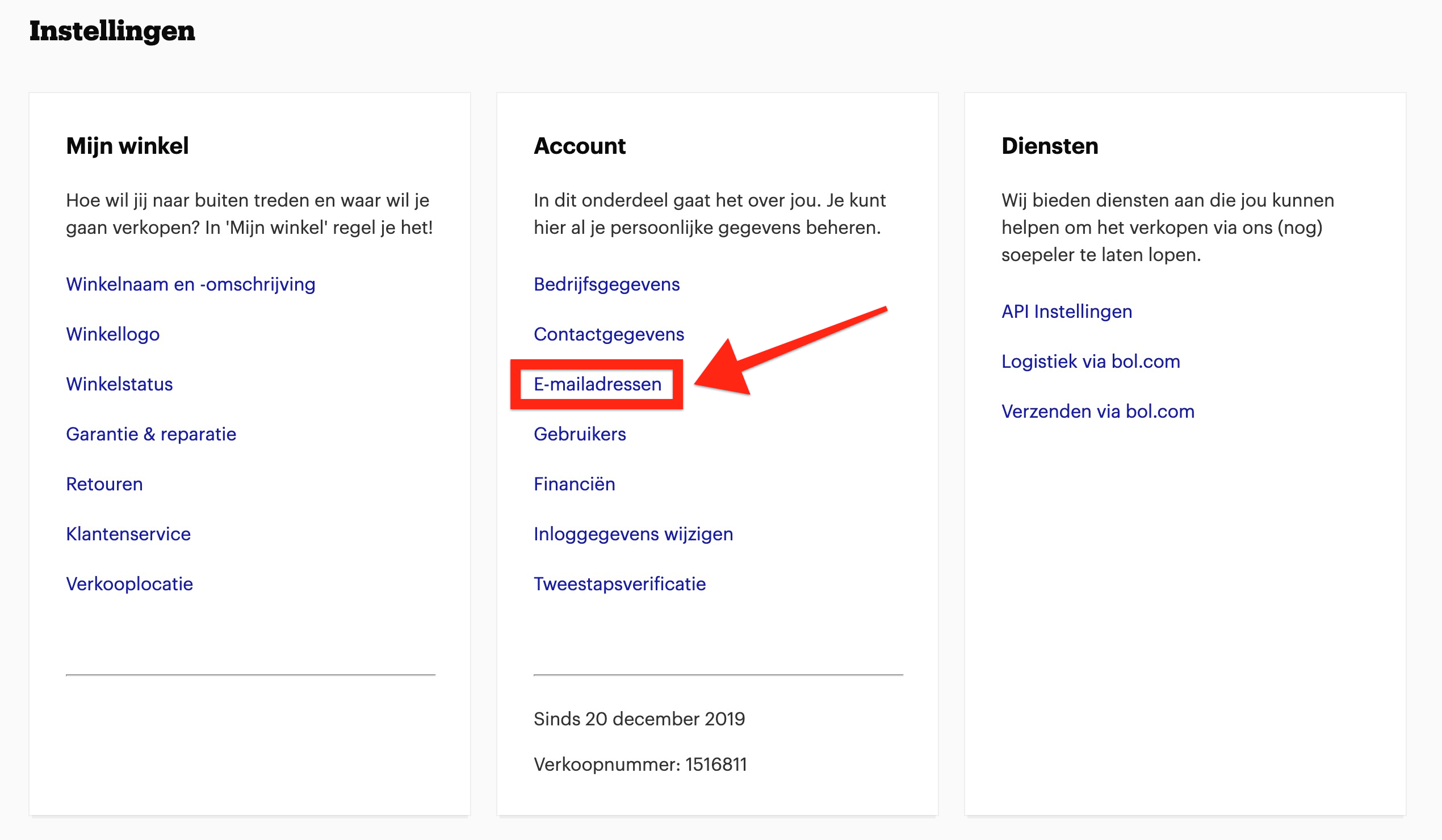
Go to "Instellingen" and go to "E-mailadressen" as shown below.
-
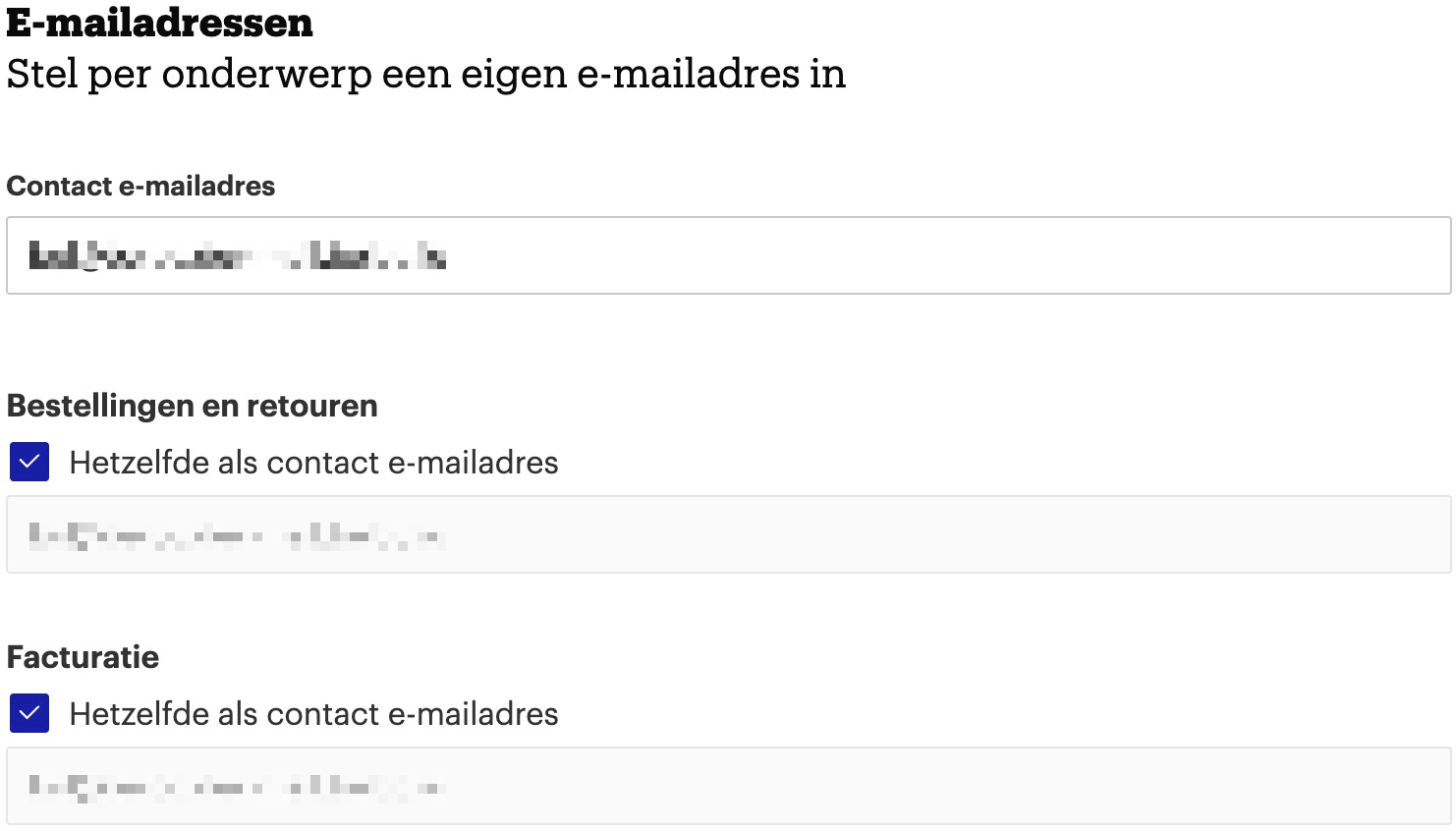
Paste the forwarding email address from Hikari CS in the fields as shown below and click "opslaan":
-
Now you'll have to send an email request to bol.com to enable email forwarding. Send an email to zakelijkverkopen@bol.com with the subject "Sellergroup SDP Email Integration". Ask bol.com in this email to turn on "Sellergroup SDP Email Integration" and give them the Hikari CS forwarding email address you've used earlier.
Perfect, you've completed the bol.com setup!