Add a FAQ to your live chat home screen
Updated at 2025-03-25
Our chat widget has a convenient feature that allows to show your top 4 FAQ questions.
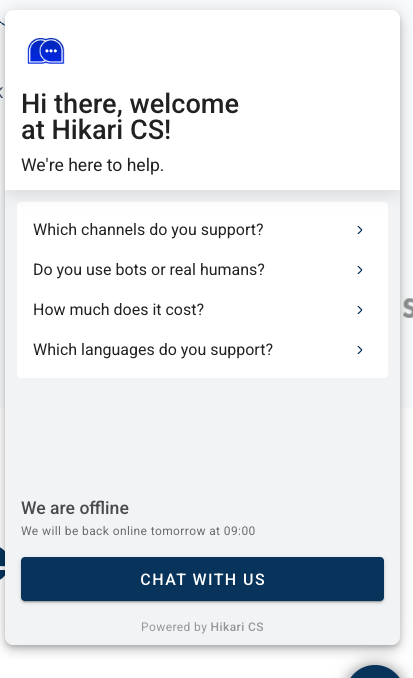
This allows your customers to find answers quickly while still having the option to connect with your customer service team.
Keep in mind that articles selected as part of your chat FAQ should be short and to the point!
We recommend 3-6 sentences in your FAQ articles. If you need more, you can always consider ending a FAQ article with a link to a full article in your help center. This way you can offer both of best worlds!
Add help center articles to your FAQ
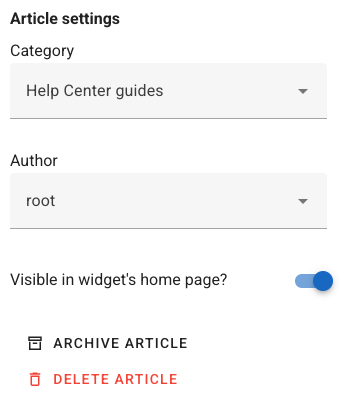
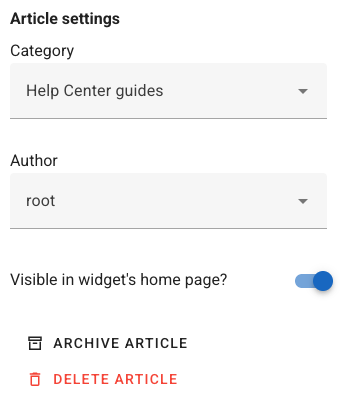
You can simply select existing articles from your help center to be included in the chat FAQ. Go to the help center article you want to add to the chat FAQ and flip the switch “Visible in widget’s home page?”.
That’s it!
Hide FAQ articles from your Help Center
FAQ articles you add to your chat widget should be generally short. A maximum of 3-6 sentences is recommended. This is not a hard rule, but the guidance should be that once your article is loaded in the chat screen that it should fit in its entirety without the need to scroll to read the complete answer.
That’s why we recommend creating FAQ articles specially for your chat widget’s home screen. And you probably also want to to hide these “special” articles.
Here’s how to do that:
-
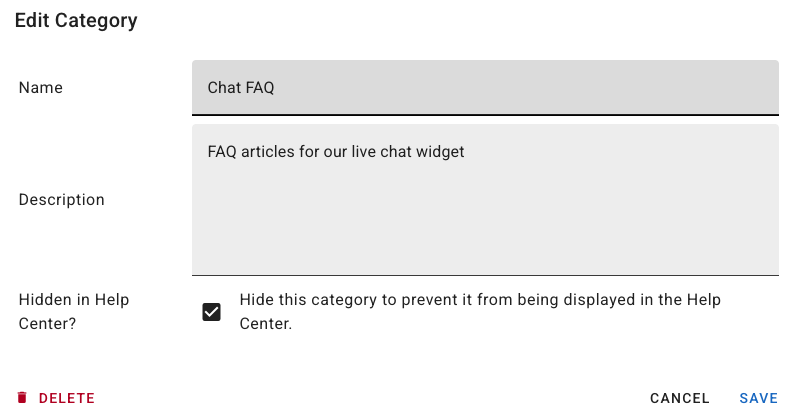
Create a new category. Give it a simple name like “Chat FAQ“.
-
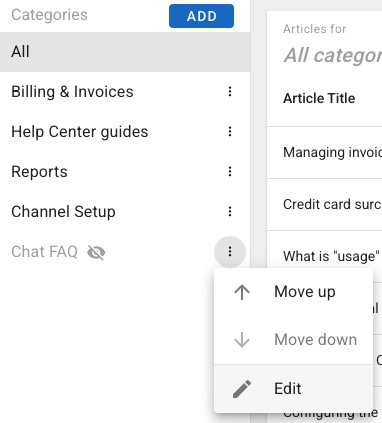
Open the settings of this new category by clicking the 3 dots icon behind the category name.
-
In the settings dialogue, choose to hide this category from your help center.
-
Create a new help article for your FAQ (for example: How to return my order).
-
Select the category you created in step 1 in the column on the right.
-
Toggle “Visible in widget’s home page?” in the column on the right.
That’s it! You’ve created an article in a hidden category that’s only visible in your website’s chat widget.